The best approach to storing digital photos long term is to keep several independent copies rather than trusting one device or service. Ideally, maintain a primary photo library, a local backup on separate storage and another copy in a different physical location or reputable cloud service. Check these copies periodically and replace ageing storage media.
A practical long-term photo storage plan should therefore include:
- Keep more than one copy of every important photograph.
- Use different storage locations so one accident cannot destroy everything.
- Retain the highest-quality original files, not just reduced social-media copies.
- Organise photos logically with meaningful folders and filenames.
- Check your backups regularly rather than assuming they still work.
- Move files to newer storage devices periodically as equipment ages.
- Keep important physical originals, even after they have been digitised.
This approach reflects professional digital-preservation principles: The National Archives recommends multiple copies, different physical locations and, where possible, different storage technologies. The National Archives
Why One Hard Drive Is Not a Photo Archive
One of the most common mistakes is thinking, “I’ve copied all my photos onto an external hard drive, so they’re safe.”
They aren’t necessarily.
Hard drives fail. SSDs can fail. Memory cards become corrupted. USB sticks get lost. Computers can be stolen or damaged, while files can also be accidentally deleted or overwritten.
The important distinction is between storage and backup. A photograph stored in only one place has no backup, regardless of whether that place is your computer, an external drive or the cloud.
The National Archives warns that storage can fail or become corrupted and recommends creating multiple copies. Its professional preservation guidance also recommends reviewing storage and transferring material to newer storage periodically. The National Archives
For family photographs, you don’t need to recreate a national archive. You can, however, borrow the same underlying principle: never allow an irreplaceable photograph to exist in only one place.
Follow the 3-2-1 Principle for Storing Digital Photos
A simple way to build resilience is the widely used 3-2-1 backup approach:
- 3 copies of your important photographs;
- 2 different forms or locations of storage;
- 1 copy kept off-site.
For example, you might have your working photo collection on your computer, a second copy on an external hard drive and a third copy in cloud storage.
Alternatively, you could use two external drives and keep one at a trusted family member’s house.
The exact technology matters less than avoiding a single point of failure.
The National Archives’ guidance similarly recommends several copies in different physical locations and using different storage technologies where possible. The National Archives
For especially precious family archives, an off-site copy matters. If your computer and backup drive are sitting beside each other, theft, fire or flooding could affect both simultaneously.
Which Storage Method Is Best for Digital Photos?
There isn’t one perfect storage medium. A combination usually provides better protection.
| Storage method | Advantages | Limitations | Best use |
|---|---|---|---|
| Computer | Convenient and quick | Device failure, theft or accidental deletion | Working collection |
| External HDD | High capacity and economical | Mechanical failure and physical damage | Main local backup |
| External SSD | Fast, compact and no moving parts | More expensive per TB | Convenient secondary storage |
| Cloud storage | Off-site and accessible | Ongoing cost, account dependence and internet required | Off-site backup |
| USB flash drive | Small and convenient | Easily lost and unsuitable as your only archive | Temporary transfer |
| Memory card | Convenient in cameras | Easy to lose, damage or overwrite | Capture rather than permanent archive |
| NAS | Large capacity and automated options | More complex and still needs another backup | Larger collections |
The crucial question isn’t simply “Which hard drive should I buy?” It is “What happens to my photographs if this particular device fails?”
If the answer is “I lose them”, you need another copy.
External Hard Drive or Cloud: Which Is Better?
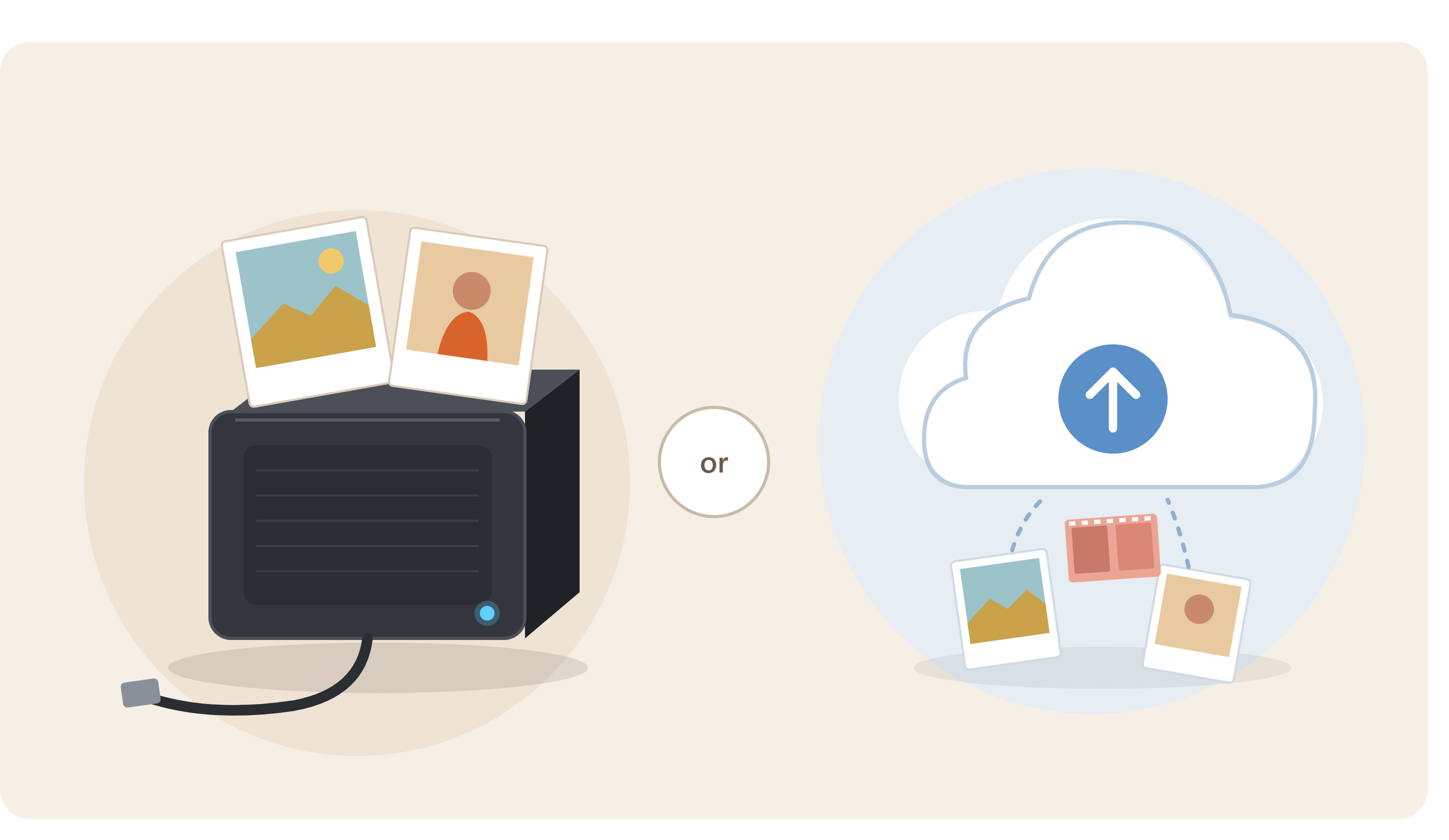
For many households, using both is more sensible than choosing between them.
An external drive gives you direct control over your files and can hold a very large collection without requiring an internet connection. Cloud storage provides geographical separation and can make automated backup easier.
Neither is infallible.
A cloud account shouldn’t necessarily be treated as your sole archive. Accounts, subscriptions and services can change, and synchronisation can sometimes propagate an accidental deletion across devices.
Likewise, owning two external drives provides limited protection if they’re permanently stored together.
For particularly valuable photographs, combine local control with off-site protection.
Keep Your Original, Highest-Quality Photo Files
Storage space is relatively inexpensive compared with the value of irreplaceable family photographs, so avoid unnecessarily reducing the quality of your master files.
If you have the original full-resolution image from a digital camera, keep it. Don’t make a WhatsApp image, social-media download or compressed email attachment your only surviving version.
For newly digitised photographs, retain the best-quality master produced during scanning alongside convenient copies for everyday viewing.
The Library of Congress guidance on digital photographs favours maintaining the highest available resolution and preserving a faithful representation of the original. Library of Congress
You can then create smaller JPEGs for sharing without compromising your preservation master.
JPEG, TIFF or RAW: What Should You Keep?
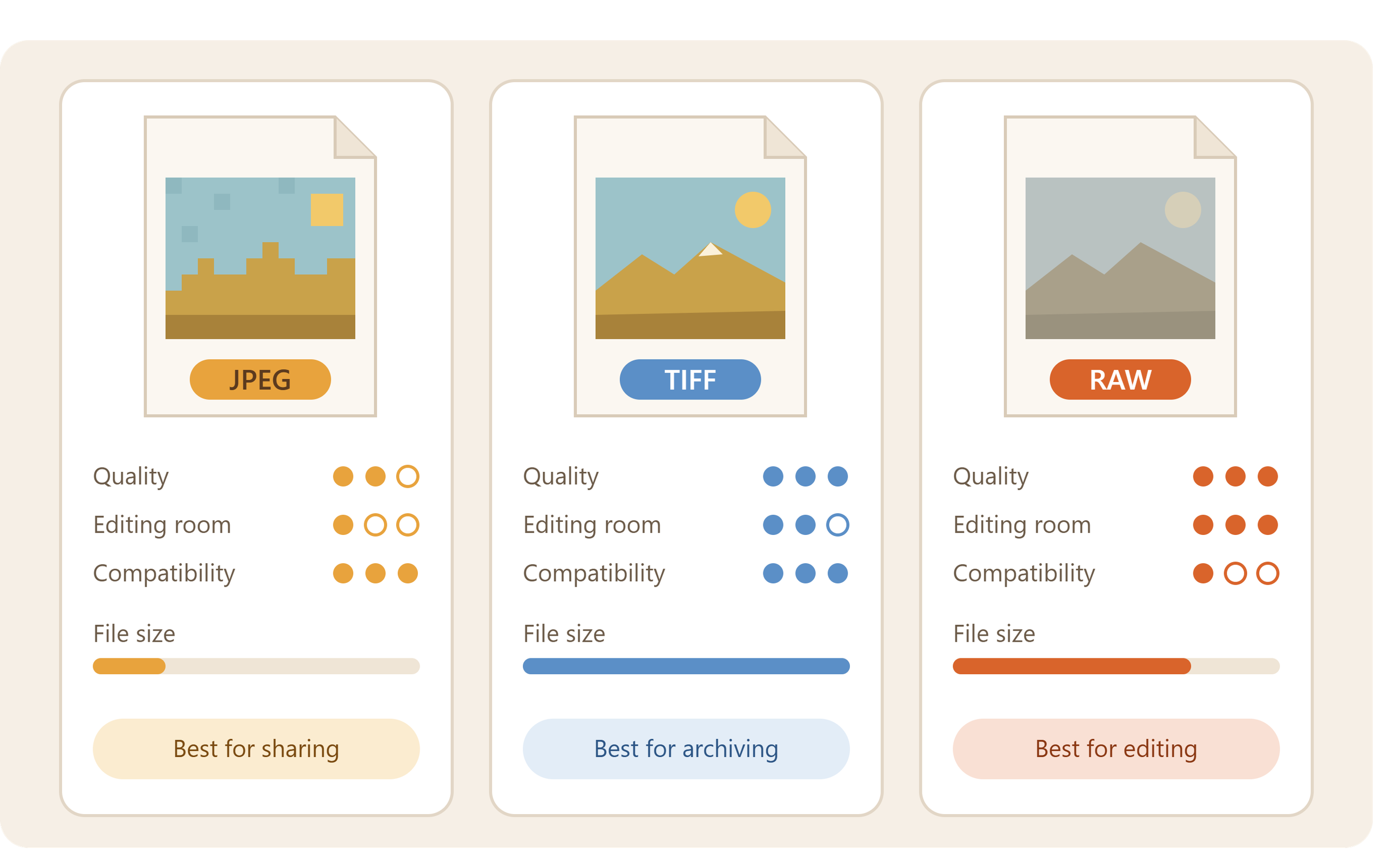
Different file types serve different purposes.
JPEG
JPEG is extremely common, compact and widely supported. For ordinary family photographs originally created as JPEGs, retain the original files rather than repeatedly opening and resaving them at lower quality.
TIFF
TIFF is commonly used for high-quality archival image masters because it can preserve images without the lossy compression associated with conventional JPEG workflows.
The Library of Congress includes TIFF, JPEG2000, PNG and JPEG/JFIF among its preferred digital photograph formats, alongside recommendations concerning resolution, bit depth and colour information. Library of Congress
RAW
If photography is important to you, retaining original RAW files gives you access to the original camera data for future processing. However, RAW formats can be manufacturer-specific, so it can be sensible to retain high-quality processed versions alongside them.
The bigger principle is simple: don’t discard your best source file just because you have created a smaller copy.
Organising Your Digital Photo Collection
Preservation isn’t much use if nobody can find anything.
Avoid leaving thousands of files with names such as:
IMG_4728.JPG
A straightforward folder structure might instead look like:
Family Photos > 1998 > France Holiday
or:
Family Photos > 2007 > Sarah's Wedding
You don’t necessarily need to rename every individual photograph. Good folder organisation can provide enough context while leaving original filenames intact.
For important collections, record useful information while somebody still remembers it:
- names of people;
- approximate dates;
- locations;
- occasions;
- photographer, if known;
- relevant family relationships.
Metadata and contextual information can be almost as important as the pixels themselves. A perfectly preserved photograph of five unidentified people becomes considerably less useful to future generations.
What About Photos on Old USB Sticks, CDs and Memory Cards?
Old removable media shouldn’t be treated as permanent storage.
You may have photographs scattered across USB drives, SD cards, CDs, DVDs, old laptops and external hard drives. The immediate priority is to consolidate them without destroying the originals.
Copy the files to secure current storage, check that the copied photographs open correctly and back them up before wiping or disposing of anything.
The National Archives recommends identifying digital records held on removable media and transferring them into a more secure storage environment. The National Archives
If you have a mixture of older devices, Supaphoto’s storage-media transfer service can help consolidate accessible files onto modern media, particularly where years of family material have accumulated across different storage formats. This is the relevant service specified in the supplied brief. Pasted markdown
Check Your Photo Backups – Don’t Just Make Them
A backup that was created six years ago and never examined shouldn’t automatically be assumed to be healthy.
Build a simple routine:
- Connect your backup drive.
- Confirm that the expected folders are present.
- Open a selection of photographs.
- Check that recent photographs have actually been backed up.
- Look for obvious errors or missing folders.
- Replace questionable or ageing storage devices before they fail.
- Confirm that your off-site or cloud copy is also accessible.
Professional digital preservation uses fixity checking, including checksums, to verify that files haven’t unexpectedly changed. The National Archives specifically discusses using checksum tools to confirm copied digital content is identical. The National Archives
Most households won’t need an elaborate archival system, but the principle is valuable: a backup should be verified, not merely assumed.
How Often Should You Replace Photo Storage?
There is no reliable universal lifespan for a hard drive, SSD, disc or memory card. Conditions, manufacturing, usage and storage all matter.
A better strategy is active preservation rather than trying to find a storage device that will supposedly last forever.
The National Archives advises organisations to review digital storage every three to five years and move content onto newer storage. It also recommends monitoring whether file formats and the technology required to access them are becoming obsolete. The National Archives
For a family archive, that doesn’t mean every hard drive will fail after five years. It means you shouldn’t put precious photographs onto a device, place it in a drawer and assume it will remain readable for decades.
Should You Delete the Physical Photos After Scanning?
Usually, no.
Digitisation provides a highly useful additional form of preservation and makes photographs much easier to access, duplicate and share. The British Library notes that digitisation can help preserve collections and make them more accessible. British Library
But a scan isn’t the physical original.
Where practical, retain valuable prints, negatives and slides in appropriate storage even after creating high-quality digital copies. The originals may contain detail or historical information that could become useful later, and future scanning technology may improve.
Think of digitisation as protecting access to the image, not automatically replacing the original object.
Common Mistakes When Storing Digital Photos
Keeping Everything on One Device
This is the biggest weakness. One failure can destroy the entire collection.
Using a USB Stick as the Family Archive
USB sticks are excellent for moving files between computers but shouldn’t be the only home for irreplaceable photographs.
Assuming Cloud Sync Equals Backup
Synchronisation and backup aren’t always the same. Understand whether deleted or changed files can be recovered and for how long.
Compressing Everything to Save Space
Don’t replace good originals with heavily compressed copies merely to save storage capacity.
Forgetting Passwords and Account Access
Consider how trusted family members could access important photographs if you couldn’t. Keep account-recovery arrangements secure and up to date.
Never Checking Old Drives
Digital preservation is an ongoing process, not a one-off purchase.
Frequently Asked Questions About Storing Digital Photos
What is the safest way to store thousands of digital photos?
Use multiple independent copies, with at least one stored somewhere physically separate from your main collection. Combine this with sensible organisation and periodic checks.
Is an SSD better than a hard drive for photo storage?
SSDs are fast, compact and resistant to mechanical shock, while HDDs remain economical for large collections. Neither should be your only copy.
Is cloud storage safe for family photos?
It can be an excellent part of a backup strategy, particularly because it provides off-site storage. However, keep another independent copy rather than relying entirely on one cloud provider.
Should I keep JPEG and TIFF versions?
If you have a high-quality TIFF preservation master, keep it and create JPEG copies for convenient viewing and sharing. If the original photograph exists only as a JPEG, preserve that original JPEG rather than converting it unnecessarily.
Can digital photographs really be kept forever?
No storage medium can sensibly be treated as “store once and forget forever”. Long-term preservation comes from maintaining multiple copies, checking them and migrating the collection as storage technology changes.
Making Your Digital Photos Last for Future Generations
The best method for storing digital photos isn’t a particular hard drive, SSD or cloud company. It is a system that anticipates failure.
Keep several copies, separate them physically, retain high-quality originals, organise the collection, verify your backups and periodically move the files to current storage. That turns a folder full of photographs into a much more resilient family archive.
And where precious photographs, films or files first need retrieving, digitising or transferring from older media, it ultimately makes sense to choose a professional company with years of experience handling irreplaceable material, such as Supaphoto Ltd.