For storing photos, an external hard drive is generally more suitable than an SD card or USB stick for a large photo collection. SD cards work best for capturing photographs in cameras, while USB sticks are convenient for transferring files. For long-term protection, however, no single device should be your only copy.
| Storage type | Best use | Capacity | Portability | Long-term photo storage |
|---|---|---|---|---|
| SD card | Camera capture | Low to high | Excellent | Poor as sole storage |
| USB stick | Moving and sharing files | Low to high | Excellent | Poor as sole storage |
| External HDD | Large photo libraries and backups | High | Good | Good as part of a backup system |
| External SSD | Fast, portable backup | High | Excellent | Good as part of a backup system |
| Cloud | Off-site backup | Flexible | Online access | Good as an additional copy |
The supplied brief identifies “Storing Photos” as the main keyword phrase and specifically asks for content aimed at UK readers comparing these storage options. Pasted markdown
Why the Device You Choose Is Only Half the Answer
People often ask which storage device will keep photographs safe for the longest. A better question is: what happens if that device fails?
Every storage medium can fail, become damaged, get lost or eventually become difficult to access. Long-term digital preservation therefore depends less on finding an indestructible device and more on maintaining several copies.
The National Archives’ digital preservation guidance recommends creating several copies, keeping them in different physical locations and, where practical, using different storage technologies. It also advises reviewing storage periodically and transferring material to newer storage. The National Archives
That principle works just as well for a family photo collection as it does for an archive.
SD Cards: Excellent for Taking Photos, Less Suitable for Archiving Them

SD and microSD cards are remarkably convenient. They’re tiny, fast and available in capacities capable of holding thousands of photographs.
Their main role, however, should normally be capture and temporary storage.
After a holiday, wedding or family occasion, leaving the only copy of your photographs on the camera’s memory card creates unnecessary risk. Cards can be misplaced, accidentally formatted, physically damaged or corrupted.
GOV.UK guidance concerning reusable imaging media describes SD cards and USB sticks as short-term storage and recommends transferring important data to secure storage as soon as practical. GOV.UK
A sensible photographic workflow is:
- Take photographs onto the SD card.
- Copy them to your computer or main photo library.
- Create a separate backup.
- Check that the copied files open correctly.
- Only then consider reformatting the card in your camera.
An SD card is therefore an excellent starting point for your photographs, but shouldn’t become their permanent home.
USB Sticks: Convenient for Moving and Sharing Photos
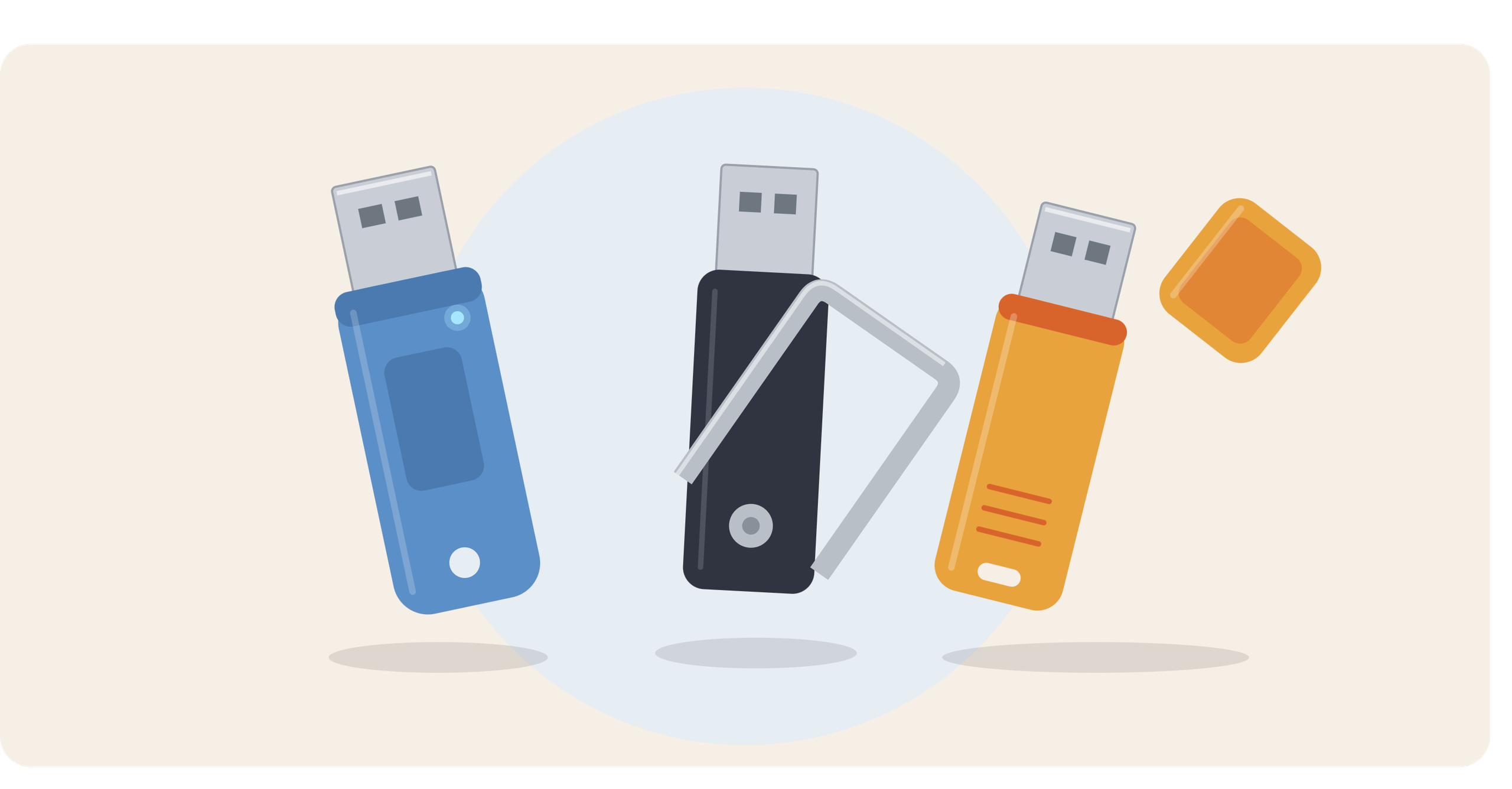
USB flash drives are extremely useful when you want to give photographs to relatives, move files between computers or carry a selection of images with you.
Their convenience is also their weakness.
A tiny USB stick containing twenty years of family photographs can disappear into a drawer, handbag or pocket remarkably easily. More importantly, flash storage shouldn’t be regarded as permanent archival media.
The National Archives advises moving records held on removable storage such as memory sticks into a more secure storage environment and recommends maintaining at least two copies. The National Archives
The Library of Congress takes a similar approach with digital collections arriving on external media, transferring content from items such as thumb drives and hard drives into managed storage rather than treating the original carrier as the archive. The Library of Congress
Use USB sticks for transport and convenience, rather than as the only repository for irreplaceable photographs.
External Hard Drives: Better for Large Photo Collections
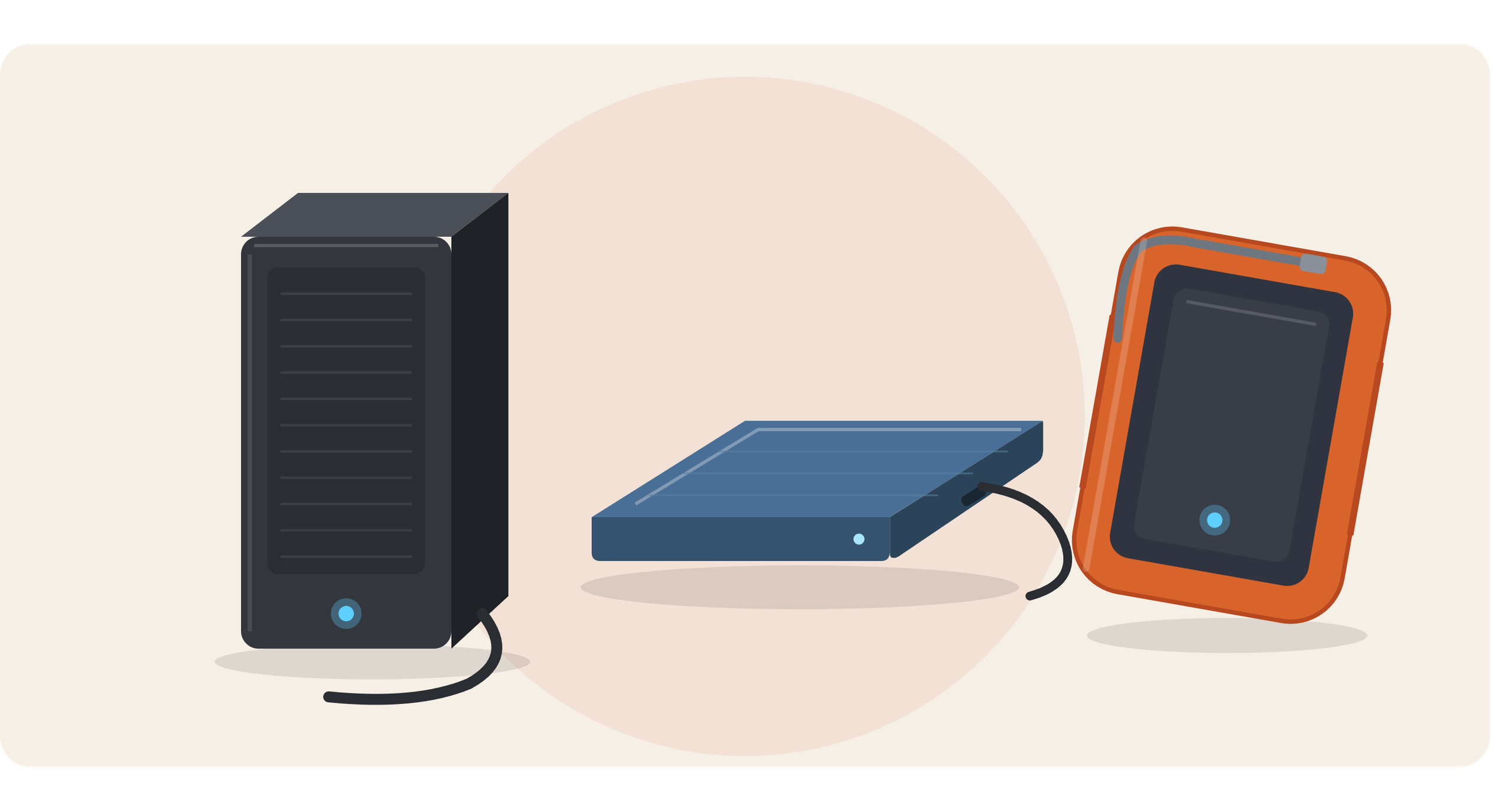
For most people with hundreds of gigabytes or several terabytes of photographs, an external hard disk drive offers a practical combination of capacity, convenience and cost.
You can maintain the same folder structure as your computer, store high-resolution originals and back up large collections relatively quickly.
External drives are particularly useful when digitising years of printed photographs, slides or negatives because high-quality image files can consume substantial storage space.
But an external hard drive still isn’t a complete preservation strategy.
Hard drives can suffer mechanical or electronic failure. They can also be dropped, stolen, damaged by water or accidentally overwritten.
The key is to regard an external HDD as one component of your photo backup, rather than the backup.
If the computer and external drive contain identical photographs, you now have two copies. Add another copy stored elsewhere and the collection becomes considerably more resilient.
HDD vs SSD for Photo Storage
External drives now broadly fall into two categories: traditional hard disk drives (HDDs) and solid-state drives (SSDs).
External HDD
An HDD stores information magnetically on rotating platters. Its principal attraction for a large family archive is economical high-capacity storage.
It’s a good choice for a substantial photo library that doesn’t need to travel frequently.
External SSD
An SSD has no moving mechanical parts. It is generally smaller and faster and can be particularly convenient if you regularly move your photo collection between locations.
SSDs are attractive for active storage, but they shouldn’t encourage a false sense of permanence. Digital preservation still requires additional copies.
Interestingly, The National Archives’ introductory preservation advice specifically recommends regular backups in different places and suggests an external solid-state drive rather than relying on CD-ROMs or USB sticks. The National Archives
Which Is Best for Different Photo Storage Jobs?
Rather than expecting one device to do everything, assign each type of storage an appropriate job.
| What you need to do | Sensible choice |
|---|---|
| Take photographs in a camera | SD card |
| Quickly transfer photos | USB stick |
| Give photos to somebody | USB stick |
| Store a large working library | Computer, HDD or SSD |
| Back up a large photo collection | External HDD or SSD |
| Maintain an off-site copy | Cloud or drive stored elsewhere |
| Preserve important photographs | Multiple independent copies |
This distinction makes photo management much simpler.
Your SD card captures the pictures. Your computer or main drive organises them. A separate drive backs them up. Another location protects against something happening to both copies.
How Many Copies of Your Photos Should You Keep?
For photographs you genuinely don’t want to lose, keeping three copies is a sensible approach.
For example:
- your main photo collection on a computer;
- a complete copy on an external HDD or SSD;
- another copy stored off-site or with a reputable cloud service.
The Library of Congress advises people preserving personal digital files to save copies on at least two different storage media, keep them in separate physical locations and migrate copies to current storage periodically. The Library of Congress
Geographical separation matters. A laptop and backup drive permanently sitting beside each other remain vulnerable to the same fire, flood, theft or electrical incident.
What About Cloud Storage?
Cloud storage solves one important problem: location.
Instead of every copy being in your home, another can exist remotely. It can also provide convenient access from phones, tablets and different computers.
Cloud storage nevertheless shouldn’t automatically replace local backup.
Check whether your chosen service provides genuine backup or mainly synchronisation. If deleting a photograph from one device automatically removes it everywhere, that behaviour needs to be understood before relying upon it.
Also consider subscription costs, storage allowances, account security and what happens if you stop using the service.
For valuable family collections, local storage plus an independent off-site copy offers much stronger protection than relying exclusively on either.
Moving Photos from Old Storage Media
Many families don’t have one photo archive. They have dozens.
Photographs may be scattered across old laptops, SD cards, USB sticks, CDs, DVDs, phones and forgotten external drives. Before deciding how to organise everything, identify where the files currently live.
Don’t erase the original media as soon as you’ve copied it.
First transfer the files, confirm that the expected folders are present, open a representative selection of images and create another backup. Only after verifying your copies should you decide what happens to the original device.
Where photographs are spread across ageing or unfamiliar media, a professional storage-media transfer service can help consolidate accessible files onto current storage. This is the specific Supaphoto service identified for contextual inclusion in the brief. Pasted markdown
Common Mistakes When Storing Photos
Leaving the Only Copy on an SD Card
Copy camera files to secure storage promptly. Don’t assume the card will remain your permanent archive.
Using a USB Stick as a Digital Shoebox
USB sticks are useful for moving photographs but easy to lose and shouldn’t contain the only copy of an important collection.
Buying One Large Hard Drive and Assuming the Job Is Finished
Capacity isn’t redundancy. A 10TB drive containing the only copy of your photographs still represents a single point of failure.
Keeping Every Backup Together
Multiple drives provide limited protection against a house fire or theft if they’re all sitting in the same drawer.
Never Checking Stored Photos
A backup only helps if it remains readable. Connect storage periodically, inspect folders and open sample photographs.
The National Archives notes that storage can fail or become corrupted and recommends reviewing storage every three to five years and moving content to newer storage. The National Archives
Frequently Asked Questions About Storing Photos
Is an SD Card or USB Stick Better for Long-Term Photo Storage?
Neither is ideal as the sole long-term home for important photographs. Both are better suited to capture, transfer or additional temporary copies. Move important files to managed storage and maintain backups.
Is an External Hard Drive Safe for Photos?
An external hard drive can be an excellent part of a photo storage system, particularly for large collections. It shouldn’t be the only copy.
Should I Use Two External Hard Drives?
Using two drives can provide useful redundancy, particularly if one is kept somewhere else. Remember to check both periodically and migrate the collection as storage technology changes.
Should I Delete Photos from My SD Card After Copying Them?
Only after confirming that your photographs have copied successfully and that another backup exists. Opening a selection of files provides an additional basic check before reusing the card.
How Long Can Digital Photos Last?
A digital photograph can potentially remain accessible indefinitely if it is actively managed. The challenge isn’t merely the lifespan of the file; it is maintaining readable copies as devices, interfaces, storage media and software change.
The Best Approach to Storing Photos Long Term
For most family collections, an external HDD or SSD is more appropriate for storing photos than an SD card or USB stick, but the strongest solution doesn’t depend on a single device.
Use SD cards for capturing photographs, USB sticks for convenient transfer and external drives for larger working collections and backups. Then protect the most valuable files with another copy in a different location.
Most importantly, revisit your collection. Check it, reorganise it when necessary and migrate important photographs to current storage rather than leaving a forgotten drive untouched for decades. Where irreplaceable family files need recovering or transferring from older media, it ultimately makes sense to use a professional company with experience handling such material, such as Supaphoto Ltd.