
If you need to digitise photos from several albums, boxes or envelopes, the biggest challenge is often not the scanning itself. It is preserving the order, dates, family groups and handwritten information that give those photographs meaning. A simple system before scanning can prevent hundreds of digital images becoming an anonymous jumble.
| Stage | What to do | Why it matters |
|---|---|---|
| 1 | Sort photographs into logical groups | Preserves family context |
| 2 | Number albums, boxes and envelopes | Creates a reference system |
| 3 | Keep photographs in their existing sequence | Prevents accidental reordering |
| 4 | Choose an appropriate scanning resolution | Retains useful image detail |
| 5 | Use consistent folder and file names | Makes photographs easier to find |
| 6 | Back up the completed collection | Protects against drive failure or loss |
Start With Organisation, Not the Scanner
It can be tempting to empty everything onto a table and start scanning. With a large collection, that approach can quickly create problems.
An old envelope marked Cornwall 1986, for example, already contains useful information. If you remove 30 photographs, mix them with several other packets and scan everything together, you may never know which holiday they came from again.
Before scanning anything, look at how the photographs are currently organised.
Useful groups might include:
- individual photo albums
- holidays
- weddings
- school years
- particular branches of the family
- houses or locations
- decades
- photographic processing envelopes
- photographs inherited from a particular relative
You do not need to identify every person or date at this stage. Your first objective is simply to retain the information you already have.
The National Archives also recommends maintaining the existing order of photographic material when handling collections, as arrangement itself can provide important context.
Create a Simple Numbering System Before You Digitise Photos
For a collection containing hundreds or thousands of prints, give each physical group a simple reference number.
For example:
- Album 01
- Album 02
- Box 01
- Box 02
- Envelope 01
- Envelope 02
You could then divide each group further:
- Album01_Page001
- Album01_Page002
- Box01_001
- Box01_002
Keep the system simple enough that another family member could understand it without an explanation.
Avoid elaborate codes such as:
PH-FAM-MUM-1978-A-001
unless you genuinely need that level of cataloguing.
Long, complicated filenames take more time to create and make errors more likely. The National Archives recommends filenames that are unique, consistently structured and not unnecessarily complex. Its digitisation guidance also explains why logical filenames should be planned before scanning begins.
Photograph Each Box or Album Before Starting
One of the easiest precautions takes only a few seconds.
Use your phone to photograph:
- the outside of each album
- writing on album covers
- labelled envelopes
- notes inside boxes
- the first page of an album
- handwritten captions
- the original arrangement of unusual collections
These reference pictures do not replace proper scans. They simply provide a visual record of how everything looked before the project began.
If anything becomes mixed up later, the reference images can help reconstruct the original order.
Should You Remove Photographs From Old Albums?
Not automatically.
Many photographs come away from modern albums easily. Older albums can be very different.
Photographs may have been:
- glued directly onto card
- fixed with adhesive corners
- attached using pressure-sensitive adhesive
- covered by plastic sheets
- mounted on brittle album pages
- annotated directly underneath
If a photograph resists removal, do not force it.
Trying to peel a firmly attached print away can crease it, tear the paper support or damage the image surface. In those circumstances, scanning or photographing the album page intact may make considerably more sense.
Professional archive digitisation uses supports and specialist equipment when originals are fragile. The National Archives describes the use of book rests, cradles and other equipment to reduce the risk of damaging originals during digitisation.
For collections containing difficult albums as well as loose photographs, a specialist service for scanning family photographs can also keep different types of material together within the same project.
Keep Captions With the Photographs They Describe
The photograph is only half the historical record.
A faded picture of three people outside a house becomes considerably more valuable if the reverse says:
“Mum, Aunt Jean and Peter outside Grandad’s house, Brighton, 1964.”
Before you digitise photos with writing on the reverse, decide how you will preserve that information.
Three practical approaches work well.
Scan Both Sides
This provides the most complete record.
Files could be named:
Family_1964_001_front.jpg
Family_1964_001_back.jpg
This works particularly well for handwritten dates, names and locations.
Add Information to the Filename
If the note is short and clear, you might use:
1964_Brighton_Jean_Peter_001.jpg
Do not make filenames excessively long.
Add Metadata Later
Photo-management software can store dates, descriptions, keywords and people’s names without changing the visible image.
For very large collections, this often provides the most flexible long-term system.
What Resolution Should You Use When Scanning Old Photos?
For ordinary photographic prints, 600 PPI is a sensible archival starting point.
The UK’s National Archives digitisation guidance specifies a minimum of 600 PPI for photographs, compared with 300 PPI for ordinary documents. It recommends substantially higher resolutions for photographic transparencies such as negatives.
A practical guide is:
| Original | Useful starting resolution | Typical purpose |
|---|---|---|
| Standard photo print | 600 PPI | Archiving, viewing and reprinting |
| Very small print | 600–1,200 PPI | Allows greater enlargement |
| Large print | Around 600 PPI | Detailed preservation |
| 35mm negative or slide | Much higher resolution | Capturing detail from small film originals |
Scanning every print at the highest setting available does not necessarily produce a visibly better result. It does, however, create much larger files and considerably more storage.
Resolution should reflect the size of the original and what you intend to do with the resulting digital image.
JPEG or TIFF: Which Is Better for a Large Collection?
Both formats can have a place.
JPEG
JPEG is convenient for:
- everyday viewing
- sharing with relatives
- televisions and digital frames
- cloud photo libraries
- phones and tablets
Its relatively small file size makes a large collection easier to store and share.
Files with TIFF
This is useful when:
- you want a high-quality preservation master
- photographs will receive substantial restoration
- the collection has historical or institutional importance
- you want to minimise compression during editing
TIFF files can consume considerably more storage, so creating TIFF versions of several thousand ordinary family snapshots may not always be necessary.
A useful compromise is to retain high-quality masters of particularly important photographs while keeping good-quality JPEG copies for everyday access.How to Keep Thousands of Digital Photos in the Correct Order
Do not rely entirely on dates.
A scanned image normally receives the date on which you scanned it rather than the date the photograph was taken. That could make photographs from 1958 appear alongside photographs from 1997 simply because you digitised them on the same afternoon.
Instead, use folders that reflect the physical collection.
For example:
Family Photo Archive
    Album 01 - Early Family
    Album 02 - Holidays
    Album 03 - Weddings
    Box 01 - Loose Prints
    Box 02 - Grandparents
Inside an album folder:
Album01_001.jpg
Album01_002.jpg
Album01_003.jpg
Album01_004.jpg
Numbering files with leading zeros is important.
Use:
001, 002, 003 ... 010
rather than:
1, 2, 3 ... 10
Some computer systems sort numbers alphabetically, which can otherwise produce sequences such as:
1, 10, 100, 11, 12, 2
Using fixed-length numbers prevents this problem.
Don’t Throw Away Duplicates Too Quickly
Large family collections often contain several versions of what appears to be the same photograph.
Before discarding anything, compare them carefully.
One print may:
- have less fading
- contain more of the original image
- have useful writing on the reverse
- be printed at a larger size
- show better facial detail
- have different cropping
You can remove obvious duplicates from the digital collection later. Once an original photograph has been discarded, recovering information from it is impossible.
Handle Older Photographs Carefully
Photographic surfaces can be surprisingly vulnerable.
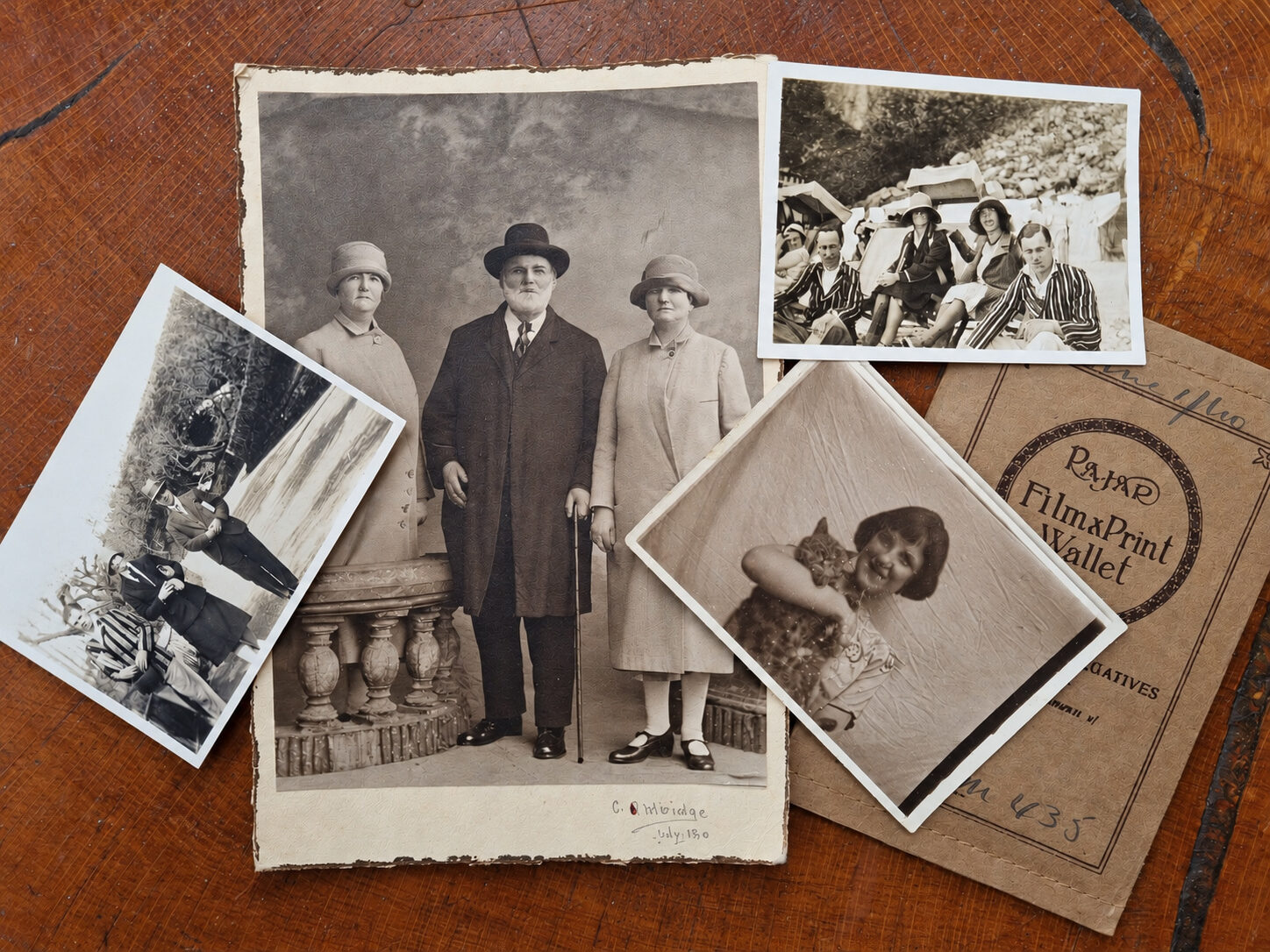
The National Archives warns that oils and salts from skin can react with image layers and that photographic surfaces can suffer abrasion. It recommends handling loose photographic material by the edges and taking particular care with image surfaces. Its guidance on handling photographic materials explains these risks in more detail.
As a practical rule:
- keep food and drinks away from the work area
- work on a clean surface
- hold prints by their edges
- do not aggressively clean delicate photographs
- do not flatten curled prints by force
- stop if an album page or photograph starts to tear
Digitisation should preserve a collection, not damage it in the process.
Check Your Scans Before Moving to the Next Batch
Scanning 2,000 photographs and only then discovering that the first 700 were slightly out of focus is an unpleasant mistake.
Check a sample from every batch at full size.
Look for:
- missing edges
- incorrect cropping
- dust or hairs
- poor focus
- excessive colour correction
- images scanned upside down
- duplicate filenames
- missing photographs
- incorrect sequence
Quality assurance forms an important part of professional archival digitisation too. The National Archives states that digital images should be checked after capture and rescanned when necessary.
For a family project, you do not need institutional procedures. You simply need to check frequently enough to catch mistakes before repeating them hundreds of times.
Create More Than One Copy of the Finished Archive
Digitisation protects photographs from some physical risks, but a digital file can still disappear.
Hard drives fail. USB sticks get lost. Computers are stolen. Files can also be deleted accidentally.
Aim to keep at least three copies where practical:
- your main working collection
- a separate local backup
- another copy stored elsewhere or with a reputable cloud provider
Do not treat the USB drive containing your new scans as the only surviving copy.
And unless there is a compelling reason, keep the original photographs after scanning. Digital copies provide easier access and an important safeguard, but the original remains the primary physical artefact.
Should You Scan a Large Photo Collection Yourself?
DIY scanning works extremely well for some collections.
It makes particular sense when:
- you have a few hundred loose photographs
- you enjoy organising family history
- you own a good scanner
- you have plenty of time
- the photographs are straightforward to handle
Professional help becomes more attractive when:
- the collection contains thousands of prints
- albums cannot safely be dismantled
- photographs vary greatly in size
- negatives and slides accompany the prints
- some originals are fragile
- maintaining the original sequence is particularly important
- you simply do not have weeks available for scanning
Scanning 20 photographs is a task. Scanning, naming, checking and organising 5,000 photographs is a project.
The equipment matters, but workflow matters just as much.
Frequently Asked Questions About Digitising Photos
How long does it take to digitise 1,000 photos?
The scanning itself may represent only part of the work. Preparation, cleaning, numbering, file naming, checking and organising can take as long as the actual capture process. Your scanner type and chosen resolution will also make a significant difference.
For a large collection, work in manageable batches rather than attempting everything in one session.
Should I organise photos before or after scanning?
Do the basic organisation before scanning.
Keep albums, envelopes and existing groups intact. More detailed work such as identifying individual people or adding keywords can happen afterwards.
Is 300 PPI enough for old photographs?
It can produce perfectly usable images, particularly for screen viewing, but 600 PPI provides a stronger preservation starting point for photographic prints. The National Archives specifies a minimum of 600 PPI for photographs in its digitisation guidance.
Should I scan the backs of photographs?
Yes, whenever they contain names, dates, places, studio stamps or handwritten notes that may prove useful later.
Should I colour-correct faded photographs?
Usually keep a faithful master copy before undertaking extensive restoration.
You can then create an enhanced version separately. This gives you the freedom to improve colour, contrast or damage without permanently replacing your original digital capture.
Can photo albums be digitised without removing the pictures?
Often, yes.
Depending on the album construction and condition, an entire page can be captured before individual photographs are cropped into separate digital images. This can be safer than forcing firmly attached prints from old pages.
Build a Digital Archive Your Family Can Actually Understand
The purpose of a photo-digitisation project is not simply to produce thousands of JPEG files. It is to preserve the relationships between the pictures: who was there, where they were, which photographs belonged together and why someone kept them in the first place.
Start by preserving the existing order. Number everything clearly. Capture useful information from albums and photograph backs. Scan at an appropriate resolution, check the files as you work and create several backups when the project is finished.
If the collection has become too large, fragile or complicated to manage comfortably at home, ultimately it makes sense to choose an experienced professional company that routinely handles substantial family archives, such as Supaphoto Ltd.