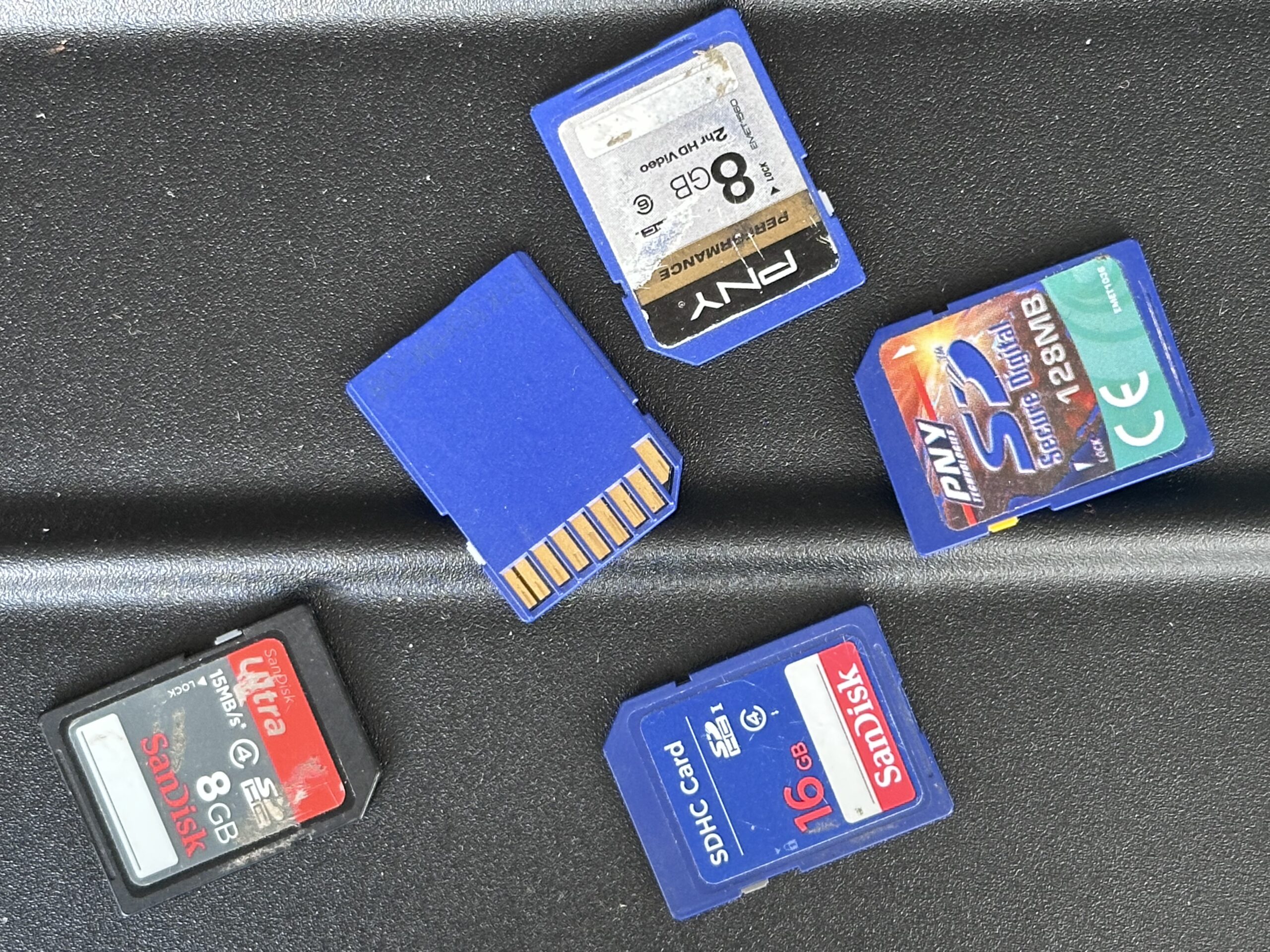

To recover an SD card, stop using it as soon as photographs, videos or files disappear. Do not take new pictures, copy new data onto the card or automatically accept a request to format it. Check the reader and connection first; if the card remains corrupted, unreadable or physically damaged, recovery may require specialist methods.
The safest first steps are:
- Stop using the SD card immediately.
- Remove it from the camera, phone or other device.
- Do not format or initialise it.
- Avoid writing new files to the card.
- Check it with a known-compatible reader where appropriate.
- Preserve recovered files onto a different storage device.
- Seek professional assessment when physical damage or serious failure is suspected.
Why Do SD Cards Lose Data?
SD cards are compact flash-memory devices used in cameras, phones, drones, dashcams, audio recorders and many other products. Despite having no moving mechanical parts, they can still fail or lose access to stored information.
The problem can be logical, meaning the storage hardware still operates but its file system, directory structure or data has become damaged. Alternatively, the card itself can develop a physical or electronic fault.
Common causes include:
- accidental deletion
- accidental formatting
- file-system corruption
- removing the card during a write operation
- interrupted recording
- physical damage
- damaged electrical contacts
- controller failure
- flash-memory deterioration
- exposure to unsuitable environmental conditions
- counterfeit or unreliable media
The distinction matters because a card containing deleted photographs requires a very different recovery approach from a cracked microSD card.
The National Archives notes that removable electronic storage media can be damaged through poor handling or unsuitable storage and that long-term access also depends on the continued availability of compatible technology.
First Rule of SD Card Recovery: Stop Using the Card
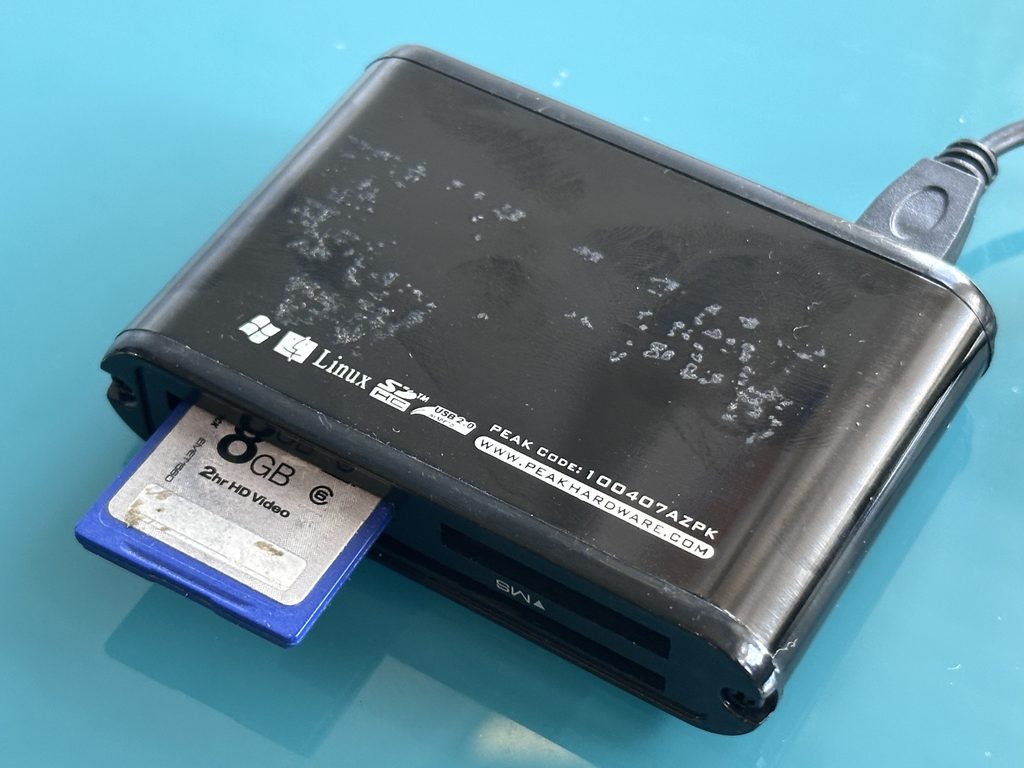
If important photographs or videos have disappeared, one of the most useful things you can do is also one of the simplest: stop using the card.
When a file is deleted, the operating system or camera may mark the storage space it occupied as available for reuse. Depending on exactly what has happened, some of the underlying data can remain until another file overwrites that space.
Continuing to take photographs or record video can therefore reduce what remains recoverable.
If you accidentally delete your holiday photographs, for example, don’t take another few pictures simply to check whether the camera still works.
Remove the card and keep it safely aside.
This principle applies particularly to:
- accidentally deleted photographs
- deleted video clips
- accidentally formatted cards
- cards displaying unexpected empty folders
- unexplained file loss
Recovery is never guaranteed, but avoiding further writes gives existing data the best chance of remaining unchanged.
Deleted, Formatted, Corrupted or Broken?
Before attempting to recover an SD card, it helps to understand the type of failure.
| Problem | Typical symptom | Sensible first action |
|---|---|---|
| Deleted files | Individual photos or folders have vanished | Stop using the card |
| Accidental format | Card appears empty afterwards | Do not save anything new |
| File-system corruption | Card detected but files inaccessible | Avoid formatting or repair writes |
| Reader problem | Card works elsewhere | Replace/test reader |
| Contact problem | Intermittent detection | Avoid repeated unnecessary handling |
| Electronic failure | Card may show wrong capacity or not respond | Seek assessment |
| Physical damage | Cracked, bent or broken card | Do not force it into equipment |
This diagnosis does not need to be perfect. Its purpose is to prevent a logical problem from being treated like a hardware problem—or vice versa.
For valuable files on a problematic card, a specialist assessment of damaged or unreadable memory media can help establish what recovery route is appropriate.
What Should You Do If an SD Card Asks to Be Formatted?
Do not automatically press “Format” if the card contains files you need.
A formatting prompt usually means that the computer or device cannot use the existing file system normally. It does not, by itself, establish that the photographs or videos have disappeared.
Formatting creates or recreates storage structures so that the device can subsequently be used. That is useful when deliberately preparing an empty card—but it is not a sensible first response when your objective is retrieving existing data.
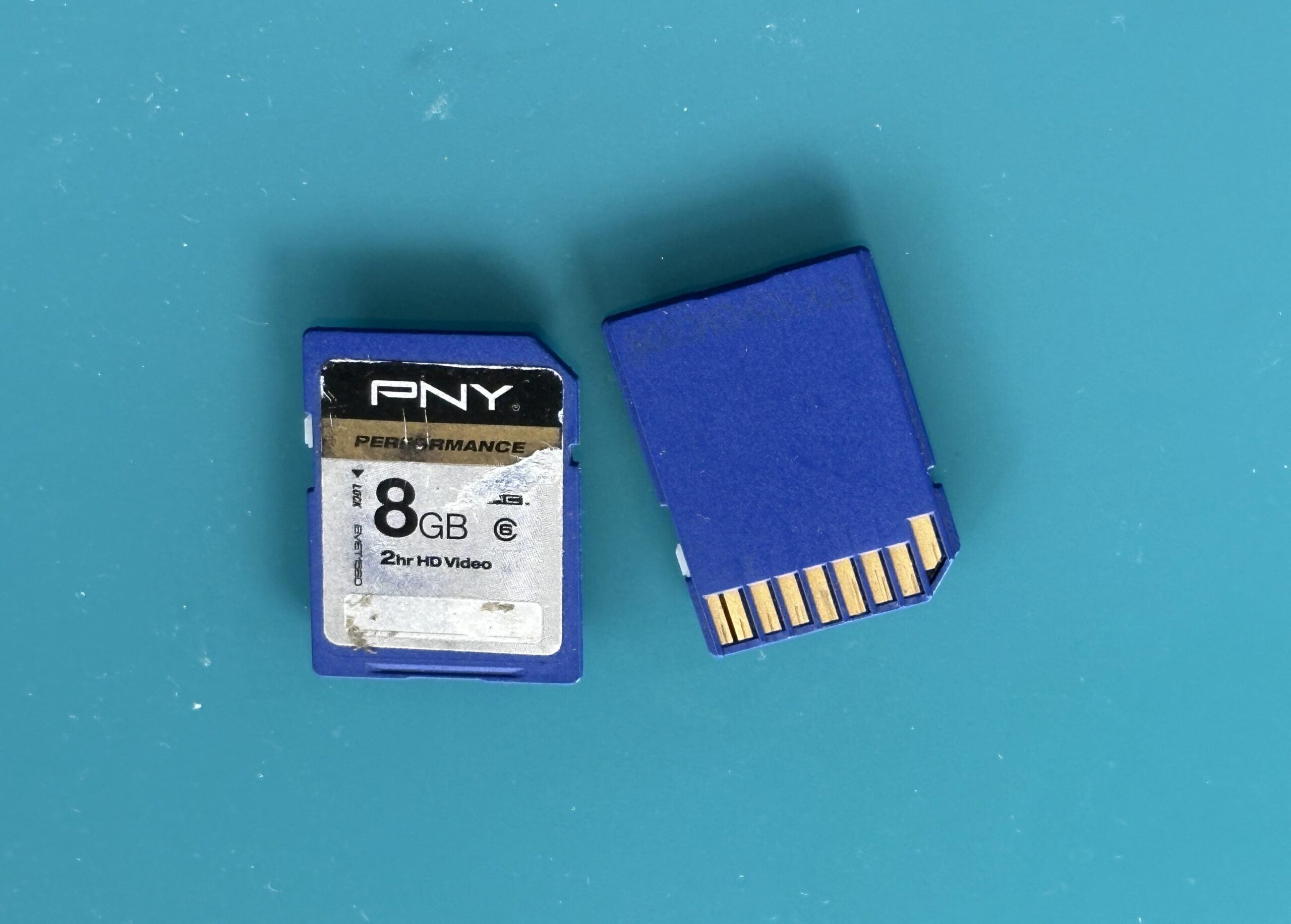
Instead:
- Cancel the formatting request.
- Safely disconnect the card.
- Check whether your reader is compatible.
- Try another known-good reader or computer where appropriate.
- Avoid writing anything to the card.
- Consider recovery if the files remain inaccessible.
UK recovery providers commonly identify “card needs formatting” errors, corrupted file systems and unreadable media as logical recovery scenarios, reinforcing the distinction between an unreadable card and an empty one.
Can You Recover Photos After Formatting an SD Card?
Sometimes, but the answer depends on how the card was formatted and what has happened since.
A quick format and a more thorough erasure are not necessarily equivalent. In some circumstances, formatting primarily replaces file-system information rather than immediately overwriting every part of the previous file content.
That can leave recoverable data.
However, any new information subsequently written to the card can occupy storage locations previously associated with the lost files. Once relevant data has genuinely been overwritten, recovery becomes much more difficult or impossible.
This is why the advice remains the same:
Stop using the card immediately after accidental formatting.
Do not reformat it repeatedly in the hope that another file system will somehow restore the photographs.
Safe Checks You Can Make Before Recovery
Not every inaccessible SD card has failed.
Before moving towards recovery, a few non-destructive checks can eliminate simple problems.
Check the Card Reader
Try another reader that you know supports the specific SD generation and capacity.
SD, SDHC and SDXC cards look similar, but older readers and equipment may not support every type.
Check Another Computer
Where appropriate, see whether another compatible computer recognises the card.
If one machine reads it normally and another does not, the card itself may not be the underlying problem.
Inspect the Card
Look for:
- cracks
- bent casing
- damaged contacts
- contamination
- signs of liquid exposure
- heat damage
Do not dismantle, bend or force a damaged card into a reader.
Check the Lock Switch
Full-size SD cards normally have a small write-protection slider on the side. This does not recover missing files, but an incorrectly positioned switch can cause confusion when a card cannot be written to normally.
When DIY Recovery Becomes Risky
There is a significant difference between experimenting on an old card containing unimportant files and experimenting on the only copy of irreplaceable photographs.
Be particularly cautious if:
- the card isn’t detected at all
- it reports an obviously incorrect capacity
- it becomes unusually hot
- the casing is cracked or broken
- the computer repeatedly disconnects it
- several devices fail to recognise it
- recovery software cannot read it consistently
- the files have substantial personal or commercial value
Recovery software is primarily relevant to logical data-loss situations where the hardware can still be read sufficiently well.
It cannot repair every electronic or physical fault.
If the card itself is failing, repeatedly scanning it with different applications may expose it to unnecessary additional access. For valuable material, preserving the original state and seeking professional assessment can be the safer option.
How Professional SD Card Recovery Differs
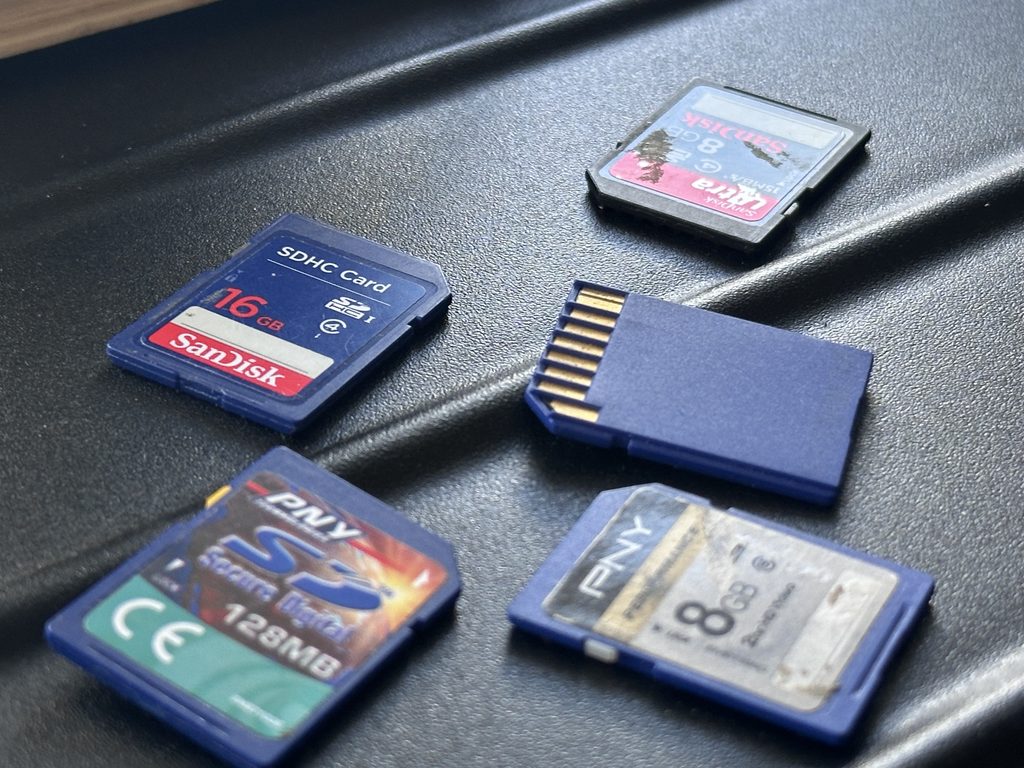
Professional recovery generally aims to retrieve the data while minimising unnecessary changes to the original storage medium.
Depending on the fault, a specialist may create an image of readable storage before working on the recovered copy rather than repeatedly manipulating the original card. More complex physical or controller failures can require specialist flash-memory techniques.
Current UK professional recovery services distinguish between logical problems—such as deletion, formatting and file-system corruption—and physical or controller faults that require different equipment and methods.
The objective should not necessarily be to make the old card reliable again.
It is to retrieve the valuable files and move them somewhere safer.
What Types of Files Can Be Recovered?
SD cards can contain far more than JPEG photographs.
Depending on the device, recovery may involve:
- JPEG photographs
- camera RAW files
- video clips
- audio recordings
- documents
- thumbnails
- camera-generated supporting files
- other specialist formats
Where file-system information has been damaged, recovered material may not always return with its original names, dates or folder structure intact.
That is an important expectation to understand.
Recovering the contents and perfectly reconstructing the original organisation are not always the same thing.
SD, SDHC, SDXC and microSD Recovery
“SD card” is often used as a general term for several related formats.
| Card type | Typical application | Recovery consideration |
|---|---|---|
| SD/SDSC | Older cameras and devices | Age and reader compatibility |
| SDHC | Cameras and recorders | Common flash-memory format |
| SDXC | Higher-capacity photo/video devices | Often contains large video files |
| microSD | Phones, drones and action cameras | Extremely small physical construction |
| microSDHC/microSDXC | Modern portable devices | May require an adaptor or dedicated reader |
The capacity or age of the card alone does not determine whether files are recoverable. The nature of the fault is much more important.
Recovering an SD Card After Water or Physical Damage
A physically damaged card requires a different mindset from accidentally deleted photographs.
Do not:
- attempt to glue a broken card together
- force it into a reader
- scrape or aggressively clean contacts
- repeatedly power an electrically damaged card
- deliberately heat it
- open its casing without appropriate expertise
If a card becomes wet, avoid repeatedly inserting it into powered equipment simply to see whether it works.
The National Archives’ guidance on removable media emphasises careful handling and protection from inappropriate environmental conditions because storage media can be susceptible to physical damage.
For irreplaceable photographs or recordings, physical damage is a good reason to stop DIY experimentation.
Where Should Recovered Files Be Saved?
Never deliberately recover files back onto the same problematic SD card.
Use a different destination such as:
- a computer
- external hard drive
- SSD
- USB drive
- suitable cloud storage
- another managed backup location
After recovery, check the important files rather than simply confirming that file names exist.
Open photographs. Play videos. Check documents. Compare the recovered material against what you expected to find.
For a healthy collection that simply needs moving from removable media, a memory card transfer to computer provides a practical route to consolidating files onto more accessible storage.
What Should You Do With the Card Afterwards?
If a card has suffered unexplained corruption or repeated read errors, don’t rely on it for another important event simply because the files have been recovered.
SD cards are replaceable. Family photographs and important recordings may not be.
Once recovery is complete:
- verify the recovered files
- create another backup
- retain the recovered master files
- replace unreliable media
- periodically check your archive
The National Cyber Security Centre describes a backup as a separate copy of important information and recommends checking that backups actually contain the data you expect. For irreplaceable photographs and videos, it suggests considering copies on both cloud and removable storage.
Common SD Card Recovery Mistakes
Continuing to Take Photographs
New photographs may overwrite storage occupied by deleted data.
Formatting When Prompted
Formatting is not the first troubleshooting step when you need existing files.
Recovering Files Back to the Same Card
Save recovered material onto separate healthy storage.
Trying Multiple Repair Utilities
Some tools modify file-system structures rather than simply reading them. Understand what a utility will do before running it against the only copy.
Assuming an Undetected Card Is Empty
A card that cannot communicate with a computer may have a hardware problem. Detection and data presence are different questions.
Trusting the Card Again After Serious Failure
Once the contents are safe, replacing a questionable card is generally more sensible than relying on it again.
Frequently Asked Questions About SD Card Recovery
Can a corrupted SD card be recovered?
Sometimes. Recovery prospects depend on whether the problem involves the file system, controller, flash memory or physical damage. Avoid formatting or writing new data while investigating the fault.
Can permanently deleted photos be recovered from an SD card?
Potentially, if the underlying storage areas have not subsequently been overwritten. Recovery cannot restore data that no longer exists, so stop using the card immediately after discovering the deletion.
Does formatting an SD card delete everything forever?
Not necessarily in every situation. The result depends on the type of format and subsequent writes. Some formatted cards can yield recoverable files, while overwritten or securely erased data may not be recoverable.
Why does my SD card show as RAW?
A RAW volume can indicate that the operating system cannot recognise the expected file system correctly. Avoid formatting an important card solely to make the message disappear.
Why is my SD card not showing up?
Possible causes include an incompatible or faulty reader, damaged contacts, file-system problems, controller failure or physical damage. Try simple non-destructive checks before assuming the data has gone.
Can you recover videos as well as photos?
Potentially, yes. SD cards commonly store video as well as photographs. Video recovery can be more complicated where files are fragmented, incomplete or were being recorded when corruption occurred.
Can data be recovered from a broken microSD card?
Sometimes, depending on the nature and location of the physical damage. These cases can require specialist techniques and should be assessed individually.
Give Recovered Files a Safer Future
Successful SD card recovery should end with more than getting a photograph to open again. The aim is to retrieve as much useful information as possible, verify the results and move those files into a safer storage arrangement.
If photographs or videos disappear, stop using the card first. Avoid formatting, don’t save new data onto it and distinguish simple reader problems from genuine card failure. When the card is physically damaged or the material is irreplaceable, reducing unnecessary intervention becomes particularly important.
Once your files have been successfully retrieved, create more than one copy rather than relying on the original card for long-term storage. For those who prefer a physical copy, Supaphoto’s memory card to DVD transfer service provides a convenient way to preserve and view recovered photographs and videos on disc.