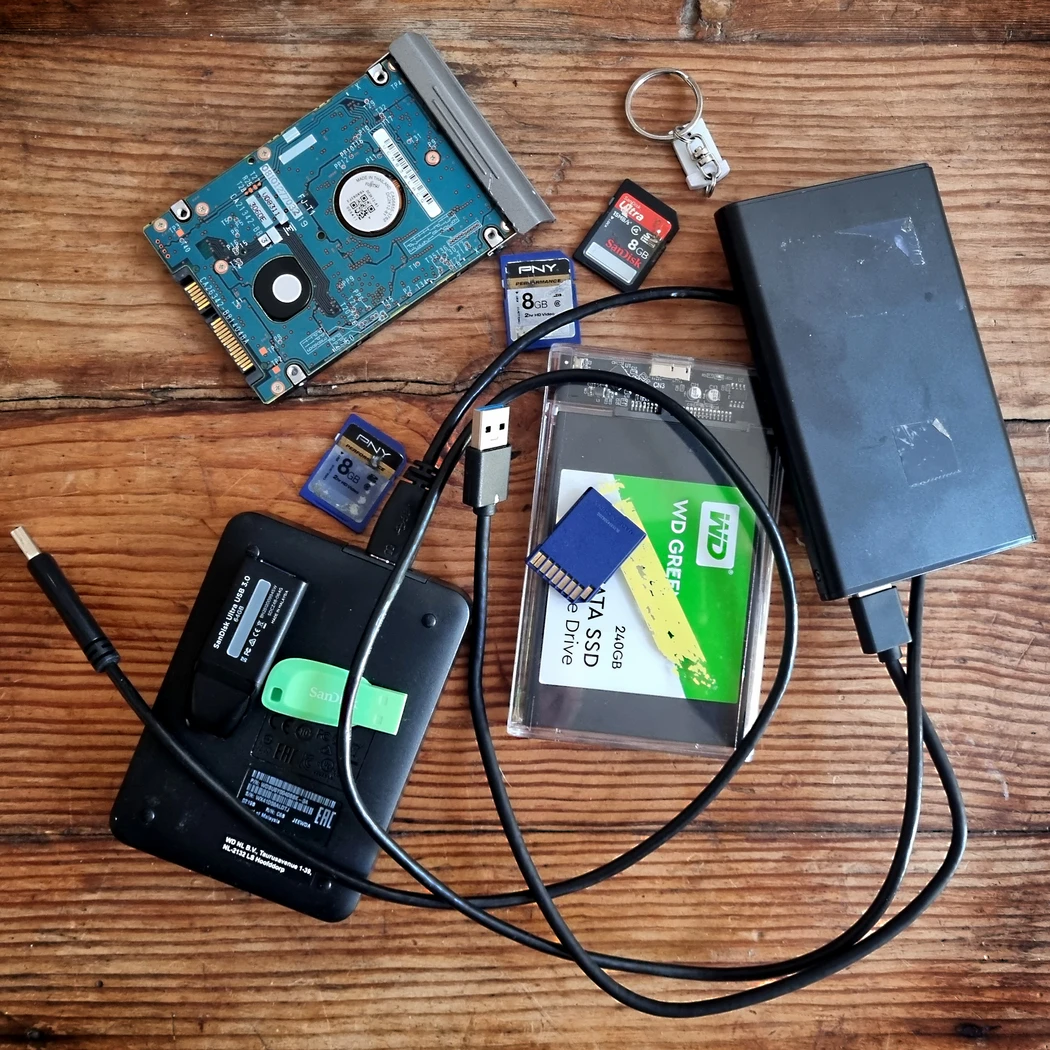

How to Recover Data and Convert Old Storage Media
Old storage media can contain photographs, family videos, documents and other files that exist nowhere else. To convert storage media safely, the priority is to retrieve the original data without unnecessarily altering the source, check that the recovered files are complete, and then move them to modern storage with reliable backup copies.
A sensible recovery process usually involves:
- Identify the storage medium and the equipment required to read it.
- Inspect its condition before connecting, powering or repeatedly accessing it.
- Recover or copy the original data before reorganising files.
- Check recovered files for corruption and compatibility.
- Convert obsolete file formats only where necessary.
- Create more than one verified copy on current storage.
- Keep important originals until the new copies have been thoroughly checked.
Why Old Digital Storage Becomes Difficult to Access
Finding an old memory card, USB stick or hard drive does not necessarily mean its contents have disappeared. Sometimes the real problem is that the hardware, connection or software needed to access it is no longer readily available.
This distinction matters. There are several separate risks associated with ageing digital media:
- Physical failure – mechanical or electronic components may deteriorate.
- Logical corruption – the storage device works, but its file system or directory information is damaged.
- Hardware obsolescence – you no longer have a compatible reader, interface or computer.
- Software obsolescence – the files are present but require old applications or operating systems.
- File-format obsolescence – a modern computer may not readily recognise the format.
- Accidental deletion or formatting – data may no longer appear normally even though some recoverable information remains.
The National Archives identifies removable media, software obsolescence and data decay among the issues that need to be managed in long-term digital preservation. Its guidance recommends moving material away from vulnerable removable media and maintaining multiple copies.
For a collection containing several types of ageing media, a professional storage media transfer service can provide a more controlled route to retrieving and consolidating the contents.
What Types of Storage Media Can Contain Recoverable Data?
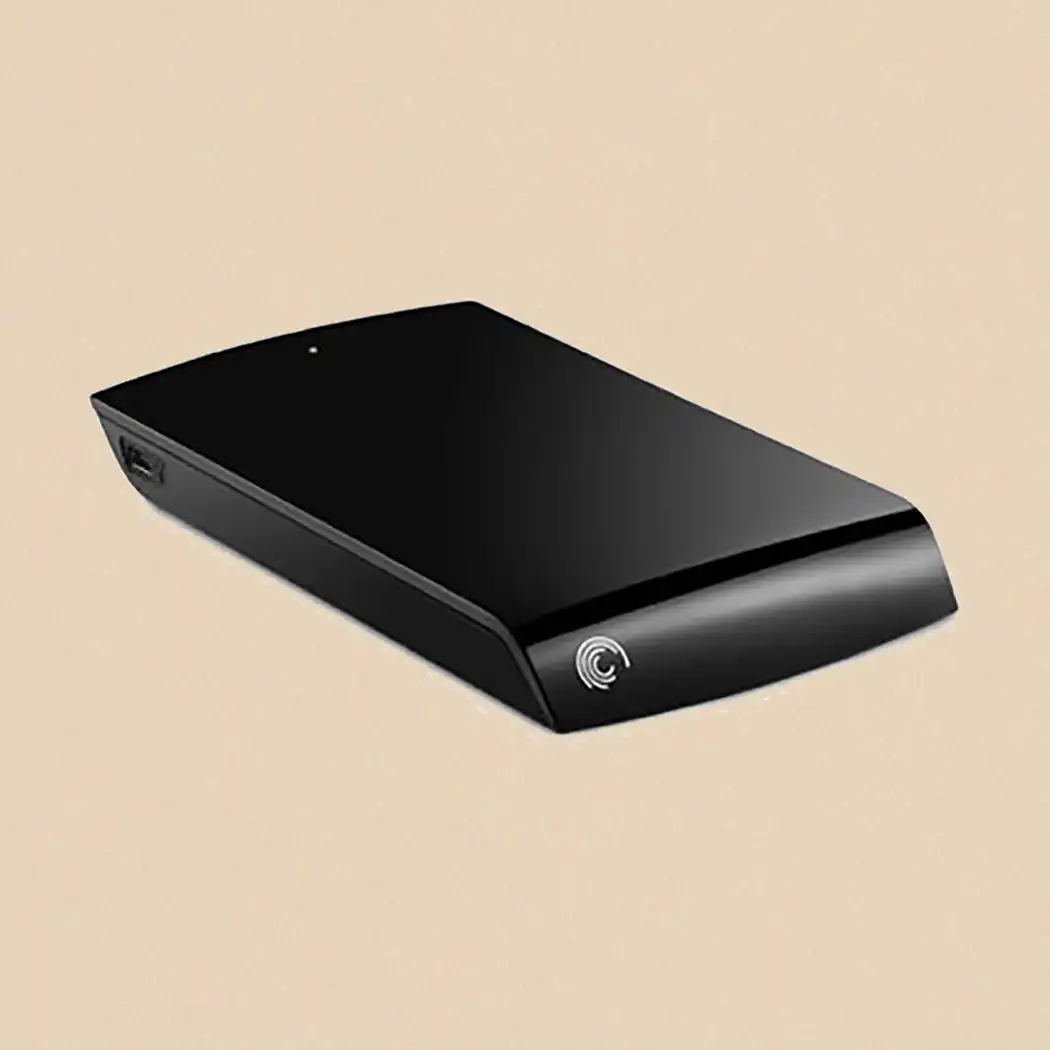
Digital memories have been stored on a surprisingly wide range of devices. A box of old technology may contain several generations of storage, sometimes with no obvious indication of what is actually on each item.
| Storage medium | Typical contents | Potential difficulty |
|---|---|---|
| USB flash drive | Photos, documents, video | Damaged connector, controller failure, corruption |
| SD or memory card | Camera photos and video | File-system errors, accidental deletion, physical damage |
| External hard drive | Large photo, video and document collections | Mechanical, electronic or logical failure |
| CD/DVD data disc | Photos, documents, backups | Scratches, ageing, incompatible drives |
| Floppy disk | Documents, databases, early digital images | Obsolete drives and file formats |
| Older removable drives | Backups and project files | Specialist readers and interfaces |
| Internal computer drive | Personal files and software data | Interface compatibility or drive failure |
The difficulty is therefore not simply finding a device that physically connects. Successful recovery may require understanding both the storage hardware and the data stored on it.
The National Archives’ digital preservation workflow specifically refers to equipment for CDs, DVDs, floppy disks, Zip disks, tape drives, USB media, SD cards and internal hard drives when retrieving information from legacy carriers.
Recover First, Convert Second
One of the most important principles when dealing with old media is to separate data recovery from file conversion.
Recovery asks:
Can the original information be retrieved intact?
Conversion asks:
Can those recovered files be made easier to access on current devices and software?
These should normally happen in that order.
For example, an old drive might contain an unusual image format. The safest objective is initially to preserve the original file rather than immediately converting it to JPEG and discarding the source. Once a verified copy exists, a modern access copy can be produced.
This principle is particularly important with irreplaceable family archives. The original may contain metadata, quality or information that gets lost during conversion.
For a more detailed explanation of the overall workflow, our guide to recovering and modernising files from older media covers the practical considerations before transferring a collection.
How to Convert Storage Media Safely
1. Identify What You Have
Start by separating media according to type.
Record any labels, dates, capacities, manufacturer information or handwritten notes. Do not assume that an apparently empty or incorrectly labelled device contains nothing useful.
With a large family archive, creating a simple inventory can prevent confusion later.
2. Examine the Physical Condition
Look for:
- cracked cases
- bent connectors
- corrosion
- obvious moisture damage
- loose components
- unusual noises from hard drives
- damaged optical discs
A physically damaged device should not be repeatedly connected simply to see whether it eventually works.
3. Avoid Writing New Data to the Original
If a computer offers to format, initialise, repair or erase an unfamiliar device, stop unless you are certain that doing so is appropriate.
Writing changes to damaged or corrupted media can complicate recovery.
Professional archival workflows can use write blockers specifically to prevent changes being made to source media while retrieving its contents.
4. Copy Before Reorganising
When the media is readable, concentrate first on making a faithful copy.
Do not begin renaming, deleting duplicates, converting formats and rearranging folders while the only surviving copy remains on the original device.
This creates an important separation between preservation and organisation.
5. Verify the Transfer
Opening a few photographs is not enough to prove that an entire collection transferred correctly.
Check:
- folder and file counts
- representative photographs
- videos from beginning to end where practical
- unusually large or small files
- files that report errors
- important documents
- original folder structures
For more rigorous preservation, checksums can be used to confirm whether copied files remain identical. The National Archives describes a checksum as a digital signature derived from a file’s contents and uses this approach as part of its preservation guidance.
What If the Storage Device Is Damaged?
The correct response depends heavily on the fault.
A USB drive with a damaged connector presents a very different problem from an external hard drive that clicks or an SD card that asks to be formatted.
If the contents are important, avoid repeated DIY recovery attempts. Each intervention should have a clear purpose.
Particularly concerning symptoms include:
- a hard drive making abnormal mechanical noises
- a device repeatedly disconnecting
- severe physical damage
- burning smells or excessive heat
- a computer reporting that the media must be formatted
- important files suddenly appearing as zero bytes
- a card or drive that is detected intermittently
Where valuable photographs are the priority, a dedicated photo recovery service may be appropriate because the objective is not merely to make the device work again, but to retrieve usable image files.
Can Files Be Recovered After Deletion or Formatting?
Sometimes, but recovery is never guaranteed.
Deleting a file does not always immediately remove every underlying piece of its data. Likewise, some forms of formatting may leave recoverable information behind. What remains depends on the device, file system, subsequent use and the nature of the deletion or formatting.
The most important practical rule is simple:
Stop using the device if you discover that important files have disappeared.
Continuing to take photographs on a memory card, copying files to a USB stick or using a drive normally may overwrite areas containing recoverable data.
Converting Old File Formats
Successfully copying a file does not guarantee that today’s software can open it.
Older collections may contain documents, databases, images, audio or other files created by applications that have disappeared. This introduces a second preservation challenge: software and format obsolescence.
There are two broad approaches.
Format migration converts the information into a contemporary format while preserving the original separately.
Emulation recreates an older computing environment so that legacy software or complex digital objects can still operate.
The National Archives describes both approaches in its guidance on software obsolescence and digital preservation.
For personal archives, migration is generally the more practical approach for straightforward photographs, documents and audiovisual files. However, retaining the untouched recovered original provides a valuable fallback.
USB, Hard Drive or Cloud: Where Should Recovered Files Go?
There is no single perfect destination.
| Destination | Advantages | Limitations |
|---|---|---|
| USB flash drive | Portable and convenient | Easy to lose; should not be the only copy |
| External hard drive | High capacity and convenient | Can fail or suffer physical damage |
| Computer | Immediate access | Vulnerable if it is the sole copy |
| Cloud storage | Off-site access and redundancy | Requires account management and potentially ongoing fees |
| Multiple locations | Stronger protection | Requires organisation and maintenance |
The key principle is redundancy rather than relying on one supposedly permanent device.
For valuable family material, maintain several copies and ideally keep at least one in a different physical location. The National Archives similarly recommends multiple copies, different locations and, where possible, different storage technologies.
Common Mistakes When Recovering Old Storage Media
Repeatedly Trying a Failing Device
Repeated attempts are not always harmless. If a hard drive is mechanically deteriorating, continued operation may worsen its condition.
Formatting an Unrecognised Card or Drive
A formatting prompt usually means the computer cannot use the existing file system normally. It does not necessarily prove that the media contains no recoverable information.
Converting Files Before Preserving the Originals
Create a verified master copy first. Conversion should produce additional access versions rather than immediately replacing potentially valuable originals.
Assuming a Successful Copy Is a Permanent Archive
A new hard drive or USB stick is still storage media, and storage media can fail.
Throwing Away the Original Too Quickly
Keep important source media until the recovered collection has been thoroughly inspected and backed up.
How Should You Preserve Recovered Files for the Future?
Recovery solves today’s problem; digital preservation reduces the chance of having to solve it again.
A practical personal archive does not need to be complicated:
- Keep a master copy of the recovered files.
- Create at least one additional backup.
- Store one copy separately from the others.
- Use clear folder and file names.
- Preserve useful dates and metadata.
- Periodically confirm that important files still open.
- Move the collection to newer storage before old hardware becomes problematic.
- Retain original versions when converting unusual or obsolete formats.
Digital preservation is an ongoing process rather than a one-off purchase of a storage device. The National Archives advises monitoring storage and content over time because both physical media and the technology required to access files can become obsolete.
Frequently Asked Questions About Old Storage Media
Can data be recovered from a very old hard drive?
Potentially. Age alone does not determine recoverability. The drive’s physical condition, electronics, interface, file system and previous damage all affect what can be retrieved. Avoid repeatedly powering a drive that behaves abnormally.
What should I do if my memory card asks to be formatted?
If it contains important files, do not immediately accept the formatting request. Stop using the card and assess whether the existing data needs to be recovered first.
Should I throw away old media after transferring it?
Not immediately. Verify the recovered files and create adequate backups first. For particularly important archives, retaining the original media for a reasonable period provides another safeguard.
Is copying files the same as converting them?
No. Copying moves the existing files to another storage location. Conversion changes their format or representation so that they can be accessed differently. In preservation work, it is useful to keep the original alongside any converted version.
Can an old USB stick or SD card be used as a permanent archive?
It should not be your only archive. The National Archives’ digital preservation risk guidance identifies USB flash drives, SD media, floppy disks and CD-Rs among less stable forms of storage for long-term preservation.
Give Old Digital Memories a Safer Future
Old storage media often sits forgotten because accessing it feels complicated: the right cable has vanished, a card produces an error, an old drive is no longer recognised or the computer that originally created the files disappeared years ago.
The safest approach is to treat recovery, conversion and preservation as separate stages. Retrieve the data first, protect an original copy, convert files where necessary, verify the results and then create multiple backups.
That approach does more than recover today’s files. Moving important files away from ageing formats can make a lasting difference, particularly when transferring files from older storage media helps keep them accessible, organised and easier to share.me.