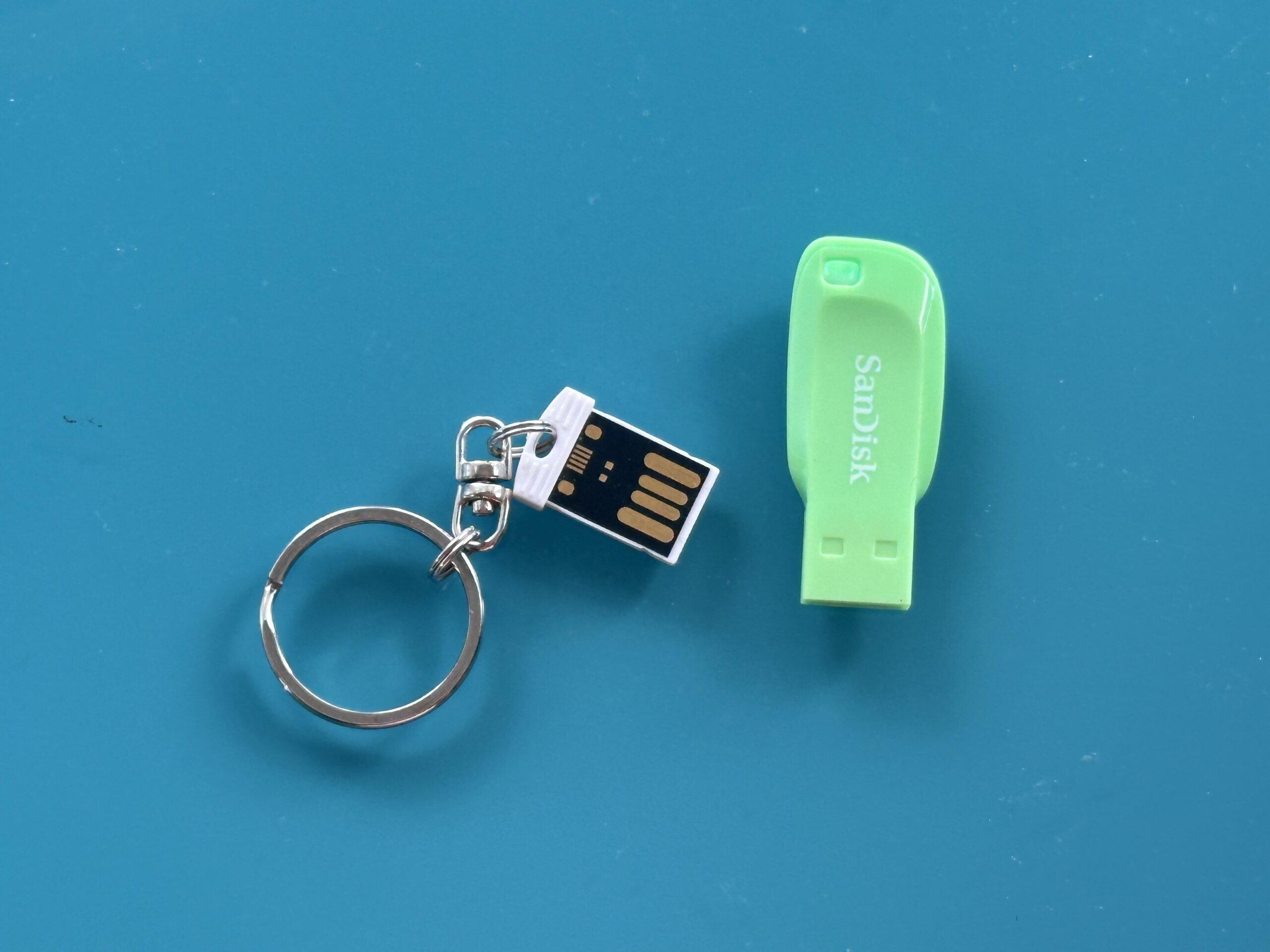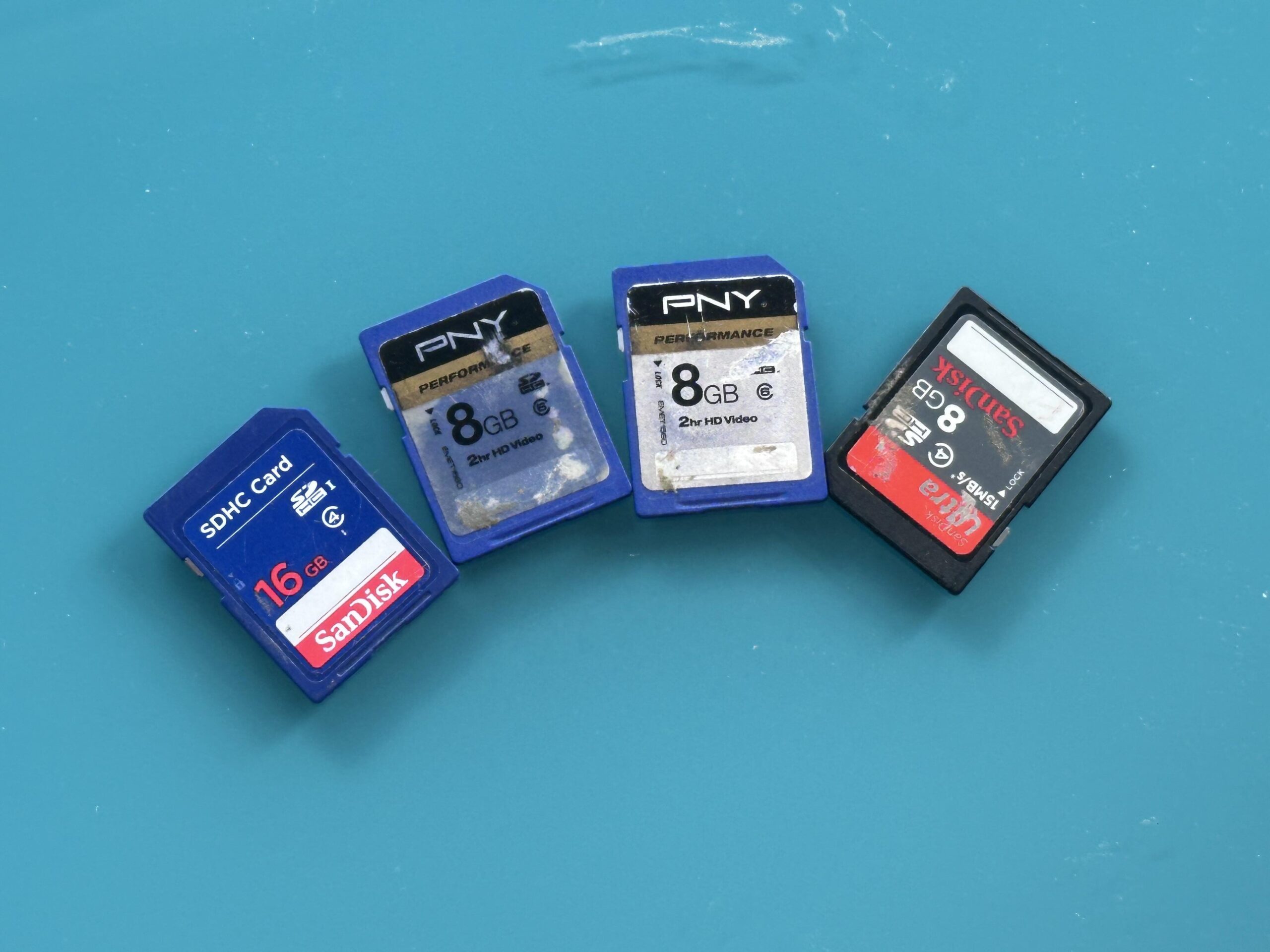

To convert an SD card, you normally copy its photographs, videos and other files onto a computer, USB drive or another modern storage location. Use a compatible SD card reader, copy rather than move the original files, check the transferred content, and make a second backup before deleting or formatting anything on the card.
A safe process is:
- Identify the SD card type and capacity.
- Inspect it for physical damage.
- Use a compatible computer or card reader.
- Copy the original folders and files.
- Check that photographs and videos open correctly.
- Create a second copy on separate storage.
- Keep the original SD card until everything is verified.
What Does Converting an SD Card Mean?
An SD card is already a digital storage device, so technically its contents do not need “digitising”. When people search for ways to convert an SD card, they usually want to transfer, recover, copy or reorganise the digital files stored on it.
You might, for example, have an old camera card containing family photographs that you want on a computer. Alternatively, you may want to transfer videos to a USB drive, consolidate several cards onto one external hard drive or recover files from a card that no longer works normally.
This distinction is useful because transfer and recovery are not the same process. A healthy card can usually be copied with ordinary equipment. An unreadable, corrupted or physically damaged card requires much more caution.
The National Archives recommends identifying digital records held on removable media and moving important material to a more secure storage environment rather than depending indefinitely on the original removable device.
SD, SDHC and SDXC: What’s the Difference?
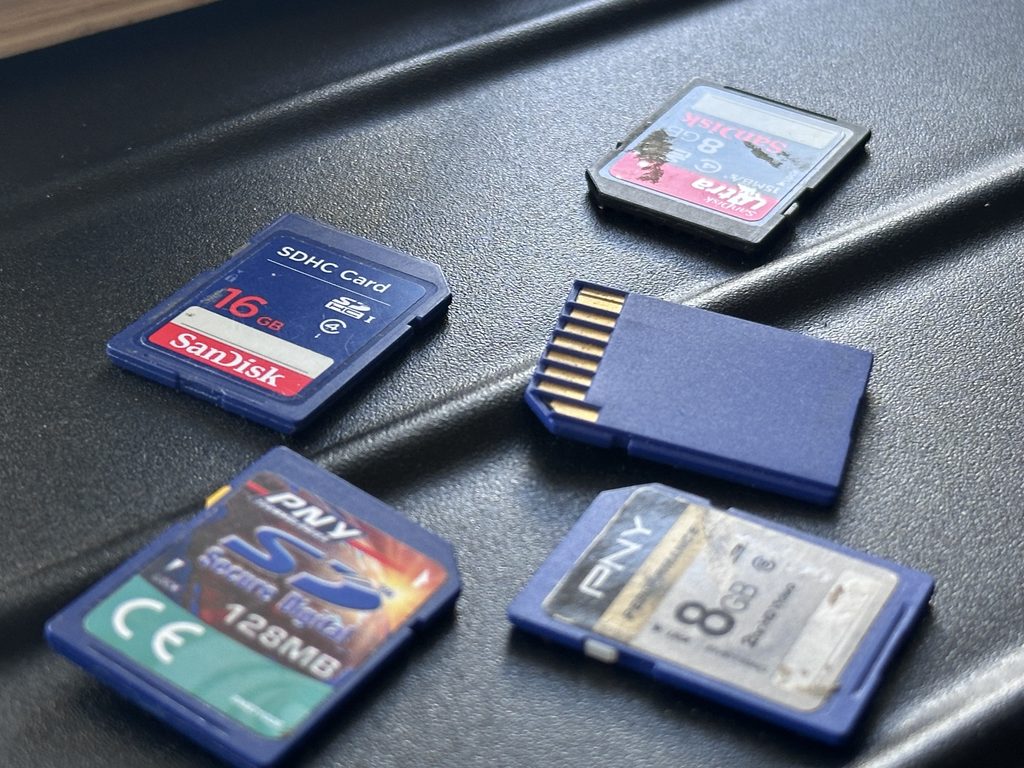
SD cards have evolved considerably since their introduction. Cards that look almost identical can belong to different generations.
| Format | Standard capacity range | Typical use | Compatibility consideration |
|---|---|---|---|
| SD/SDSC | Up to 2 GB | Older cameras and equipment | Generally associated with FAT12/FAT16 |
| SDHC | Over 2 GB to 32 GB | Cameras and camcorders | Usually FAT32 |
| SDXC | Over 32 GB to 2 TB | Higher-capacity photo/video storage | Usually exFAT |
| microSD variants | Depends on SD generation | Phones, drones, action cameras | Usually requires a microSD-compatible reader or adaptor |
A card physically fitting into a reader does not guarantee full compatibility. This is particularly relevant when trying to access a newer, high-capacity SDXC card using much older equipment.
Conversely, an old card that is not immediately recognised may not necessarily be damaged. The reader, adaptor, operating system or device may be the problem.
How to Transfer an SD Card to a Computer
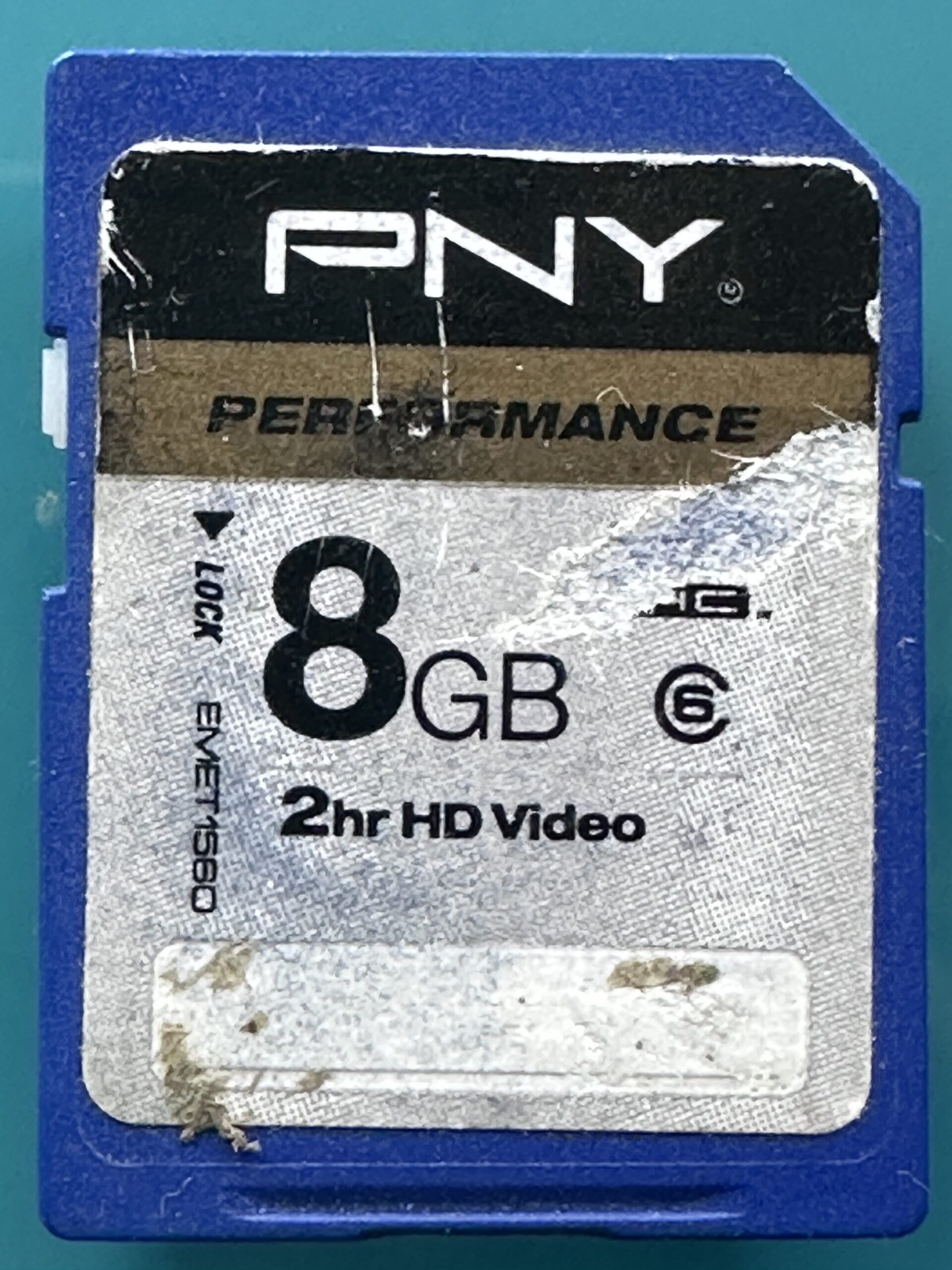
For a healthy card, transferring the contents is usually straightforward.
1. Inspect the Card First
Before inserting an old SD card, look for cracks, damaged contacts, contamination or a separating casing.
Do not force a damaged card into a reader. The data is generally worth far more than the physical card itself, so protecting the stored information should take priority.
2. Connect the Card
If your computer has an appropriate SD slot, insert the card directly. Otherwise, use a compatible USB or USB-C card reader.
The National Archives includes SD card readers among the equipment used for transferring digital content from removable storage and notes that professional preservation workflows may use write blockers to prevent changes to source media.
3. Locate Your Files
On Windows, an SD card will normally appear as a removable drive in File Explorer. On a Mac, it should normally appear in Finder or on the desktop, depending on your settings.
Photographs and camera videos are commonly found within a folder named DCIM, although the precise folder structure depends on the device that created the files.
4. Copy, Don’t Move
Create a new destination folder on your computer and copy the files from the card.
Copying leaves the originals on the SD card. Moving or cutting them introduces unnecessary risk because the source files are removed as part of the process.
For an important collection, preserve the original folder structure during the initial transfer. You can reorganise a duplicate later.
5. Check the Transfer
Do not assume that a completed copy operation means every file is usable.
Open photographs from several folders. Play a selection of videos, particularly larger files, and check important documents individually.
Only when you have confirmed that the transferred collection is complete should you consider deleting or reusing the original card.
For older cards or collections where you would prefer the extraction to be handled for you, a professional transfer from memory card to computer provides a straightforward route to getting photographs, videos and other files onto more accessible storage.
Where Should You Put the Files Afterwards?
Transferring the files is only half of the job. You also need to decide where they should live.
| Destination | Advantages | Things to consider |
|---|---|---|
| Computer | Convenient for viewing and organising | Needs a separate backup |
| USB drive | Portable and easy to share | Small and easy to lose |
| External hard drive | Suitable for larger collections | Still vulnerable to failure or damage |
| Cloud storage | Provides an off-site copy | Account and subscription considerations may apply |
| DVD | Useful for particular viewing or sharing requirements | Many newer computers lack optical drives |
| NAS/server | Useful for larger managed collections | Requires setup and maintenance |
There is no universally “best” destination. The more important question is whether the files exist in more than one safe place.
Can You Transfer an SD Card Directly to a Phone or Tablet?
Often, yes.
Compatible phones and tablets can access SD cards using suitable readers or adaptors. Current Apple guidance, for example, supports importing photographs and videos from compatible SD cards using appropriate USB-C or Lightning camera readers, depending on the device.
This can be convenient when travelling, but a phone should not necessarily become the only destination for irreplaceable files.
For a large family archive, transferring everything first to a computer or managed storage location generally makes verification, organisation and backup easier.
What If the SD Card Won’t Open?
This is where a normal transfer should stop and troubleshooting should begin.
A card may be:
- physically damaged
- corrupted
- incompatible with the reader
- affected by a damaged file system
- experiencing an electronic fault
- incorrectly detected by the computer
- readable only intermittently
First rule out simple causes. Try a known-compatible card reader or another computer if doing so does not require writing anything to the card.
However, pay close attention to any message that appears.
For damaged or unreadable cards, our SD card repair and recovery service can help retrieve valuable files.
Never Automatically Format an Important Card
A common situation is:
“You need to format the disk before you can use it.”
If the SD card contains photographs or videos you want to recover, do not automatically format it.
Formatting changes the card’s storage structure and may complicate recovery. Apple similarly warns in its current SD card guidance that reformatting erases images on the card.
If the contents matter, stop and investigate the problem before making changes.
Can You Recover Deleted Photos From an SD Card?
Sometimes, but there is no guarantee.
Deleting a photograph does not always mean every part of its underlying data disappears immediately. Depending on the card, file system and what happens afterwards, recovery may still be possible.
The critical action is to stop using the card.
Imagine accidentally deleting your holiday photographs and then continuing to take new pictures. Those new files may overwrite storage areas previously occupied by deleted data, potentially reducing the amount that can be recovered.
The same principle applies after accidental formatting or unexplained file loss.
Do not:
- take more photographs
- record more video
- copy new files onto the card
- repeatedly run repair utilities without understanding what they change
If the contents are irreplaceable, a faulty SD card assessment and recovery service may be more appropriate than experimenting on the only copy.
Transfer First and Convert File Formats Later
Another useful distinction is between converting the storage medium and converting the files.
Suppose an old SD card contains JPEG photographs, RAW camera files and video clips. You do not necessarily need to convert any of these during the initial transfer.
First preserve the source files.
Afterwards, you can create additional versions where compatibility requires them.
For example:
- retain an original RAW photograph while creating a JPEG for everyday viewing
- preserve the original video while producing a more widely compatible viewing copy
- keep original metadata where possible
- avoid repeatedly recompressing photographs and videos
This provides both a preservation copy and convenient versions for normal use.
The National Archives maintains tools and guidance concerned with identifying file formats because format identification and software obsolescence are important parts of long-term digital preservation.
How to Organise a Large Collection of SD Cards
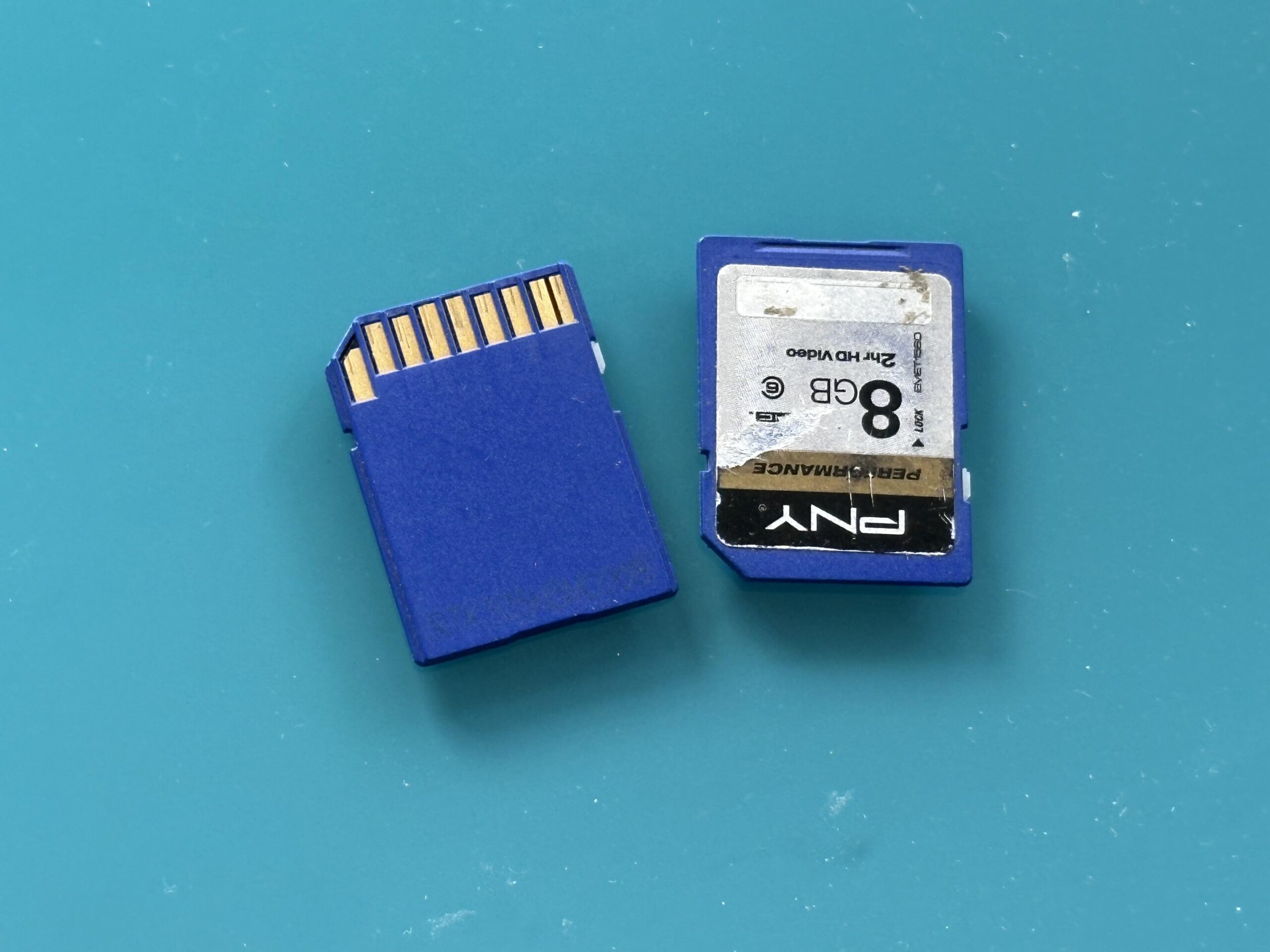
If you have accumulated a drawer full of cards from old cameras, phones and camcorders, resist the temptation to copy everything into one enormous folder.
Start with an inventory.
Number the physical cards temporarily and create corresponding folders such as:
- SD Card 01 – Canon Camera
- SD Card 02 – Family Camera
- SD Card 03 – Old Camcorder
Preserve those first-stage copies before reorganising the files.
You can then build a more useful structure based on dates and events:
Photos > 2015 > Cornwall Holiday
or
Family Videos > 2012 > Christmas
This two-stage approach preserves provenance while allowing you to create an archive that makes sense to humans.
For collections spread across SD cards, USB drives and other devices, guidance on bringing older digital storage together can help when consolidating several types of media into a more manageable collection.
How Many Backups Should You Make?
One copy is not a backup.
If you move the only copy from an SD card onto a laptop, the laptop has simply become your new single point of failure.
For important photographs and family videos, a practical arrangement might include:
- a working copy on your computer
- a second copy on an external drive
- another copy kept separately or in suitable cloud storage
The National Archives recommends having at least two copies of digital records and moving content away from vulnerable removable media towards more secure storage.
No storage technology should be regarded as permanent. Long-term preservation means periodically checking your files and migrating them as hardware and software change.
Common Mistakes When Converting an SD Card
Formatting Before Checking What’s on It
Never format an unknown card simply to make it readable if it could contain important files.
Moving Instead of Copying
Copy the data first. Preserve the card as your fallback until everything has been verified.
Continuing to Use a Failing Card
Intermittent errors, disappearing files and unexplained corruption are warning signs. Once the contents are recovered, replace the card rather than trusting it with another irreplaceable event.
Deleting the Card Immediately After Transfer
Keep the source until you have checked the new files and created another backup.
Assuming Photos Are the Only Important Files
SD cards can contain videos, audio, thumbnails, metadata and supporting files. Preserve the complete contents initially rather than selecting only obvious JPEG images.
Keeping Everything on One External Drive
An external drive can fail too. Important files need redundancy.
Frequently Asked Questions About SD Card Conversion
How do I convert an SD card to digital?
An SD card already stores digital information. Usually, “conversion” means copying its photographs, videos and other files to a computer, USB drive, external drive, DVD or another storage destination.
Can I transfer an SD card to USB?
Yes. A computer that can access both devices can normally copy files from an SD card to a USB drive. Keep an additional copy if the files are important.
How do I get pictures from an SD card onto my computer?
Insert the card into a compatible slot or reader, open the card using your computer’s file manager, locate the photographs—often within the DCIM folder—and copy them into a folder on the computer.
Why can I see my SD card but not my photos?
Possible reasons include an unexpected folder structure, hidden or corrupted files, an unsupported file format or file-system problems. Avoid formatting the card while investigating missing photographs.
Can files be recovered from a formatted SD card?
Recovery can sometimes be possible, depending on the type of formatting, the card and whether subsequent data has overwritten the original information. Stop using the card immediately if important files are missing.
Should I keep old SD cards after transferring the files?
Keep them at least until the transferred files have been checked and backed up. For particularly valuable material, retaining the original card for longer may provide another layer of protection.
Can I put old SD card photos onto DVD?
Yes. Once the photographs or videos have been successfully retrieved, they can be prepared for optical media where that suits how you want to store or share them. A memory card to DVD option can be useful where a physical disc is specifically preferred.
Protect the Memories, Not Just the SD Card
The aim when you convert an SD card should be bigger than simply emptying it. You are moving photographs, videos and other files away from a small removable device and into a storage arrangement that is easier to access, organise and protect.
Copy the original data first, verify the results, preserve useful source files and maintain more than one copy. If the card is unreadable, corrupted or physically damaged, avoid formatting it or repeatedly experimenting with it.
Once the contents are secure, you can organise years of photographs and videos and bring material from several cards together. For those who value having a physical version of their digital memories, a DVD copy of memory card photos and videos offers a convenient way to view and share them, while the original memory card is returned.