
To convert a USB stick, first copy its photographs, videos, documents and other files to a computer or another suitable storage device. Check that the copied files open correctly, preserve the originals until the transfer is verified, and create at least one additional backup. If the USB stick is damaged or unreadable, avoid formatting it before considering data recovery.
A safe approach is:
- Inspect the USB stick for physical damage.
- Connect it to a compatible USB port or adaptor.
- Copy rather than move the files.
- Check the transferred folders and important files.
- Convert individual file formats only when necessary.
- Create at least one additional backup.
- Keep the original USB stick until the new copies have been verified.
What Does Converting a USB Stick Actually Mean?
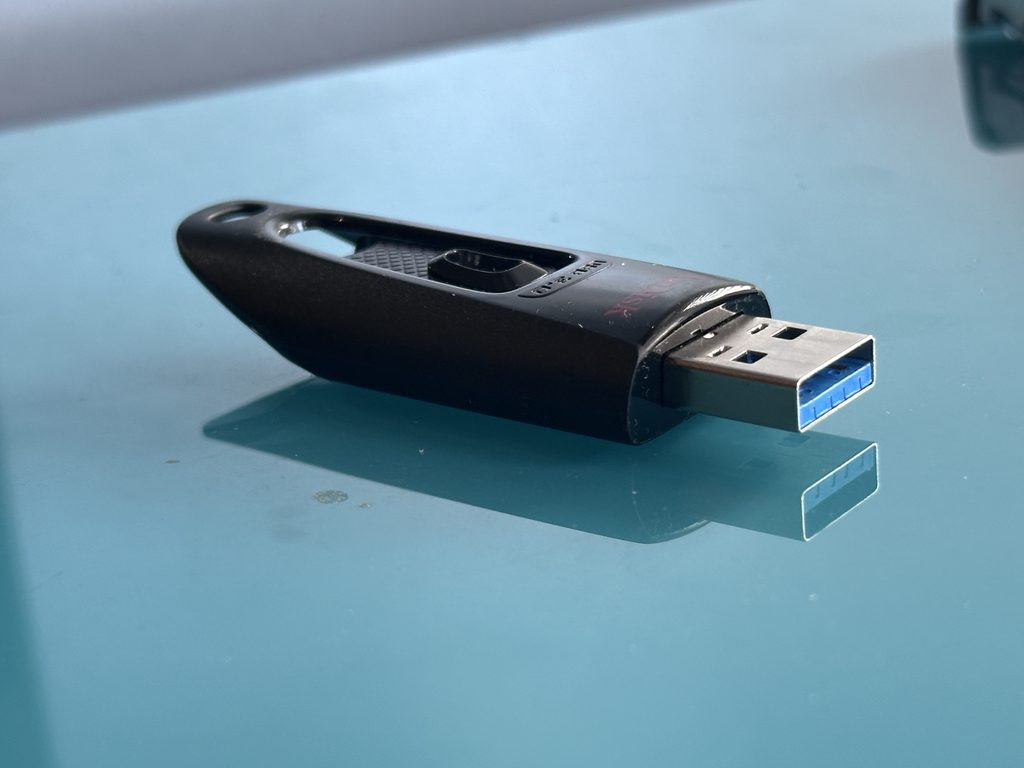
A USB memory stick already stores digital information, so “conversion” can mean several different things.
You may want to transfer files from an old USB stick to a computer, move photographs and videos to newer storage, consolidate several memory sticks, change the stick’s file system or convert old file formats into versions that current software can open.
These are different processes:
- Transfer copies files to another storage device.
- Conversion changes a file into another format or prepares the contents for a different destination.
- Formatting creates a file system on the USB device and can erase existing content.
- Recovery attempts to retrieve files that have been deleted, corrupted or become inaccessible.
Understanding which job you actually need can prevent an unnecessary—and potentially destructive—step.
The National Archives advises identifying important records held on removable media such as memory sticks and transferring them to more secure storage rather than leaving them indefinitely on the original device.
How to Transfer Files From a USB Stick
For a healthy USB stick, copying the contents is usually straightforward.
1. Check the Stick Before Connecting It
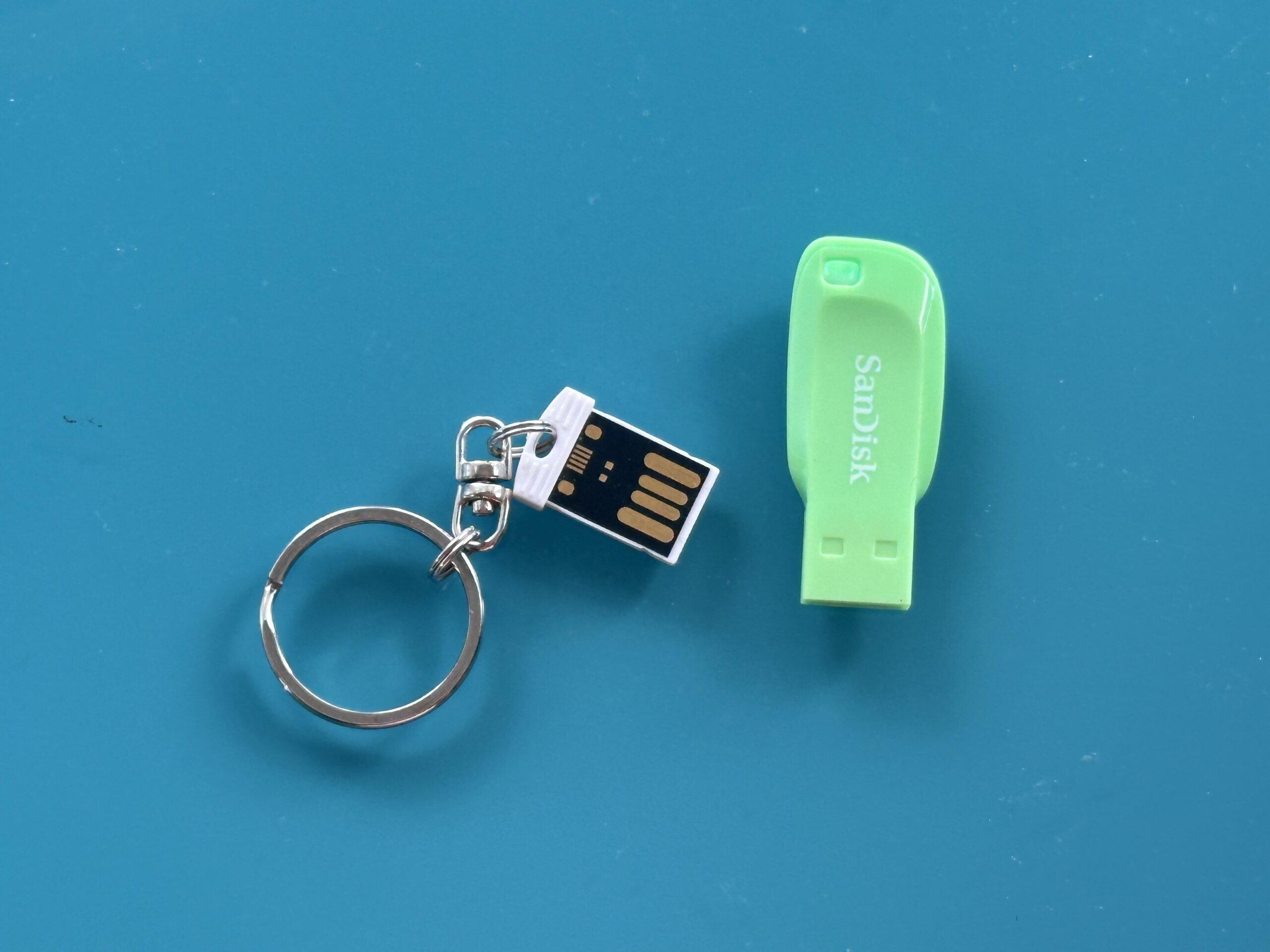
Examine the USB connector and casing first, particularly if the device has been stored for years.
Look for:
- a bent or loose connector
- cracked casing
- corrosion or contamination
- signs of liquid damage
- a connector that moves excessively within the casing
Do not force a visibly damaged USB plug into your computer. If the contents are irreplaceable, preserving the data matters more than trying to make the inexpensive storage device usable again.
2. Connect It to a Compatible Computer
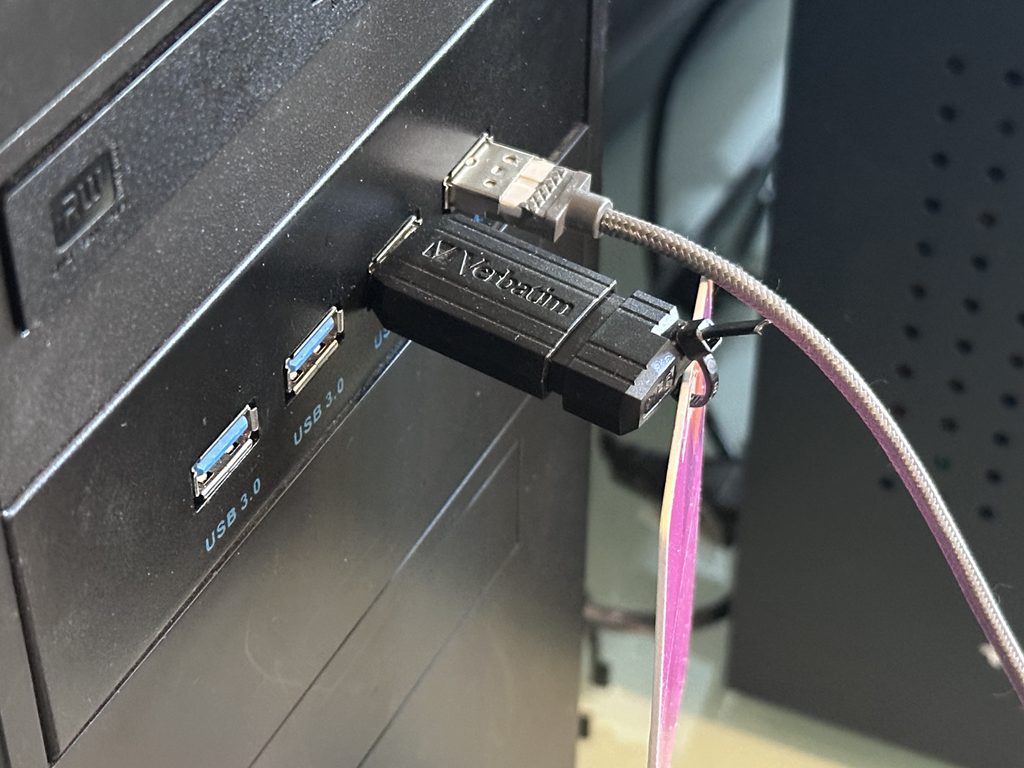
Traditional USB sticks commonly use a rectangular USB-A connector, while newer devices may use USB-C. An adaptor or hub can bridge the physical connection where necessary.
Once connected, Windows will normally show the device in File Explorer, while macOS usually displays an accessible drive in Finder.
If nothing appears, don’t immediately assume the files have vanished. The USB port, adaptor, computer or drive itself could be responsible.
3. Copy the Contents to a New Folder
Create a clearly named folder on your computer and copy the contents of the USB stick into it.
Copying is preferable to moving because it leaves the original files on the source device during the transfer.
With valuable material, preserve the original folder structure initially. You can rename and reorganise files later after establishing a verified copy.
4. Check That Everything Has Transferred
A completed progress bar does not necessarily prove that every important file is healthy.
Check:
- photographs from several folders
- longer video files
- documents
- audio recordings
- unusually large files
- the approximate number of folders and files
The National Archives describes copying software and checksums as methods that can help verify that complete, identical copies have been made during professional digital preservation workflows.
For an older collection that you would rather have transferred professionally, Supaphoto’s USB file transfer and conversion service can copy material onto a more convenient destination while preserving access to the original content.
USB Stick File Systems Explained
Sometimes “converting a USB stick” actually means changing its file system.
The file system determines how information is organised on the device and affects which computers, televisions and other equipment can use it.
| File system | Typical advantage | Main consideration |
|---|---|---|
| FAT32 | Very broad device compatibility | Individual files cannot exceed 4 GB |
| exFAT | Useful for large files and cross-platform use | Very old equipment may not support it |
| NTFS | Well suited to Windows environments | Compatibility with some non-Windows devices can vary |
| APFS | Designed for modern Apple systems | Not appropriate when broad Windows/device compatibility is required |
For photographs and ordinary documents, FAT32’s file-size limit may not matter. For high-resolution video, however, a single file can easily exceed 4 GB, making exFAT a more practical choice where the receiving equipment supports it.
Formatting and file conversion are not the same thing. Formatting a USB stick recreates its storage structure and normally erases the existing files. Never format an important old stick simply because a computer suggests doing so.
What If a USB Stick Says It Needs Formatting?
Stop before accepting the prompt.
A message telling you that a USB drive needs formatting can appear when the computer cannot correctly interpret its existing file system. That does not necessarily mean the USB stick is empty.
If the device contains important photographs, documents or videos, formatting should not be your first troubleshooting step.
Instead:
- Disconnect the device safely.
- Try another suitable USB port.
- If appropriate, test it on another compatible computer.
- Avoid writing new data to the stick.
- Consider recovery if the files remain inaccessible.
The more valuable the files are, the more cautious you should be about running automated “repair” utilities that may modify the source.
Can Files Be Recovered From a Damaged USB Stick?
Sometimes, although the prospects depend on what has failed.
USB sticks contain flash memory and supporting electronics. Problems can therefore arise from physical damage, electronic faults, file-system corruption or failures affecting the controller responsible for communicating with the memory.
Warning signs can include:
- the USB stick repeatedly connecting and disconnecting
- files suddenly disappearing
- corrupted file or folder names
- the drive reporting an incorrect capacity
- photographs that only partly open
- files showing as zero bytes
- a computer repeatedly requesting formatting
- a loose or broken connector
- the device becoming unexpectedly hot
Repeatedly inserting a physically damaged device is not a good recovery strategy. If the material is important, stop experimenting once straightforward connection checks have failed.
What If Files Were Accidentally Deleted?
Stop using the USB stick as soon as you realise something important has disappeared.
Deleting a file does not always immediately remove every piece of its underlying data. Depending on the file system and subsequent use, some information may remain recoverable until storage areas are overwritten.
Copying new photographs, documents or videos onto the USB stick can therefore reduce recovery possibilities.
Avoid:
- saving new files to the stick
- formatting it
- repeatedly running unfamiliar recovery programs
- deleting additional folders to “tidy it up”
- continuing to use it as everyday storage
Recovery is never guaranteed, but leaving the source unchanged gives you a better starting point.
Should You Convert Old Files After Recovering Them?
Getting files off the USB stick and making those files usable are separate tasks.
An old memory stick might contain photographs, video, spreadsheets, documents or specialist files created by software you no longer own.
Preserve the original files first.
You can then create additional versions for everyday access. For example, an unusual image format might be converted into a more widely supported viewing format, while the original remains safely preserved.
This approach avoids sacrificing potentially valuable information simply for convenience.
The National Archives provides guidance and tools for identifying digital file formats, including its DROID tool and PRONOM file-format registry. These resources reflect an important preservation principle: knowing exactly what a file is can be important before deciding how to migrate it.
Where Should You Put Files From an Old USB Stick?
The best destination depends on the size of the collection and how you want to use it.
| Destination | Useful for | Limitation |
|---|---|---|
| Computer | Everyday access and organisation | Needs backing up |
| New USB stick | Portable copies and sharing | Shouldn’t be your sole archive |
| External drive | Large collections | Can fail or become damaged |
| Cloud storage | Off-site access and backup | Account management and charges may apply |
| NAS | Larger home or business collections | Requires management |
| DVD | Specific physical viewing or sharing needs | Optical drives are less common on new computers |
The important principle is not to replace one single copy with another single copy.
If the contents matter, use multiple locations.
The National Archives recommends at least two copies of important digital records and, in its preservation workflow, advises considering multiple physical locations and different storage technologies.
Is a USB Stick Suitable for Long-Term Storage?
A USB stick is convenient, compact and useful for transferring files, but it should not be treated as the only permanent home for irreplaceable memories.
The National Archives specifically classifies USB flash drives among less stable storage media in its digital preservation risk model. Its broader preservation guidance recommends moving important content from removable media to more secure storage and maintaining multiple copies.
That does not mean every old USB stick is about to fail. It means you should avoid depending upon one small device as the only surviving copy of important photographs or documents.
A sensible family archive might have:
- one organised working copy
- another copy on separate local storage
- an additional copy in a different physical location or suitable cloud service
Backups also need checking periodically.
What About Privacy and Personal Information?
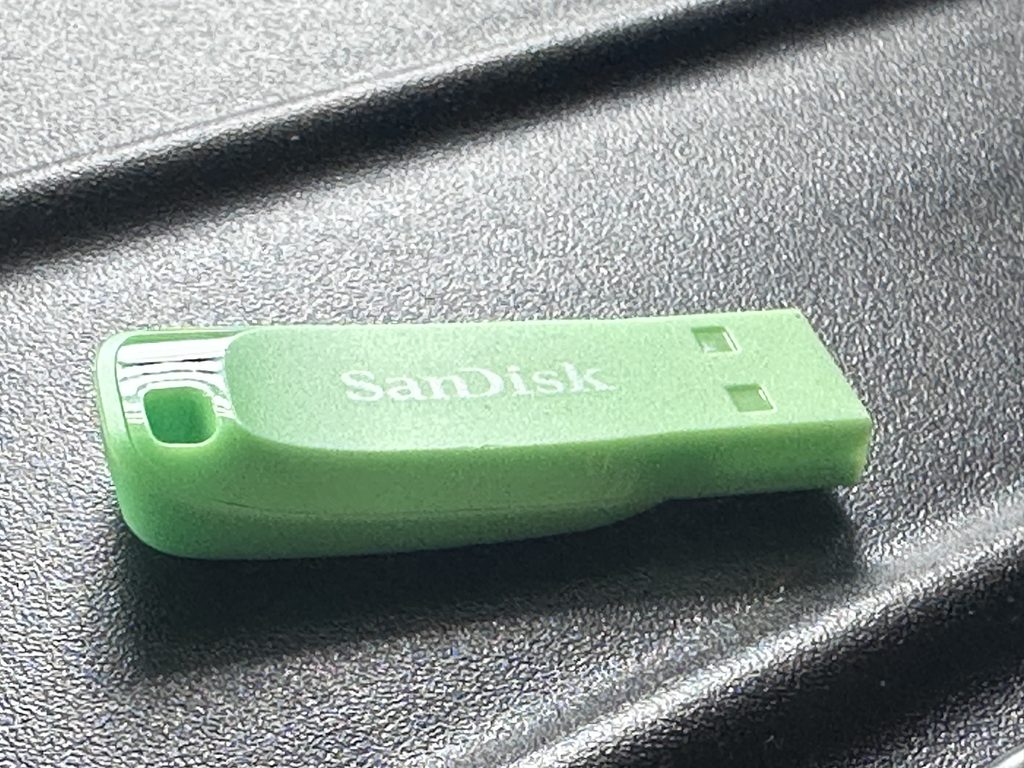
USB sticks can contain far more personal information than their appearance suggests: family photographs, scanned identity documents, financial records, correspondence or confidential business files.
Treat unknown old USB devices accordingly.
For sensitive material, consider encrypted storage once the files have been recovered and organised. UK government security guidance requires appropriate protection for sensitive information on removable storage in relevant government contexts, including the use of encryption.
Before disposing of a working USB device that contained confidential information, simply deleting visible files may not provide an appropriate level of secure erasure.
For ordinary family collections, the underlying lesson is straightforward: know what is on a USB stick before giving it away, recycling it or throwing it out.
How to Consolidate Several Old USB Sticks
Many households eventually accumulate a collection of USB sticks with names such as “Photos”, “Backup”, “Holiday” and “Old PC”.
Rather than copying everything randomly into one folder, process them methodically.
Create an inventory such as:
- USB 01 – Family photographs
- USB 02 – Old computer documents
- USB 03 – Home videos
- USB 04 – Unknown contents
Make a complete initial copy of each device before reorganising anything.
Once the source copies are secure, duplicates can be assessed and the files reorganised by subject, date or event. This reduces the risk of accidentally deleting the only version of a file because two similarly named items appeared to be identical.
If your collection also includes memory cards and external drives, a managed transfer of mixed storage media can help consolidate scattered files into a more accessible collection.
Common Mistakes When Converting USB Sticks
Formatting Before Recovering the Files
Formatting is appropriate when deliberately preparing a USB device for reuse—not when trying to retrieve important files from an unreadable stick.
Moving Files Instead of Copying Them
Copy first. Keep the source unchanged until you have checked the new version.
Assuming a New USB Stick Is a Permanent Backup
New storage can fail too. Keep another copy elsewhere.
Ignoring Large Video Files
If you are preparing a USB stick for video, remember that FAT32 has a 4 GB maximum individual file size. The destination device’s compatibility should determine which file system you choose.
Converting Files and Deleting the Originals
Where practical, preserve original photographs, videos and documents before creating modern access copies.
Plugging a Damaged Connector In Repeatedly
A loose or bent USB connector is a physical fault. Repeated testing may not be appropriate when the data is irreplaceable.
Frequently Asked Questions About USB Conversion
How do I convert a USB stick to digital?
A USB stick is already digital. Usually, the task involves copying its contents to another device, recovering inaccessible data or converting the individual files into more convenient formats.
Can I copy an old USB stick onto a new one?
Yes. Copy the old stick to a computer first where practical, check the transferred files, then copy them onto the new USB device. Retaining a separate backup provides additional protection.
Why won’t my computer recognise my USB stick?
Possible causes include a faulty USB port, damaged connector, incompatible or corrupted file system, electronic failure or a problem with the USB device itself. Avoid formatting it if you need the existing files.
Can a corrupted USB stick be recovered?
Sometimes. Recovery depends on the type and extent of the fault. If files are valuable, minimise further changes to the device until you understand the problem.
Should I use FAT32 or exFAT?
FAT32 offers broad compatibility but has a 4 GB maximum individual file size. exFAT supports much larger files and is useful for modern cross-platform storage, provided the equipment you intend to use supports it.
Can I put videos from a USB stick onto another drive?
Yes. Once the files have been safely retrieved, they can be copied to suitable external storage. For larger collections, moving material onto a modern external drive can provide considerably more capacity than a small flash drive.
Give Your Old USB Files a Safer Home
Converting an old USB stick should be approached as a preservation job rather than simply a file-copying exercise. The objective is to retrieve the contents accurately, keep valuable originals intact, verify the transfer and remove your dependence on one small removable device.
If the stick works normally, copy its contents before reorganising or converting anything. If it behaves unpredictably, asks to be formatted or shows signs of physical damage, stop and assess the problem before making changes.
Once the files are secure, organise them properly and create additional backups. Our USB transfer service can help move photographs, videos and documents from older USB sticks onto more accessible storage, making your files easier to find, use and preserve.