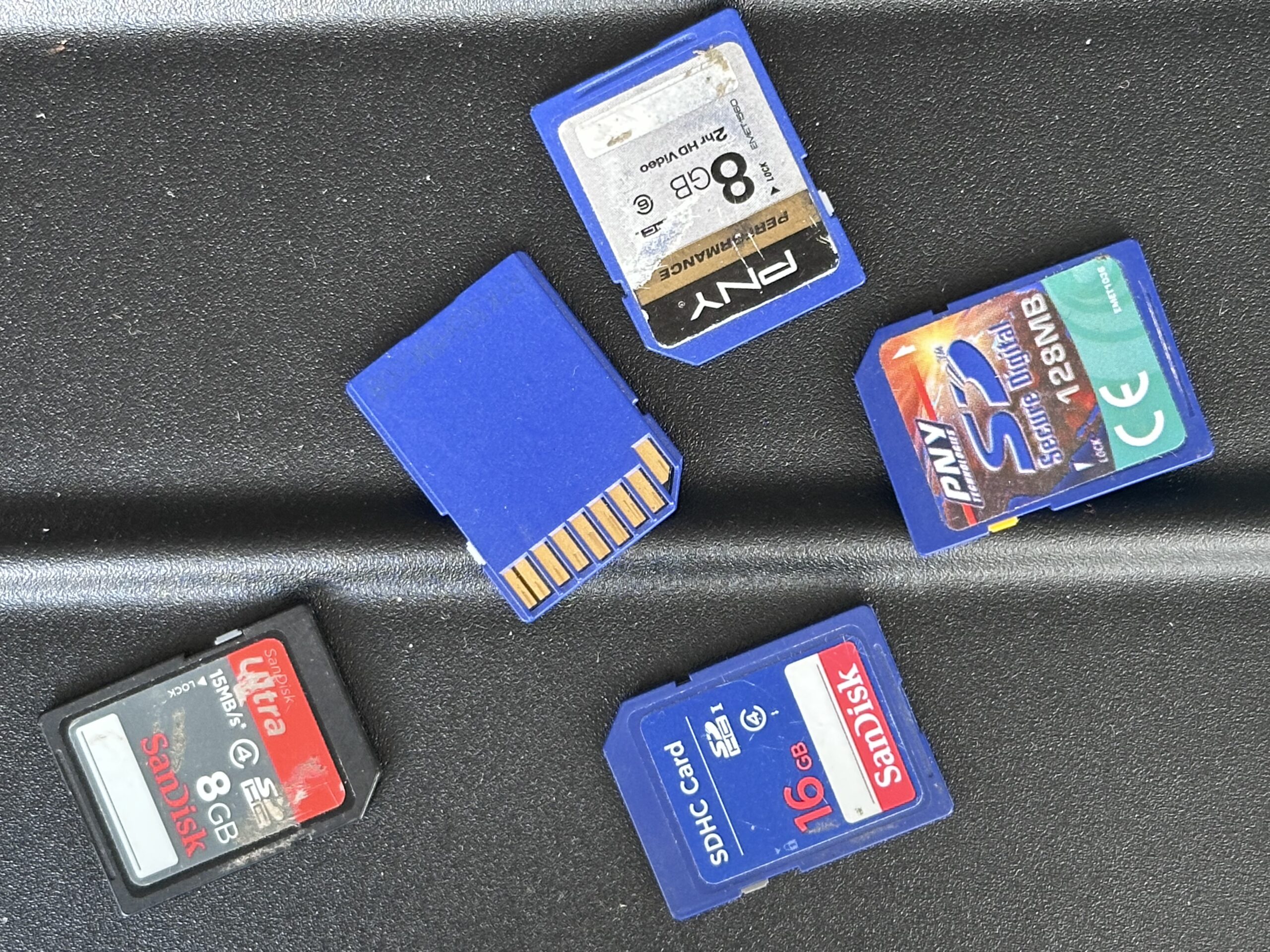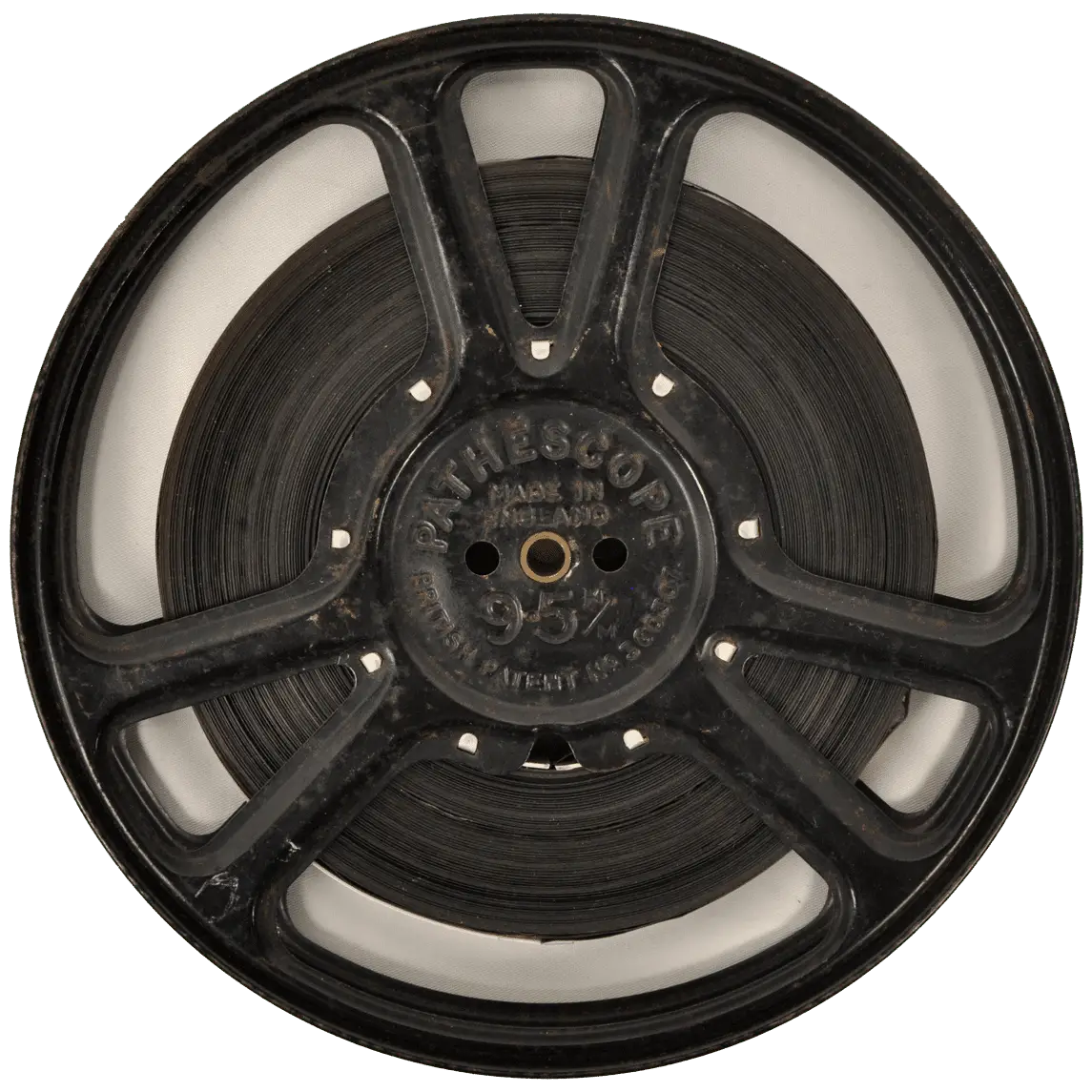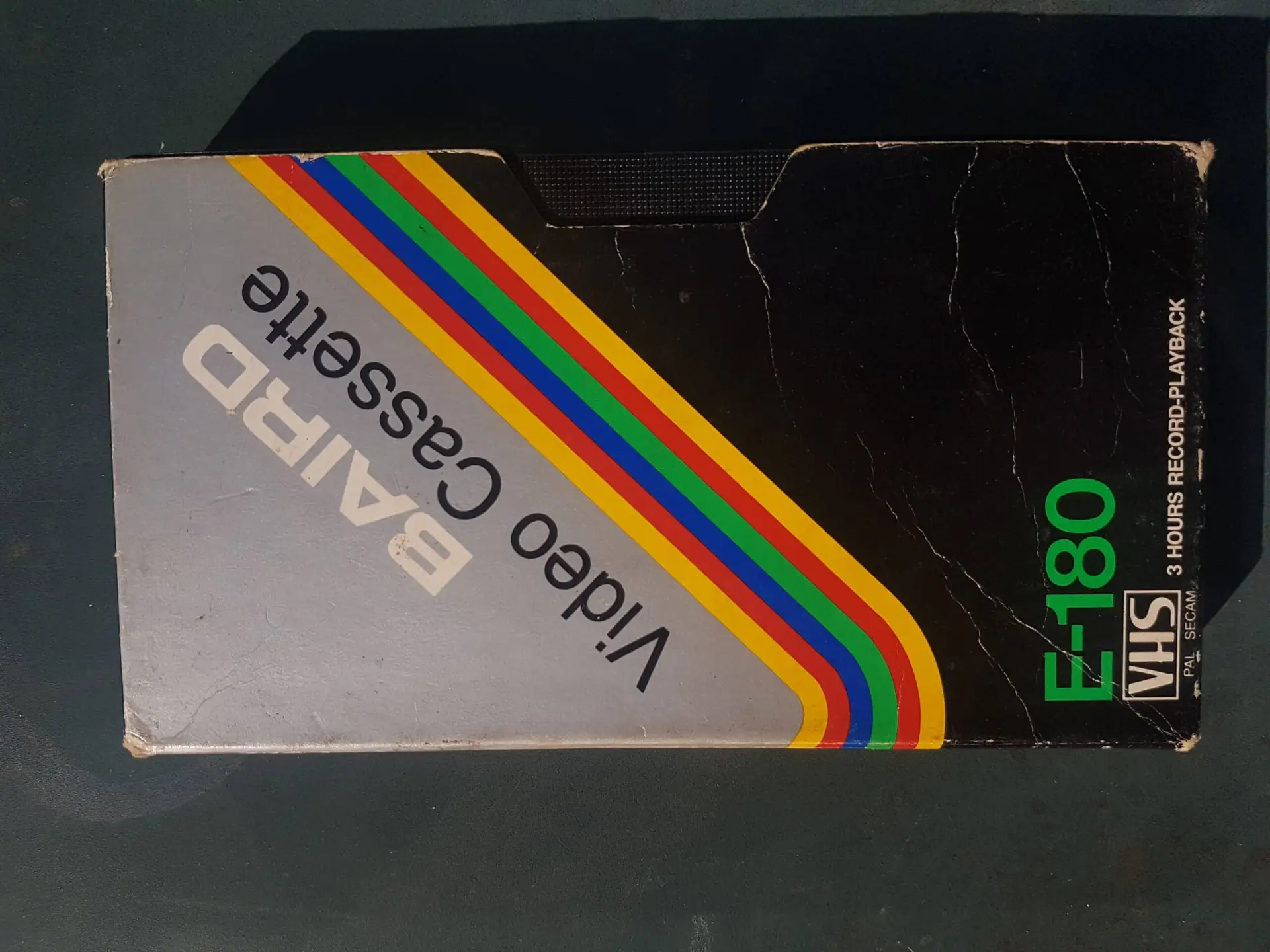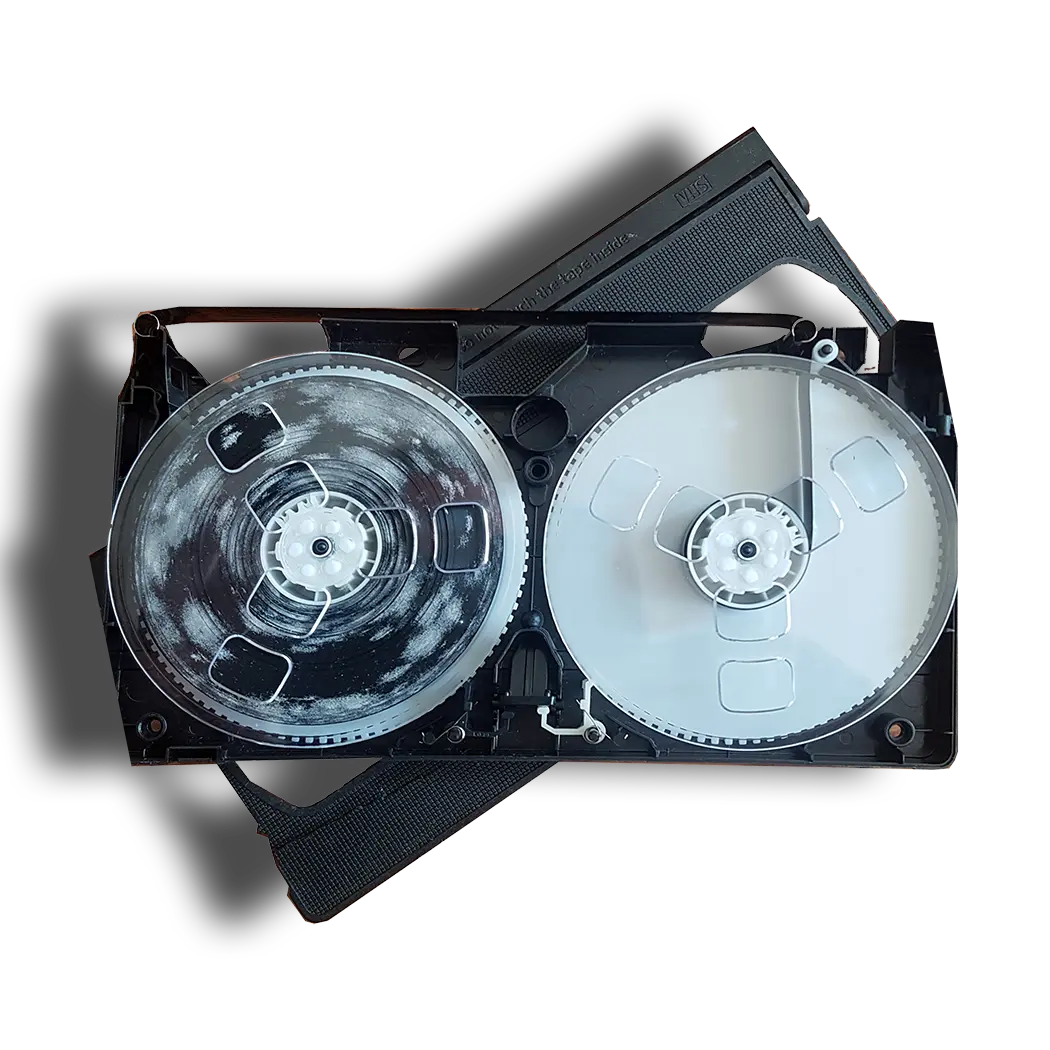

To convert a memory card, first copy its photographs, videos and other files to a computer or suitable storage device, verify that everything transferred correctly, and then create a second backup. If the card is damaged, corrupted or asks to be formatted, stop using it and consider recovery before attempting a normal transfer.
A safe process is:
- Identify the memory card type and choose a compatible reader.
- Check the card for damage before inserting it.
- Copy rather than move the files from the card.
- Preserve the original folder structure during the initial transfer.
- Check photographs, videos and documents after copying.
- Create another backup on separate storage.
- Only format or reuse the original card when you are satisfied that everything important is safely preserved.
What Does Converting a Memory Card Actually Mean?
People use the term “convert memory card” to describe several different jobs. You may simply want to take photographs from an SD card and put them onto your computer, or you might have an older card that modern equipment can no longer read easily.
It helps to separate three processes.
Transferring means copying the existing files from the card to another device.
Converting usually means changing either the destination or the file format so that the content is easier to access.
Recovering means attempting to retrieve files that are deleted, corrupted or inaccessible.
This distinction becomes particularly important when a card is faulty. If your computer cannot read it normally, repeatedly attempting conversion is unlikely to solve the underlying problem.
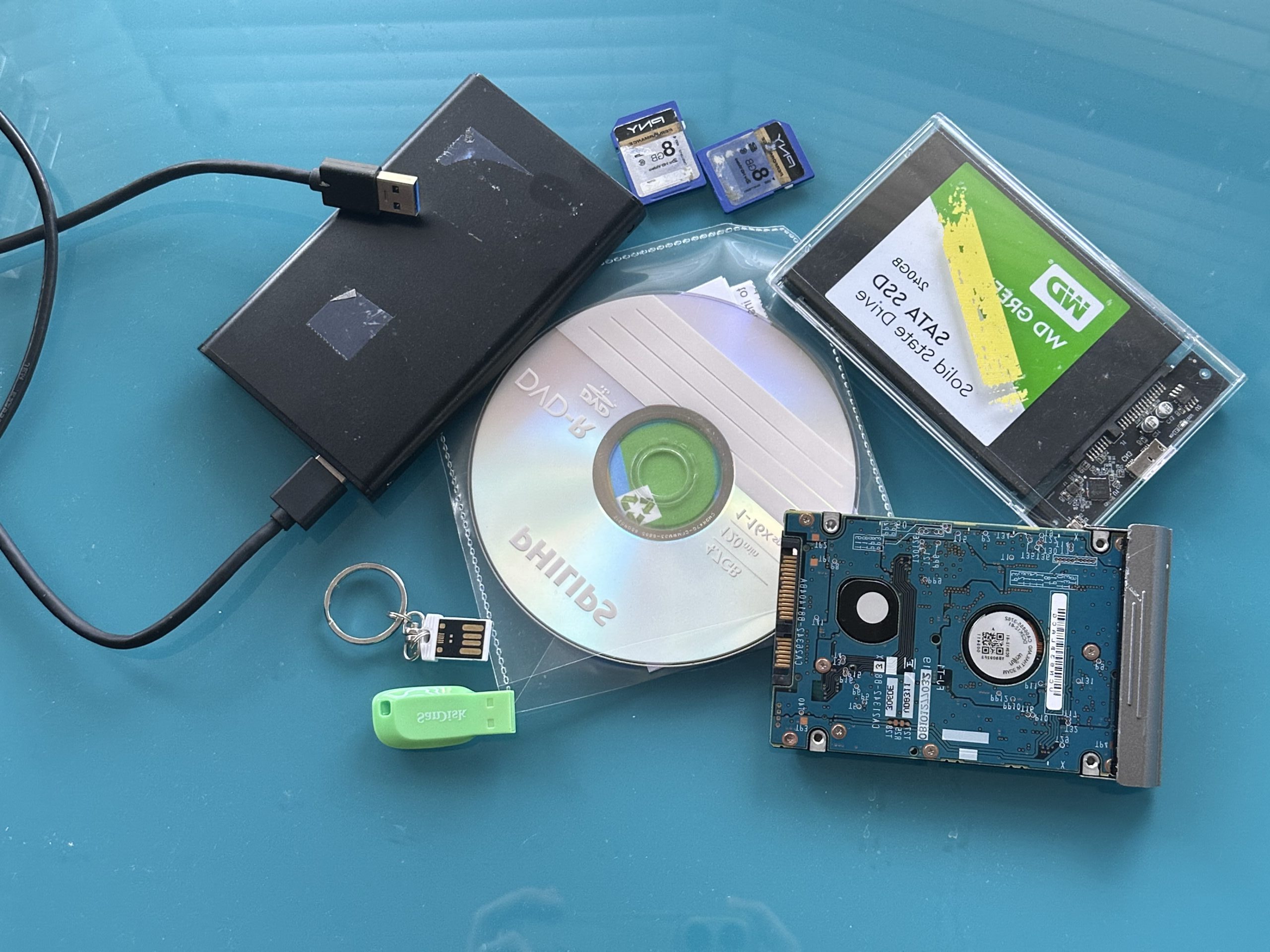
For collections containing cards alongside USB sticks, hard drives or other devices, our guide to handling files held on older storage devices explains how to approach a mixed digital archive.
Which Memory Card Do You Have?
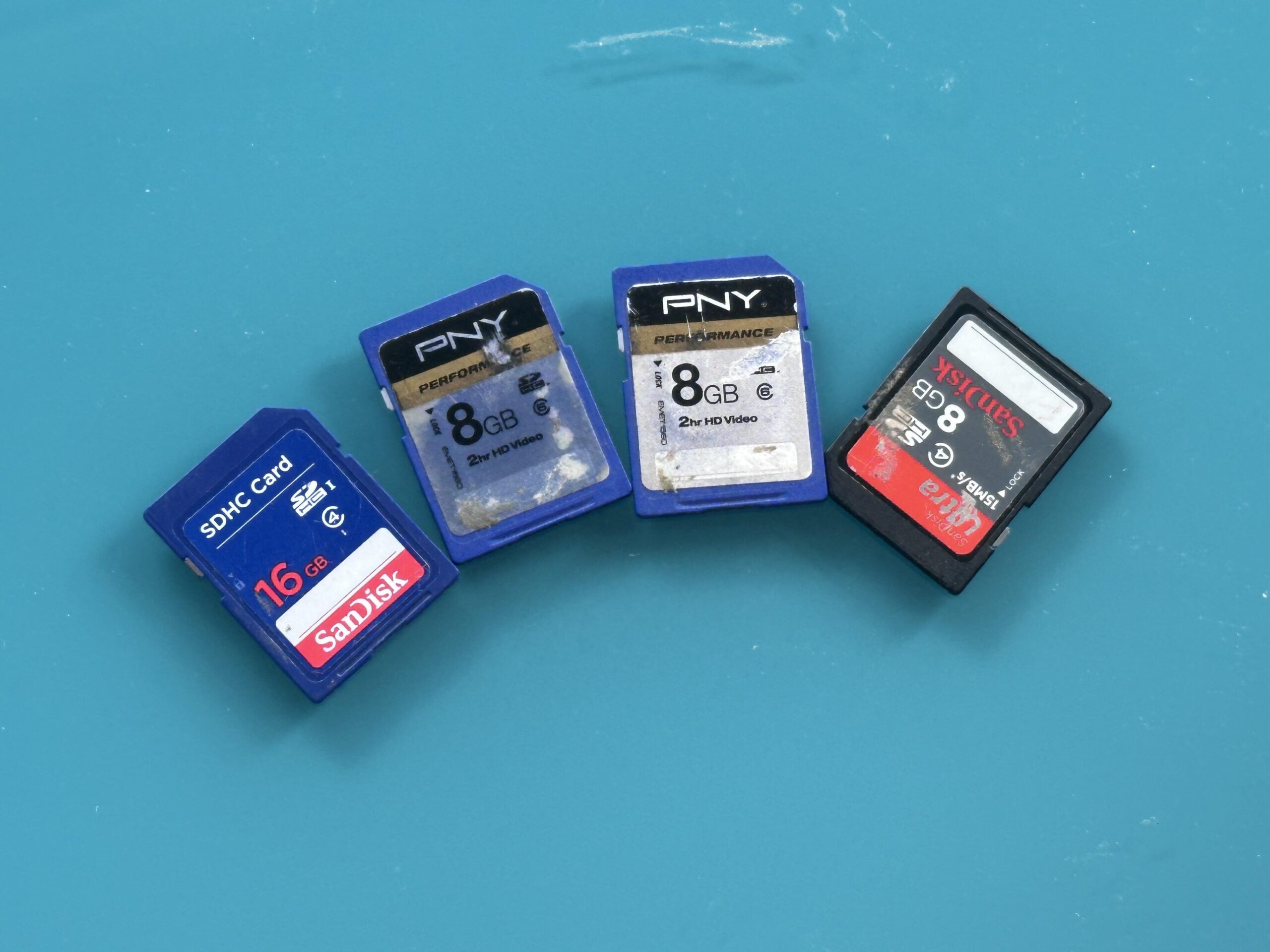
Memory cards have appeared in many formats, and identifying the card is the first step towards accessing its contents.
| Memory card | Common associations | What to consider |
|---|---|---|
| SD | Cameras, camcorders and other devices | Widely supported by card readers |
| SDHC | Cameras and video equipment | Check reader compatibility |
| SDXC | Higher-capacity cameras and video devices | Older readers may not support it |
| microSD | Phones, action cameras and compact devices | May require an SD adaptor or microSD reader |
| CompactFlash | Older digital and professional cameras | Requires a CF-compatible reader |
| Memory Stick | Particularly associated with older Sony equipment | Modern computers may require a separate reader |
| xD-Picture Card | Some older digital cameras | Compatible readers are less common |
| MultiMediaCard | Early portable electronics | Check reader support before attempting transfer |
Older does not necessarily mean damaged. Sometimes an apparently inaccessible card simply needs the correct reader or adaptor.
That is one reason it is worth identifying the exact format before troubleshooting it.
How to Transfer Files From a Memory Card Step by Step
1. Inspect the Card Before Connecting It
Look closely at the card before putting it into a reader.
Check for cracks, damaged contacts, contamination, bent areas or signs that the casing is separating. With CompactFlash cards, also take care with the connector because bent pins in a reader or device can cause problems.
If the card has suffered serious physical damage, forcing it into a reader may make matters worse.
2. Choose a Compatible Reader
Many laptops and desktop computers have built-in SD slots, while other card types require an external USB reader.
Compatibility matters. A reader that physically accepts a card is not necessarily capable of correctly reading every generation or capacity.
When dealing with an unfamiliar or older card, identify its markings first and confirm that the reader supports the format.
3. Copy the Files Instead of Moving Them
When the card opens normally, create a clearly named folder on the destination device and copy its contents.
Copying leaves the source files on the memory card while the transfer takes place. Moving files removes them from the source as part of the operation and therefore introduces an unnecessary risk when handling important memories.
For the first transfer, retaining the card’s original folder structure can also be useful. Camera cards frequently contain folders and supporting files whose purpose may not be immediately obvious.
4. Wait for the Transfer to Finish
Large video files and high-resolution photograph collections can take time to copy.
Do not remove the memory card simply because the progress indicator appears to have paused. Wait for the operation to finish and use the operating system’s appropriate eject procedure before removing the card.
Interrupting a write operation can contribute to file-system problems.
5. Verify the Copied Files
A completed progress bar tells you that a copy operation finished; it does not prove that every important file is usable.
Check the results.
Open photographs from different parts of the collection. Play representative videos, including footage from later in longer recordings. Check documents and compare the approximate number of files and folders against the source where possible.
For important archives, stronger integrity checks can be made using checksums. The National Archives’ digital preservation workflow guidance discusses controlled transfer procedures, appropriate media readers and write blockers that can prevent alteration of source content.
Should You Transfer a Memory Card to a Computer, USB or DVD?
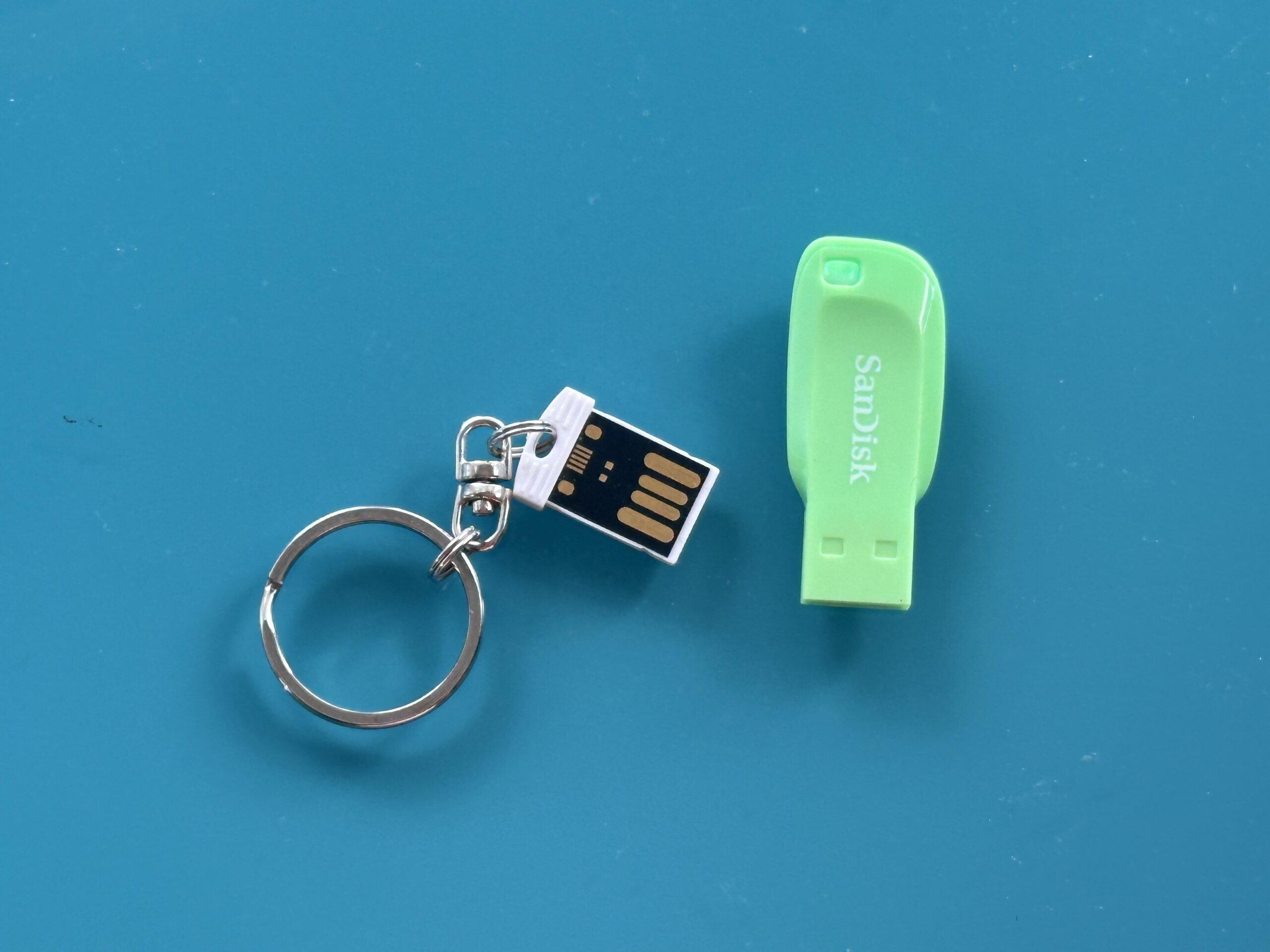
The best destination depends on how you intend to use the files.
| Destination | Best suited to | Important consideration |
|---|---|---|
| Computer | Everyday access and organisation | Needs a separate backup |
| USB drive | Portable sharing and viewing | Easy to misplace and shouldn’t be the only copy |
| External drive | Larger photo and video collections | The drive itself can eventually fail |
| Cloud storage | Remote access and off-site backup | Requires account management and may involve ongoing costs |
| DVD | Particular playback, sharing or archival requirements | Modern computers increasingly lack optical drives |
A computer is often the easiest starting point because you can inspect, rename and organise the recovered files before deciding where additional copies should live.
If you would rather have the contents professionally extracted, a memory card transfer to computer can be useful when dealing with older cards, large collections or files you would prefer not to handle yourself.
What If Your Computer Cannot Read the Memory Card?
An unreadable card does not automatically mean its files are lost.
The problem could involve the card reader, adaptor, connection, file system, card controller or flash memory itself. Before assuming the worst, you can safely check whether another known-compatible reader or computer recognises the card.
However, be careful about what happens next.
If the computer displays a message asking you to format, initialise or repair the card, do not automatically accept it when the card contains irreplaceable material.
Formatting changes the storage structure and is not an appropriate first response when your priority is recovering existing photographs or videos.
What Should You Do If Photographs Have Been Deleted?
Stop using the card.
This is one of the most important rules in memory card recovery.
When a file is deleted, its data may not necessarily disappear from the storage medium at that exact moment. Depending on the card, file system and subsequent activity, some or all of the information may remain recoverable until other data overwrites it.
Taking another hundred photographs to “test” the card could therefore reduce recovery possibilities.
The same principle applies after accidental formatting: if important files have disappeared, avoid recording new photographs or videos to that card.
Damaged and Corrupted Memory Cards Need a Different Approach
There is a major difference between an obsolete card that still functions and a card suffering from a physical or logical fault.
Possible warning signs include:
- the card repeatedly disconnecting
- missing photographs or folders
- file names becoming corrupted
- photographs opening only partially
- a camera reporting a card error
- the computer requesting formatting
- a card appearing with an unexpected capacity
- physical cracking or damage
- the card no longer being detected
In these situations, your priority changes from ordinary transfer to protecting whatever data remains accessible.
A specialist assessment of a faulty SD card may be preferable when the photographs or videos are irreplaceable.
Can a Memory Card Be Repaired?
Sometimes the underlying problem can be addressed, but repairing the card itself and recovering its contents are different objectives.
If a £20 memory card contains the only photographs from an important family occasion, restoring the card to everyday use is much less important than retrieving the files.
Flash memory stores information electronically and relies on components including NAND flash memory and a controller. Faults can therefore occur at several levels, while file-system corruption can make data inaccessible even when the card is still detected.
For important data, the sensible objective is generally:
recover the files → verify them → copy them to healthy storage → retire an unreliable card.
A card that has already demonstrated unexplained failures should not be trusted as the sole home of important files.
Should You Convert the Files as Well as Transfer Them?
Not necessarily.
If the memory card contains standard JPEG photographs or commonly supported video files, copying them may be all that is required.
Older cameras can also contain RAW photographs, less common video formats or files associated with obsolete software. In these cases, conversion can make an additional version easier to view on current equipment.
The important word is additional.
Where practical, keep the original file alongside the converted copy. An original photograph may contain metadata or image information that could be lost when producing a smaller or more widely compatible version.
Digital preservation is about retaining useful source information as well as making content convenient to access.
How to Organise Photographs After the Transfer
This is an often-overlooked part of the process.
A folder containing thousands of files named IMG_0001, IMG_0002 and similar sequences may technically be backed up but can still be difficult to navigate.
Once you have created and verified the initial copy, consider organising the collection by:
- year
- event
- location
- family member
- holiday
- subject
A structure such as 2012 > Family Holidays > Cornwall is likely to be far more meaningful years later than a collection of folders called “Card 1”, “Card 2” and “New Folder”.
Avoid reorganising the only copy. Work on a verified duplicate so that the original transferred structure remains available if something goes wrong.
Why One Copy Is Not a Backup Strategy
Moving everything from an SD card to one external drive simply changes where the single point of failure exists.
Memory cards, USB sticks, hard drives and computers can all fail, become damaged or be lost.
For valuable family photographs and videos, keep more than one copy and ideally avoid storing every copy in the same physical location. The National Archives’ guidance on preserving digital collections emphasises the importance of managing storage risks and maintaining digital material rather than assuming a storage device will preserve files indefinitely.
A straightforward personal strategy could therefore include:
- a working copy on your computer
- a backup on an external drive
- another protected copy stored separately or in a suitable cloud service
The exact arrangement matters less than ensuring that the loss of one device does not mean the loss of the collection.
Common Mistakes When Converting Memory Cards
Formatting a Card Because the Computer Suggests It
Do not treat a formatting prompt as confirmation that the card is empty. If it contains important material, investigate recovery options first.
Continuing to Use a Card After Files Disappear
New data can overwrite information that might otherwise have been recoverable.
Using the Memory Card as the Permanent Archive
Memory cards are convenient recording and transfer media, but important photographs deserve additional copies.
Deleting the Originals Immediately
Keep the original card unchanged until you have checked the transferred material and created adequate backups.
Assuming Every Card Reader Is Compatible
Older and less common memory-card formats may need a specific reader. Identify the card rather than forcing it into an unsuitable slot or adaptor.
Converting Everything to a Different File Format
Conversion can be useful for compatibility, but retain original files where practical. A derivative JPEG or compressed video should not automatically replace a higher-quality source file.
Frequently Asked Questions About Memory Card Conversion
How do I convert a memory card to digital?
A memory card already stores digital data. What people usually mean by “conversion” is transferring its photographs, videos and files to a computer, USB drive, external drive, DVD or another modern storage destination.
Can an old memory card still be read?
Often, yes. You need a compatible reader and a card that remains functional. Older formats such as CompactFlash, Memory Stick and xD-Picture Card may require specialist or multi-format readers.
Can I transfer photographs directly from an SD card to USB?
Yes, provided the computer, tablet or transfer equipment can access both devices. For valuable material, copy the files rather than moving them, verify the USB copy and retain another backup.
Why does my SD card say it needs formatting?
The computer may be unable to recognise the card’s existing file system correctly. If valuable files are already on the card, avoid formatting it until you have considered whether recovery is necessary.
Can deleted photos be recovered from a memory card?
Sometimes. Recoverability depends on what has happened to the card since deletion and whether the relevant data has been overwritten. Stop using the card as soon as you realise important files are missing.
Should I keep my old memory card after transferring everything?
Initially, yes. Keep it until you have thoroughly checked the new copy and made at least one additional backup. An unreliable card should not subsequently be relied upon for important new material.
Give Your Memory Card Files a Safer Future
The most important part of converting a memory card is not simply getting photographs from one device onto another. It is ensuring that valuable files survive the process and remain accessible afterwards.
Identify the card, use compatible equipment, copy rather than move the data, check the results and create another backup before changing the original.
Once the files are safely transferred, you can organise your photographs and videos, create backups and make them easier to access. For older cards containing important memories, you can transfer your photos and videos to a computer so they can be stored, organised and backed up more easily.