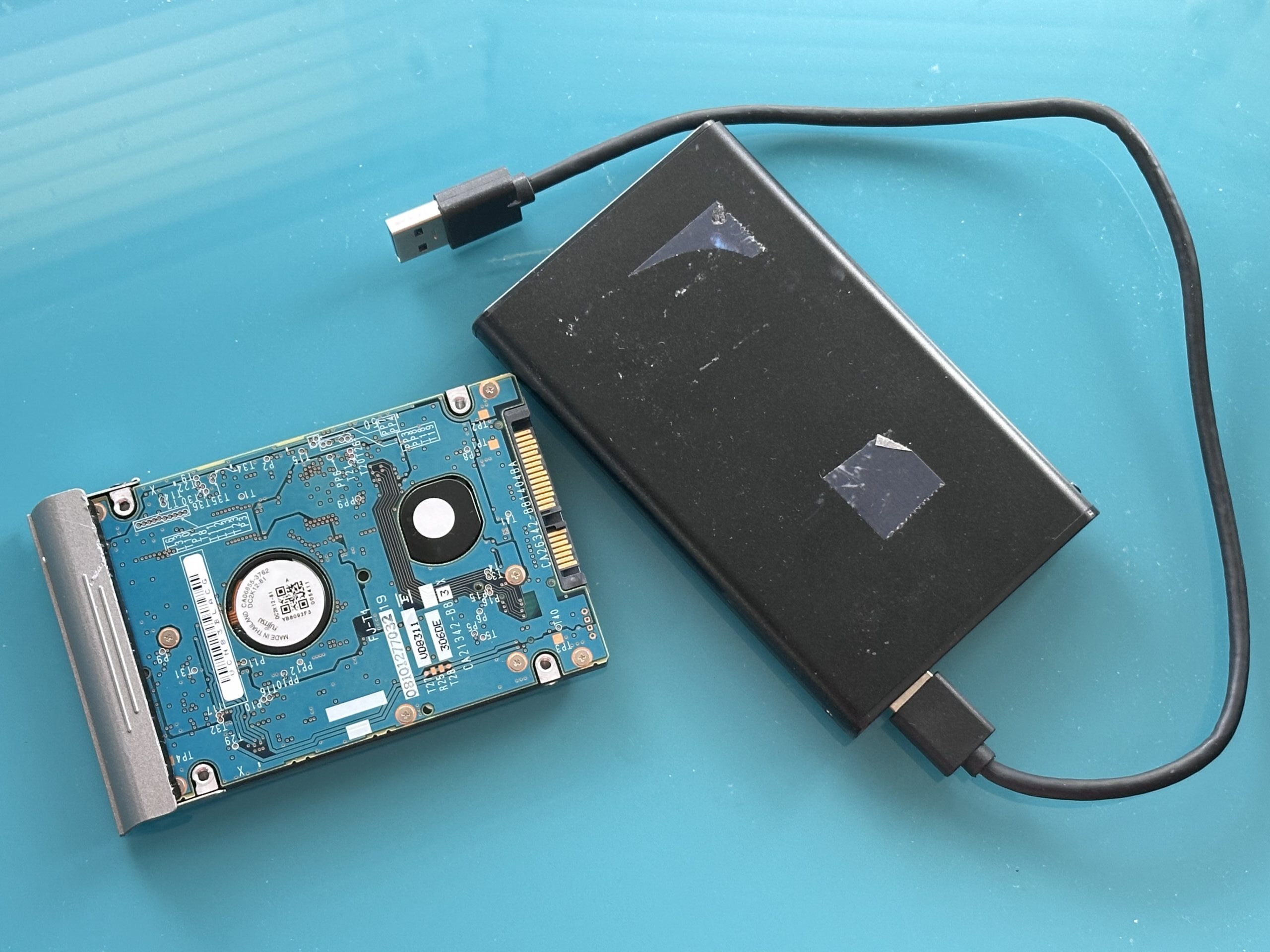

To transfer an external hard drive, connect the source drive to a compatible computer, copy its files to another drive or storage location, verify that important photographs, videos and documents transferred correctly, and retain the original until you have a separate backup. If the drive clicks, disconnects repeatedly or cannot be read, stop using it and consider recovery before attempting further transfers.
A safe transfer normally involves:
- Check the condition and connections of the original drive.
- Confirm the destination has sufficient free capacity.
- Copy rather than move the original folders.
- Keep the existing folder structure during the initial transfer.
- Verify important files after copying.
- Create an additional backup in a separate location.
- Keep the source drive until the new copies have been thoroughly checked.
Why Transfer an Old External Hard Drive?
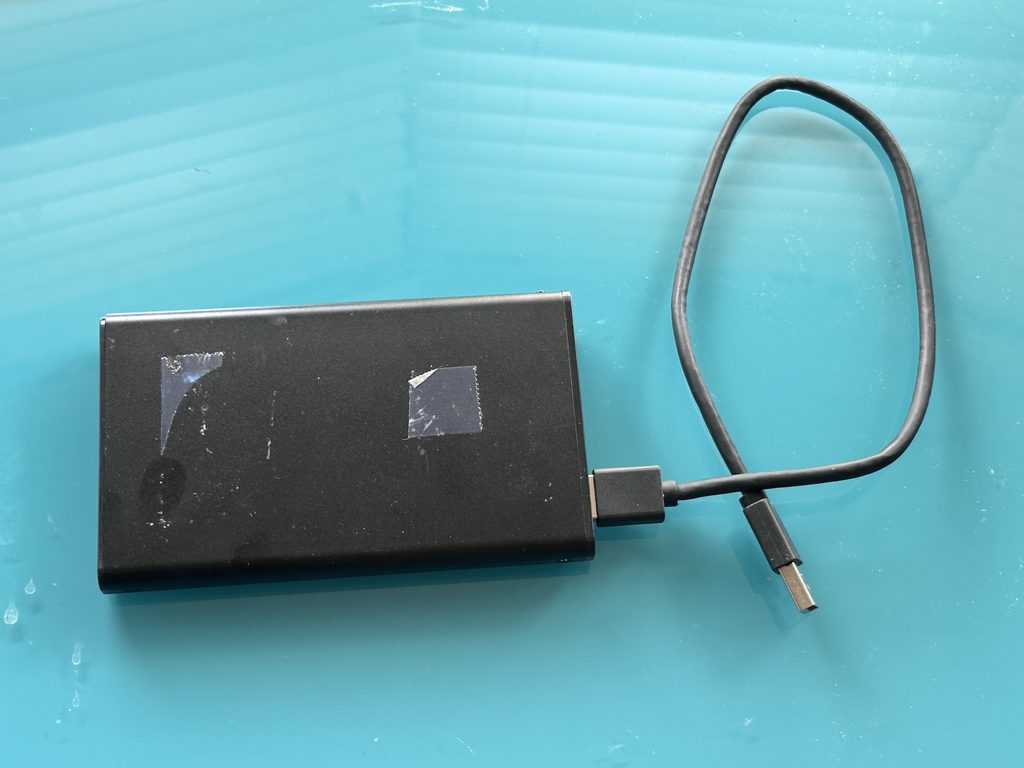
External drives are convenient because they can hold large collections of photographs, home videos, music and documents in one place. The problem is that convenience can encourage us to leave valuable files on the same drive for years.
No storage device should be treated as permanent.
The National Archives points out that storage media depend upon compatible hardware and software and that no computer storage medium can be regarded as permanently archival. Technological obsolescence and limited media lifespans make periodic migration to newer storage necessary.
Transferring an older drive can therefore achieve several things at once:
- protect files before ageing hardware fails
- move a collection onto a larger or newer drive
- consolidate files from several storage devices
- make photographs and videos accessible on a current computer
- reorganise a disordered digital archive
- create another backup
- move data from an old computer to a replacement
If your collection is distributed across hard drives, USB sticks and memory cards, a managed transfer of mixed digital storage can also bring the material together in a more practical location.
HDD or SSD: What Type of External Drive Do You Have?
External drives broadly fall into two categories: traditional hard disk drives (HDDs) and solid-state drives (SSDs).
| Feature | External HDD | External SSD |
|---|---|---|
| Storage technology | Magnetic platters and moving components | Flash memory |
| Moving parts | Yes | No |
| Physical shock sensitivity | Greater while operating | Generally more resistant |
| Typical advantage | High capacity for the cost | Speed and portability |
| Possible failure | Mechanical, electronic or logical | Electronic, controller or flash-related |
| Suitable for backups | Yes | Yes |
Neither technology eliminates the need for backups.
An HDD can suffer mechanical failure. An SSD can suffer electronic or controller problems. Either device can also be lost, stolen, accidentally erased or corrupted.
For irreplaceable files, the safest strategy is therefore based on multiple copies, rather than trying to find a single storage device that can never fail.
How to Transfer an External Hard Drive Step by Step
1. Inspect the Source Drive
Before powering an old drive, inspect its casing, cable and connectors.
Look for obvious damage, corrosion, a loose socket or a damaged power supply. If it has been dropped or suffered liquid damage, consider whether attempting to power it is sensible when the contents are valuable.
Once switched on, pay attention to its behaviour.
An HDD that produces unusual clicking, repeated spin-up attempts or other abnormal mechanical sounds deserves particular caution.
2. Check How Much Data You Need to Transfer
The capacity printed on the enclosure is not the same as the amount of data actually stored on it.
A 2 TB drive containing 350 GB of files only requires a destination with enough available space for those files plus sensible spare capacity.
Before beginning, check:
- used storage
- available destination capacity
- approximate number of folders
- particularly large video collections
- whether hidden or system files matter to you
This also provides useful reference information when checking the transfer afterwards.
3. Connect the Destination Drive
If you are transferring from one external drive to another, connect both devices to the computer.
Older drives may use connections that are no longer present on newer computers, so a suitable adaptor, dock or enclosure may be required.
Do not assume a drive has failed simply because its old connector no longer fits your computer.
4. Copy the Files
For valuable archives, copy rather than move.
Copying leaves the original material on the source drive while creating another version on the destination. Moving files removes them from their original location during the process and provides less protection if something goes wrong.
For the first transfer, it is usually sensible to preserve the existing directory structure.
You can reorganise a duplicate afterwards.
5. Allow the Transfer to Complete
Large hard-drive transfers can take considerable time, particularly when they contain thousands of small files or the source drive uses an older interface.
Avoid:
- unplugging either drive
- allowing a laptop battery to run flat
- restarting the computer
- moving an operating HDD unnecessarily
- launching multiple heavy disk operations simultaneously
If the source repeatedly disconnects or begins producing errors, investigate rather than endlessly restarting the transfer.
How Do You Know the Transfer Worked?
This is an important step that is frequently overlooked.
Seeing folders on the destination does not prove that every important file copied correctly.
At a basic level, compare:
- total folder sizes
- approximate file counts
- photographs from different folders
- large video files
- important documents
- unusually old or unusual file types
Play representative videos rather than merely checking that their thumbnails appear.
For particularly important archives, checksums can provide a more rigorous way of confirming file integrity. The National Archives’ preservation workflow discusses using integrity or fixity checking as part of maintaining digital material over time.
Only after verification should you consider the transfer successful.
What If the External Hard Drive Isn’t Recognised?
An unrecognised drive does not automatically mean the files have disappeared.
Possible causes include:
- a faulty USB cable
- insufficient power
- a damaged USB port
- an incompatible connection
- enclosure electronics failure
- file-system corruption
- partition problems
- internal drive failure
- mechanical damage
Start with simple, non-destructive checks such as another suitable cable or compatible USB port.
Be much more cautious if the computer offers to format or initialise the drive.
If important files are already stored on it, do not automatically accept. Formatting is not a normal first step in data recovery and can alter the storage structures you are trying to preserve.
Warning Signs That Mean You Should Stop
Some faults justify more caution than others.
Stop repeatedly accessing the drive if you encounter:
- persistent clicking or unusual mechanical noises
- repeated spin-up and spin-down cycles
- the drive constantly disconnecting
- severe physical damage
- an electrical or burning smell
- extreme or unexpected heat
- rapidly increasing read errors
- important folders disappearing
- the computer repeatedly freezing while accessing the drive
A failing HDD is fundamentally different from a healthy drive with the wrong cable.
If the information matters, the objective is not to see how many times you can persuade the drive to mount. It is to minimise unnecessary stress while determining the safest route to recovering its contents.
A specialist external drive transfer and recovery assessment can be appropriate when normal copying is no longer reliable.
Copying, Cloning and Data Recovery Are Different
These terms are often confused.
Copying transfers selected files and folders through the normal file system.
Cloning or imaging creates a more comprehensive representation of the source storage and may be appropriate in specialist migration or recovery workflows.
Data recovery attempts to retrieve information that cannot be accessed normally because of deletion, corruption or hardware problems.
If the drive is healthy and you simply want your family photographs on a new device, ordinary copying may be sufficient.
If the drive is failing, however, repeated file-by-file copying attempts can be inappropriate. The recovery strategy needs to take account of the drive’s condition.
What File System Should the New Drive Use?
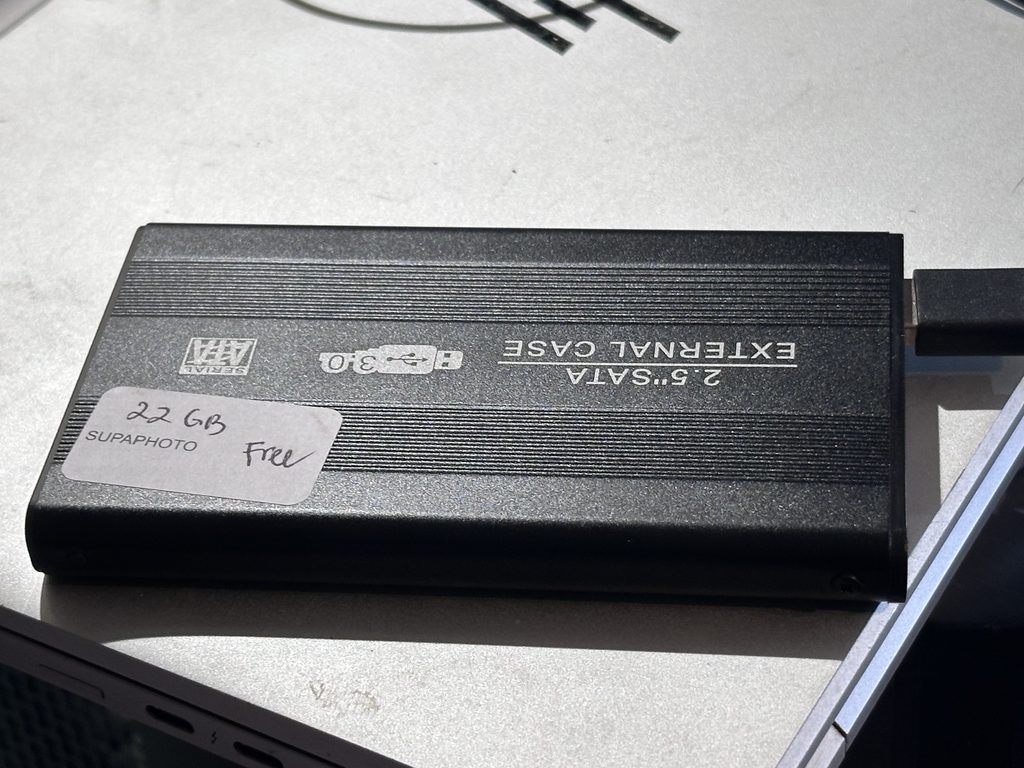
A replacement external drive needs a file system compatible with the equipment on which you plan to use it.
| File system | Typical use | Key consideration |
|---|---|---|
| NTFS | Primarily Windows | macOS compatibility differs, particularly for writing |
| exFAT | Windows and Mac interchange | Useful when cross-platform compatibility is important |
| APFS | Current Apple environments | Primarily intended for Apple systems |
| FAT32 | Broad legacy compatibility | Individual files are limited to 4 GB |
That 4 GB limit makes FAT32 inconvenient for many modern video collections.
Before reformatting a destination drive, think about where it will actually be used. A drive intended to move video between Windows and Mac systems has different requirements from a dedicated Mac backup drive.
Most importantly, never reformat the source drive containing the only copy of your files simply to improve compatibility.
Can You Transfer Files Between Windows and Mac?
Yes, but the file system matters.
Some drives can be read by both platforms but not written to equally easily. A drive formatted specifically for one operating system may therefore appear differently when connected to another.
If you are preparing a new drive specifically for cross-platform file storage, exFAT is commonly useful because current Windows and macOS systems support it and it does not have FAT32’s 4 GB individual-file limitation.
However, format the new destination drive, not an irreplaceable source drive containing the only copy of your files.
External Drive or Cloud Storage?
You do not necessarily need to choose one.
| Storage option | Strength | Limitation |
|---|---|---|
| External HDD | Large capacity and offline storage | Mechanical and physical risks |
| External SSD | Fast and portable | Cost per capacity can be higher |
| Cloud | Off-site copy and remote access | Internet and account dependence |
| Computer | Convenient everyday access | Loss or failure can affect the collection |
| NAS | Centralised storage | Requires setup and management |
For large photo and video collections, an external drive can be extremely practical because transferring hundreds of gigabytes does not depend on broadband speeds.
Cloud storage adds something different: physical separation.
GOV.UK’s consumer cloud guidance recommends considering whether data should be saved using more than one storage option rather than keeping it in only one place.
For particularly valuable material, combining local and off-site storage can provide better protection than either alone.
An External Hard Drive Is Not a Backup If It’s the Only Copy
This is one of the most important points in the entire process.
Suppose you transfer 20 years of family photographs from your computer onto a new external drive and then delete them from the computer.
You have transferred the files, but you still have only one copy.
The National Cyber Security Centre defines a backup as a copy of important data stored in a separate safe location. It also recommends checking that backups actually contain the important information you expect them to contain.
For irreplaceable family photographs and videos, consider maintaining:
- a working copy
- a separate local backup
- an additional off-site or cloud copy
The exact arrangement can vary, but one device should never represent the entire archive.
Should You Leave a Backup Drive Permanently Connected?
Not necessarily.
For a backup intended to protect against serious computer problems, keeping it permanently attached can create additional risk.
The NCSC advises disconnecting removable backup media when it is not being used because malware, including ransomware, may also affect connected storage.
For home users, this can be as simple as completing a scheduled backup, ejecting the drive properly and storing it safely.
If you use an automated system that requires permanent connectivity, the backup design needs other safeguards, such as protected versions or separate backup locations.
How to Organise a Large Photo and Video Archive
A drive full of files is not necessarily a usable archive.
Once the initial transfer has been verified and backed up, organise a copy of the material rather than immediately restructuring your only source.
A simple hierarchy might look like:
- Family Photos
- 2018
- 2019
- 2020
- Family Videos
- Birthdays
- Holidays
- Christmas
- Scanned Photographs
- Documents
Descriptive folder names and consistent dates make information far easier to locate years later.
The National Archives similarly recommends consistent organisation and file naming as part of managing digital collections.
Avoid deleting apparent duplicates purely because two files share a name. IMG_0001.JPG from two different cameras or years could represent completely different photographs.
Common Mistakes When Transferring an External Hard Drive
Moving Instead of Copying
Copy important material first and leave the source unchanged until the new version is verified.
Formatting an Unreadable Source Drive
A formatting prompt does not mean there is nothing recoverable on the disk.
Ignoring Mechanical Noises
Repeated clicking or abnormal operation can indicate a problem that deserves investigation rather than repeated transfer attempts.
Trusting One New Drive
A brand-new drive can still be lost, damaged or fail. Make another copy.
Deleting the Old Drive Too Soon
Keep the original until you have thoroughly checked the destination and established appropriate backups.
Assuming Folder Names Prove Files Are Healthy
Open important photographs, documents and videos. Verification matters.
Frequently Asked Questions About External Hard Drive Transfers
How do I transfer everything from one external hard drive to another?
Connect both drives to a compatible computer, confirm that the destination has sufficient free capacity, then copy the source folders to the destination. Verify the new copy before deleting or changing anything on the original.
How long does an external hard drive transfer take?
It depends on the amount of data, number and size of files, source and destination drives, interfaces and computer. Large video archives can take substantially longer than small document collections.
Can I copy a failing external drive?
Sometimes, but a failing drive requires more caution than a healthy one. If it clicks, repeatedly disconnects or produces increasing errors, continuing ordinary copying attempts may not be appropriate.
Can I transfer an external hard drive to a new computer?
Yes. Provided the new computer can access the drive’s file system and connection, files can normally be copied to its internal storage or another connected device.
Should I use an HDD or SSD for my new copy?
Both can be suitable. SSDs provide speed, compactness and no moving parts, while HDDs can offer substantial capacity economically. Neither removes the need for another backup.
Should I throw away my old drive after transferring it?
Not immediately. Keep it until the new files have been checked and you have another reliable copy. If the old drive contained sensitive information, appropriate secure erasure should also be considered before disposal.
Give Your Digital Archive More Than One Home
Transferring an external hard drive is not simply about getting files from Drive A to Drive B. Done properly, it is an opportunity to check what you have, preserve the original information, improve organisation and create a more resilient backup strategy.
Start with the least invasive approach: inspect the source, copy rather than move, verify the result and avoid formatting anything containing irreplaceable data. If the drive behaves abnormally, treat recovery as a separate problem rather than repeatedly forcing a normal transfer.
Most importantly, do not allow your new drive to become another single point of failure. Keep important photographs, videos and documents in more than one location and periodically check that they remain accessible. If your drive becomes damaged, unreadable or starts to fail, this can help retrieve valuable files and transfer them to safer storage.