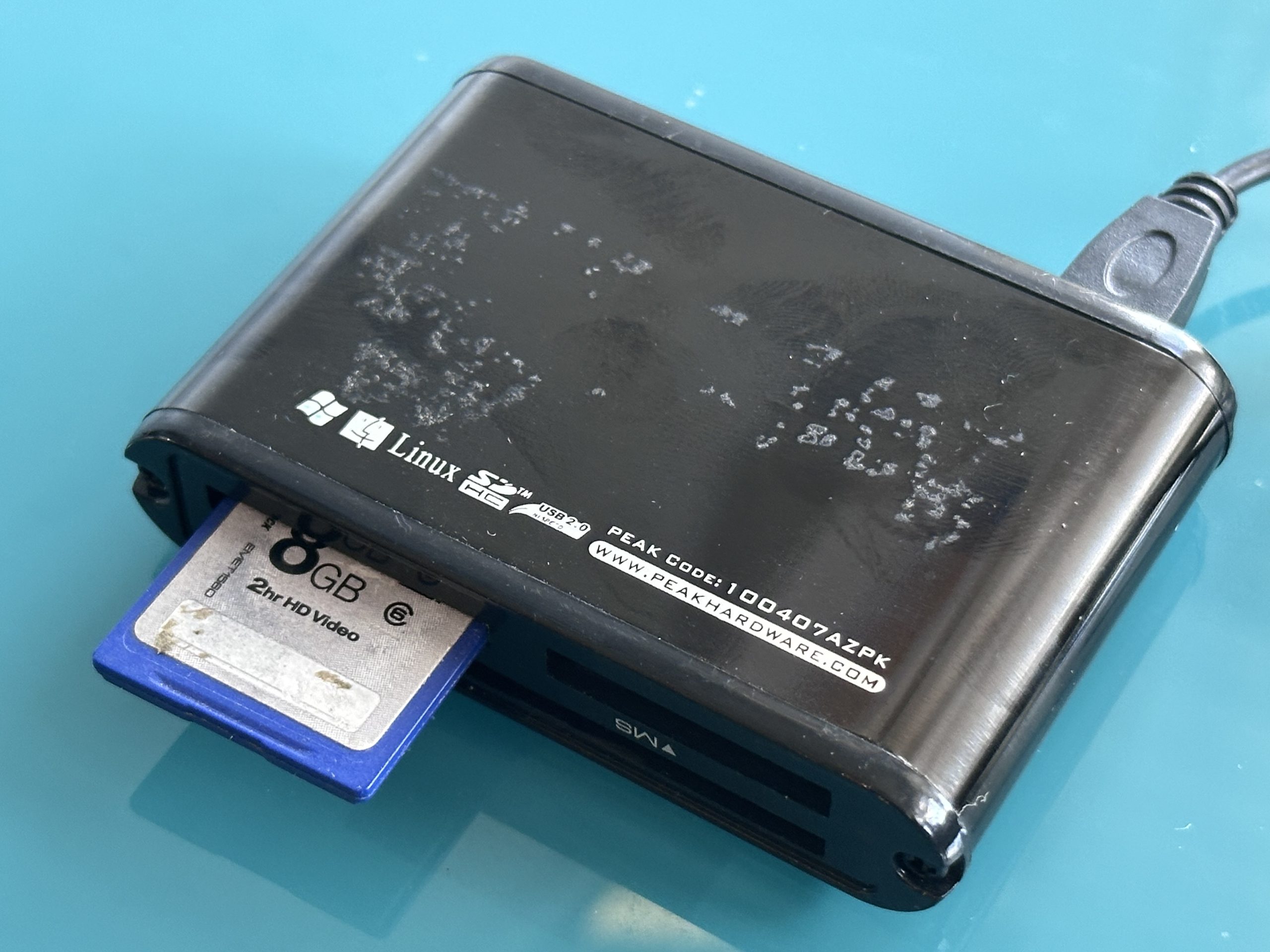

To repair a USB drive, first establish whether the problem is caused by the computer, connector, file system or the flash drive itself. If valuable files have disappeared, stop using the USB drive, do not format it when prompted and avoid writing new data. Physical or electronic faults may require specialist recovery rather than ordinary software repair.
The safest approach is:
- Stop using the USB drive if files have disappeared.
- Check the USB port and another compatible computer.
- Do not automatically format an unreadable drive.
- Avoid writing new files to the device.
- Do not straighten or dismantle a badly damaged connector yourself.
- Recover important files onto separate healthy storage.
- Replace an unreliable USB drive once its data is safe.
Why Has My USB Drive Stopped Working?
USB flash drives are convenient because they are small, portable and contain no mechanical hard-drive components. However, that does not make them immune to failure.
Inside a typical USB stick, flash memory stores the data while a controller manages communication between that memory and your computer. The USB connector, circuit board and other electronic components also need to function correctly.
Problems can therefore arise from several places:
| Problem | Typical symptom | Sensible response |
|---|---|---|
| Computer or USB port | Drive works on another computer | Check connection |
| File-system corruption | Drive detected but files inaccessible | Avoid formatting |
| Accidental deletion | Individual files disappear | Stop writing to drive |
| Damaged connector | Drive works intermittently or not at all | Avoid movement |
| Controller/electronic fault | Incorrect capacity or no access | Specialist assessment |
| Physical damage | Bent, snapped or cracked device | Don’t force into a port |
| Flash-memory failure | Read errors or inaccessible data | Recovery may be required |
The key question is therefore not simply “Can this USB stick be repaired?” It is “What has failed, and do I need the files stored on it?”
If the files matter, preserving the data should take priority over returning an inexpensive USB stick to everyday use.
USB Drive Repair or Data Recovery?
These terms are often used interchangeably, but they describe different objectives.
USB repair attempts to correct a fault with the storage device or its file system.
USB data recovery focuses on retrieving the photographs, videos, documents and other information stored on the device.
Sometimes a physical repair is necessary only to make a damaged USB drive readable long enough to extract its data. Once that has been achieved, there is little reason to trust a previously failed memory stick with the only copy of valuable files.
This distinction is particularly important with physically damaged USB drives. Repairing a broken connection may be part of the recovery process, but the ultimate objective is usually to move the information onto reliable storage.
First Checks When a USB Stick Is Not Recognised
A USB stick that does not appear on your computer has not necessarily failed.
Start with simple, non-destructive checks.
Try Another USB Port
A faulty or damaged computer port can create symptoms that appear to be a USB drive failure.
If appropriate, connect the device directly to another compatible port rather than through an unpowered hub.
Try Another Computer
A second computer can help establish whether the fault follows the USB stick or remains with the original machine.
If the drive works perfectly elsewhere, copy important files while they remain accessible.
Look for Physical Damage
Inspect the connector and casing without dismantling the device.
Check for:
- a bent connector
- looseness between connector and casing
- cracks
- signs of impact
- corrosion
- liquid damage
- scorching or heat damage
If the connector is visibly damaged, don’t repeatedly wiggle it inside the computer until it makes contact. Intermittent access is a reason to preserve the device, not keep stressing it.
What If Windows Says the USB Drive Needs Formatting?
If the USB stick contains files you need, do not automatically select Format.
A formatting request can appear because the operating system cannot interpret the drive’s existing file system normally. This can happen after corruption or other storage problems.
The message does not prove that your files have disappeared.
Formatting prepares a storage volume for use and changes its file-system structures. That may be useful for an empty device you deliberately want to reuse, but it is not the first action to take when recovering existing files is the priority.
Instead:
- cancel the format request
- stop writing to the drive
- check the connection and another computer if appropriate
- preserve the USB stick
- investigate recovery options
The same principle applies if Windows offers to initialise an unfamiliar storage device.
Can You Repair a Corrupted USB Drive?
Sometimes, but “corrupted” covers several different situations.
A corrupted file system can prevent the computer from locating files correctly even though the flash memory remains readable. In other cases, individual files rather than the entire storage system may be damaged.
Operating-system repair utilities can sometimes correct logical file-system errors, but they may also modify the source media.
That distinction matters when valuable data exists only on the USB stick.
If the files are expendable and already backed up, attempting file-system repair may be reasonable. If the drive contains the only copy of irreplaceable family photographs or business documents, preservation should come first.
Where possible, recovery work should avoid unnecessary changes to the original. The National Archives’ digital preservation transfer workflow describes using write blockers to prevent changes to content when working with storage media.
Should You Use CHKDSK on a Faulty USB Stick?
Not automatically.
CHKDSK is a Windows utility designed to examine and correct file-system problems. Correcting those structures inherently involves a different objective from preserving the source exactly as it currently exists.
If the USB stick contains your only copy of important files, it can be preferable to recover or image the data before using a repair process that writes changes to the storage.
Be especially cautious if the drive:
- disconnects repeatedly
- becomes abnormally hot
- reports an incorrect capacity
- has a damaged connector
- freezes the computer
- produces persistent read errors
- is detected only intermittently
These symptoms may indicate that the problem extends beyond straightforward file-system corruption.
Can Deleted Files Be Recovered From a USB Drive?
Potentially.
Deleting a file does not always immediately erase every part of its underlying data. Depending on the file system and device behaviour, storage previously occupied by the file may instead become available for reuse.
That creates an important rule:
Do not save anything new onto the USB drive after discovering accidental deletion.
New data can reuse storage occupied by deleted files, reducing what remains recoverable.
Recovery also depends on the flash device’s internal behaviour and what has happened since deletion, so a successful outcome cannot be guaranteed.
If the files are valuable, remove the USB stick from normal use until you decide how to proceed.
What About an Accidentally Formatted USB Drive?
Some formatted USB drives can yield recoverable data, but the outcome depends on how the device was formatted and whether it has subsequently been used.
After accidentally formatting a USB stick:
- stop using it
- don’t format it again
- don’t copy replacement files onto it
- don’t install recovery software onto the affected drive
- save any recovered material somewhere else
Repeatedly formatting the device with different file systems will not make the original files return.
Once data has actually been overwritten, recovery options become much more limited.
Can a Physically Broken USB Stick Be Repaired?
Sometimes, depending on the damage.
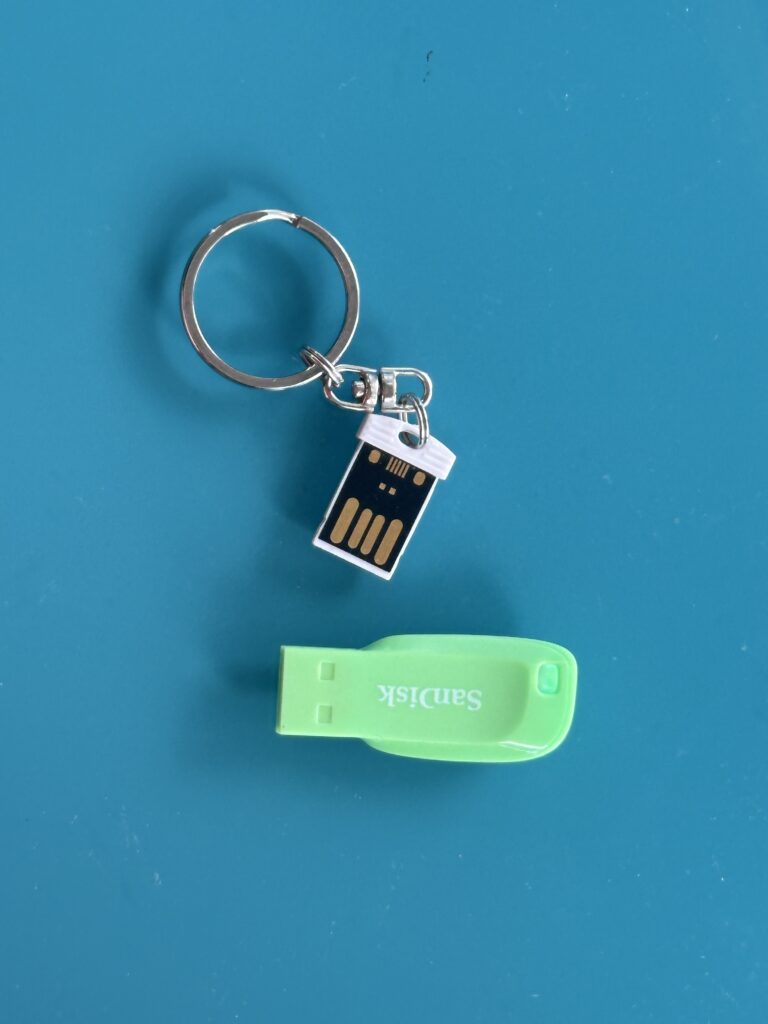
A USB connector can become bent, loose or completely detached from the circuit board after an impact. Other failures can affect the board, controller or flash-memory components.
Physical repair may involve specialist electronic work. More complex flash recovery can require techniques designed to extract and reconstruct data from the underlying memory.
Do not:
- force a bent connector into a computer
- repeatedly flex the device to make it work
- use household glue around electronic connections
- attempt random soldering on irreplaceable storage
- dismantle the USB drive unnecessarily
If the stick contains valuable data, the cost of replacing the device itself is irrelevant. You are trying to preserve the information, not the plastic casing.
Why Does My USB Drive Show the Wrong Capacity?
A USB stick that previously appeared as 64 GB but suddenly reports a tiny or otherwise implausible capacity deserves investigation.
Possible causes include:
- partition problems
- file-system corruption
- controller issues
- device failure
- counterfeit or misrepresented flash storage
Do not assume that reformatting is the correct solution when important files remain on the device.
If a supposedly high-capacity USB drive has behaved strangely since it was purchased, authenticity and actual storage capacity may also be worth considering.
USB Drive Repair Versus Other Storage Recovery
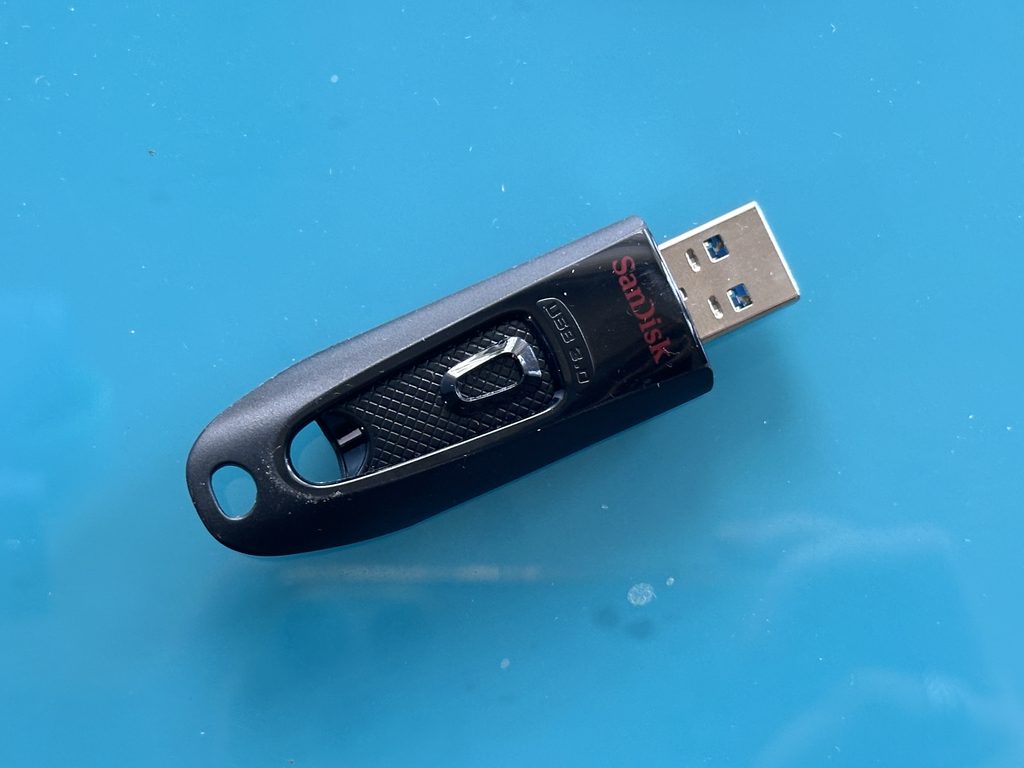
Different storage technologies require different recovery methods.
| Storage type | Technology | Typical failure concerns |
|---|---|---|
| USB flash drive | NAND flash | Connector, controller, electronics, corruption |
| SD card | NAND flash | Controller, corruption, physical damage |
| External HDD | Magnetic disk | Mechanical, electronic, firmware, logical |
| SSD | NAND flash | Controller, electronics, flash, logical |
| Optical disc | Laser-read optical media | Surface damage, degradation, read errors |
A broken USB stick should therefore not automatically be treated like a failed hard disk.
For photographs trapped on other forms of storage, Supaphoto’s digital photo retrieval service covers recovery situations where valuable images can no longer be accessed normally.
When Is DIY USB Repair Reasonable?
Simple troubleshooting can be worthwhile when there is no sign of serious physical or electronic failure.
DIY checks are more reasonable when:
- the files are already backed up
- the USB drive works on another computer
- the problem appears to involve one computer
- the device has no physical damage
- no irreplaceable information is at risk
Specialist assessment becomes more sensible when:
- the USB connector has snapped
- the device isn’t detected anywhere
- it reports an incorrect capacity
- it disconnects constantly
- it becomes unusually hot
- important files exist nowhere else
- previous recovery attempts have failed
- the device has suffered water or impact damage
The value of the files, rather than the value of the USB stick, should guide the decision.
How Professional USB Data Recovery Works
The exact process depends on the fault, but a careful workflow starts by identifying whether the problem is logical, physical or electronic.
Diagnosis
The USB stick and its symptoms are assessed before deciding on the recovery method.
Useful information includes whether it was dropped, formatted, accidentally deleted, exposed to liquid or suddenly stopped being recognised.
Protecting the Original
The aim should be to minimise unnecessary changes to the source.
Where the device remains readable, creating a controlled copy or image can allow subsequent recovery work to take place without repeatedly manipulating the original data.
Physical or Electronic Intervention
A damaged connector or circuit-board problem may require specialist electronic work before the memory becomes accessible.
Complex flash-memory failures can require substantially different techniques from ordinary deleted-file recovery.
Extracting the Files
Recoverable photographs, videos and documents are copied to separate healthy storage.
Where file-system information has been badly damaged, some recovered files may lose their original names or folder structure.
Checking the Results
Important files should be opened and checked rather than judged solely by the number of filenames recovered.
How to Protect Sensitive Files During Recovery
USB sticks often contain more than family photographs. They may hold financial records, identification documents, business information or other personal data.
When choosing a recovery provider, consider:
- how your device will be stored
- who can access the recovered information
- how files will be returned
- whether sensitive returned storage can be encrypted
- how temporary recovery copies are handled
- what happens to your original device afterwards
The National Cyber Security Centre notes that removable USB storage creates both data-loss and data-theft risks because information on such devices may not be encrypted or protected by authentication. Its guidance on removable media security highlights the need to consider these risks when using portable storage.
Should You Continue Using a Repaired USB Drive?
If a USB drive suffered an unexplained electronic failure, repeated corruption or serious physical damage, don’t make it the sole home of important information again.
Once the files are recovered:
- copy them to reliable storage
- verify important photographs, videos and documents
- create another backup
- replace questionable media
- organise the recovered files
- periodically check your backups
For a healthy old USB stick that simply needs its contents moving to more convenient storage, a managed transfer of files from legacy flash media is more appropriate than repair.
The National Archives advises identifying records held on removable media and transferring them to a more secure storage environment, while maintaining at least two copies of digital records. Its digital preservation guidance provides a useful framework for managing files beyond the life of an individual storage device.
Common USB Drive Repair Mistakes
Formatting Too Quickly
If files matter, don’t format simply because the operating system suggests it.
Continuing to Use the Drive After Deletion
New data can reduce the prospects of retrieving deleted files.
Wiggling a Broken Connector
A momentary connection may be tempting, but repeated movement can worsen physical damage.
Running Every Repair Utility You Can Find
Different tools can alter storage structures. More attempts do not necessarily mean better recovery prospects.
Recovering Files Back Onto the Same USB Stick
Always use another healthy storage device as the recovery destination.
Trusting a Failed Device Again
Once important information has been recovered, replacing the USB stick is normally inexpensive compared with risking another loss.
Frequently Asked Questions About USB Drive Repair
Can a damaged USB drive be repaired?
Sometimes. Connector, circuit-board and logical faults can sometimes be repaired or stabilised sufficiently to access the files. The appropriate method depends on the actual failure.
Can you repair a USB stick that isn’t recognised?
Potentially, but first determine whether the problem is the computer, port, connector, controller or flash storage. If the drive contains important files, don’t format it merely to make it usable again.
Can files be recovered from a dead USB stick?
In some cases, yes. A device that appears dead can have an electronic, connector or controller problem while data remains in its flash memory. Recovery prospects require individual assessment.
Why is my USB stick asking to be formatted?
The computer may be unable to interpret the existing file system correctly. If you need the files already stored on the device, cancel the formatting request and investigate the cause first.
Can a snapped USB connector be repaired?
Sometimes. The success of physical repair depends on the extent of damage to the connector, circuit board and other components. Avoid repeatedly inserting or manipulating a broken device.
Can I recover deleted photographs from a USB drive?
Potentially, provided relevant data remains recoverable and has not been overwritten. Stop using the drive as soon as you notice the deletion.
Should I throw away the USB stick after recovery?
Do not dispose of it until your recovered files have been checked and backed up. If the device has failed seriously, replace it rather than using it again for important storage.
Recover the Files Before Trying to Save the USB Stick
When a USB drive fails, the plastic device itself is rarely the valuable part. Your photographs, home videos, documents and other files are what matter.
Start with non-destructive checks. Try another appropriate USB port or computer, but stop if the device is physically damaged, unstable or contains irreplaceable data. Avoid automatic formatting and remember that repair utilities can modify the storage they are trying to fix.
Once files have been successfully recovered, move them away from the questionable device and create additional copies. The NCSC’s backup recommendations advise keeping important data in a separate safe location and checking that backups actually contain the information expected. For irreplaceable photographs and videos, it specifically suggests considering both cloud and removable-media copies.
A failed USB stick should ultimately become a reminder of a simple preservation principle: portable storage is useful for carrying data, but important files should never depend upon one small device.